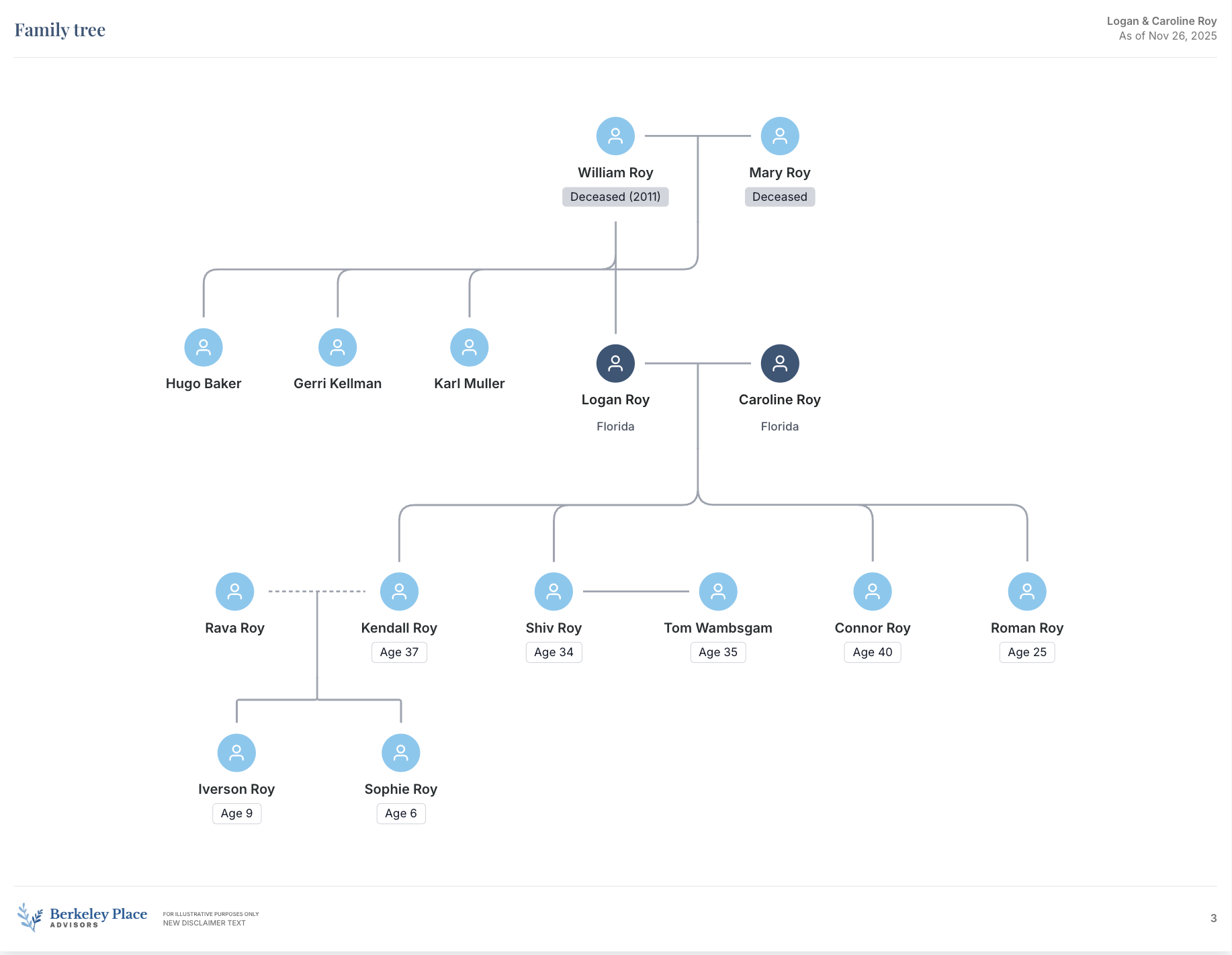
Family Tree Builder
Last updated: November 26, 2025
Luminary's family tree builder is an AI enabled, customizable deliverable you can include in client presentations designed to make documenting and presenting family structures fast, intuitive, and flexible.
Getting Started
To build a new family tree,
Create the individuals who you would like represented on the tree within the People page
If you have uploaded client documents, you will see individuals identified in the documents. Review the name and identified relationship for accuracy. If the information is correct, click Create next to each individual or Create all to create all individuals and organizations in bulk
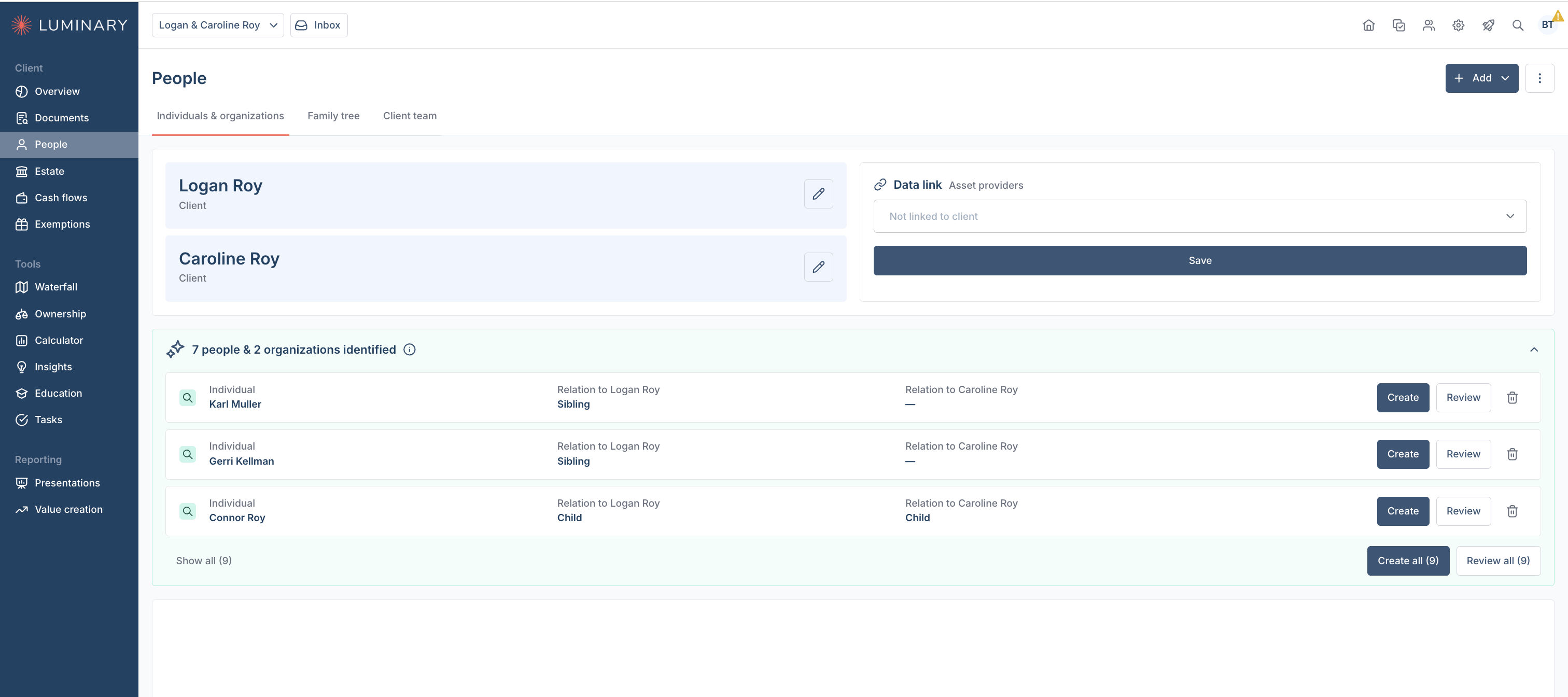
If you are adding individuals manually, click + Add and fill out the individual's information
The only information necessary to help populate the family tree is the individual's first name, last name, and relationship to one or both of the primary clients
Click the Family tree tab. Based on the relationships created, you will already have a fairly robust family tree that you can apply further customization options to.
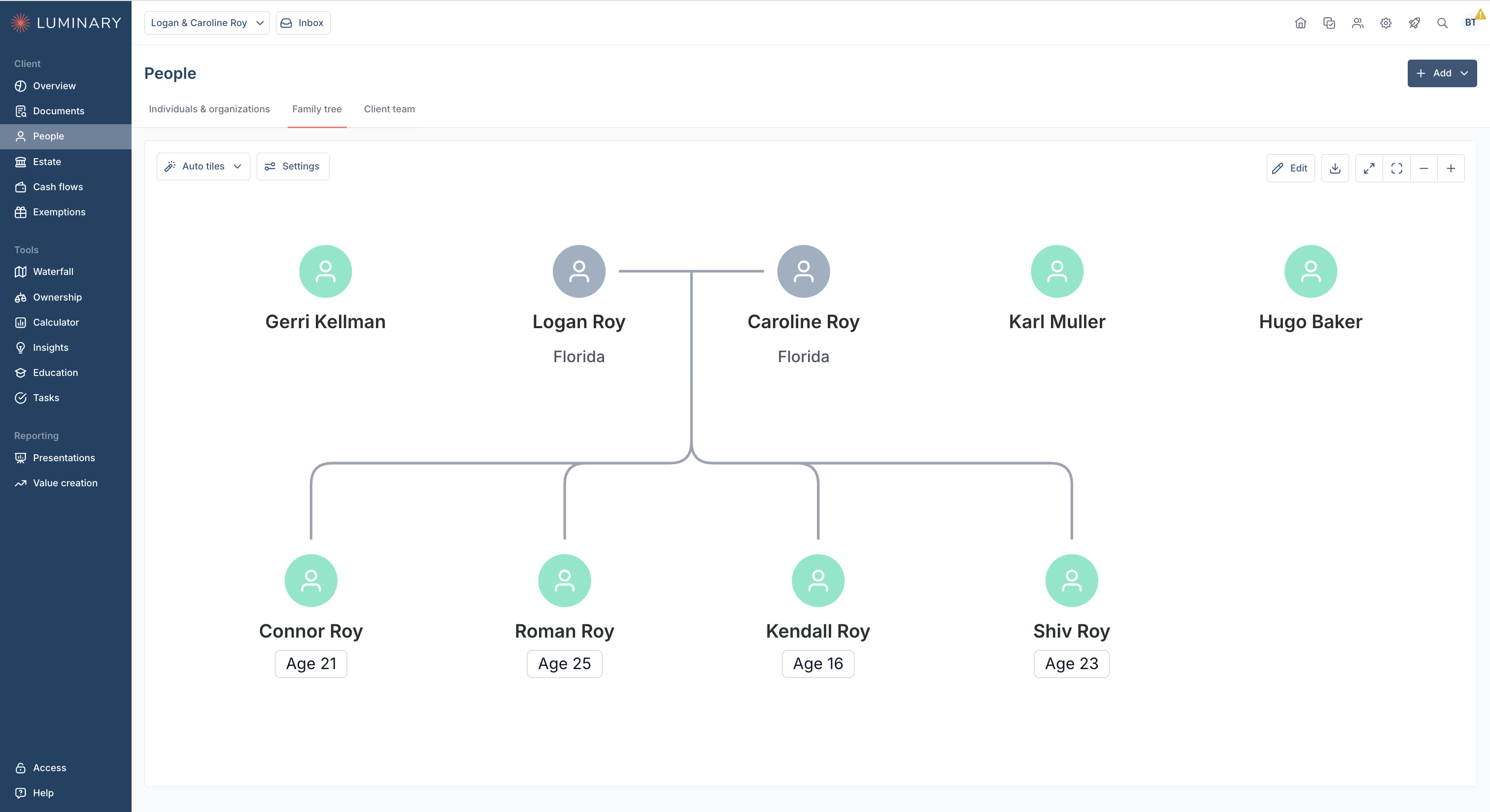
Why are some family members appearing as floating individuals?
Family members without a defined immediate relationship—such as a sibling of the primary client where no parent has been identified yet—will appear as “floating” individuals on the diagram. This occurs when Luminary doesn’t have enough information to connect them to the main family structure.
You can either connect these individuals to the larger tree or hide them using the steps outlined below.
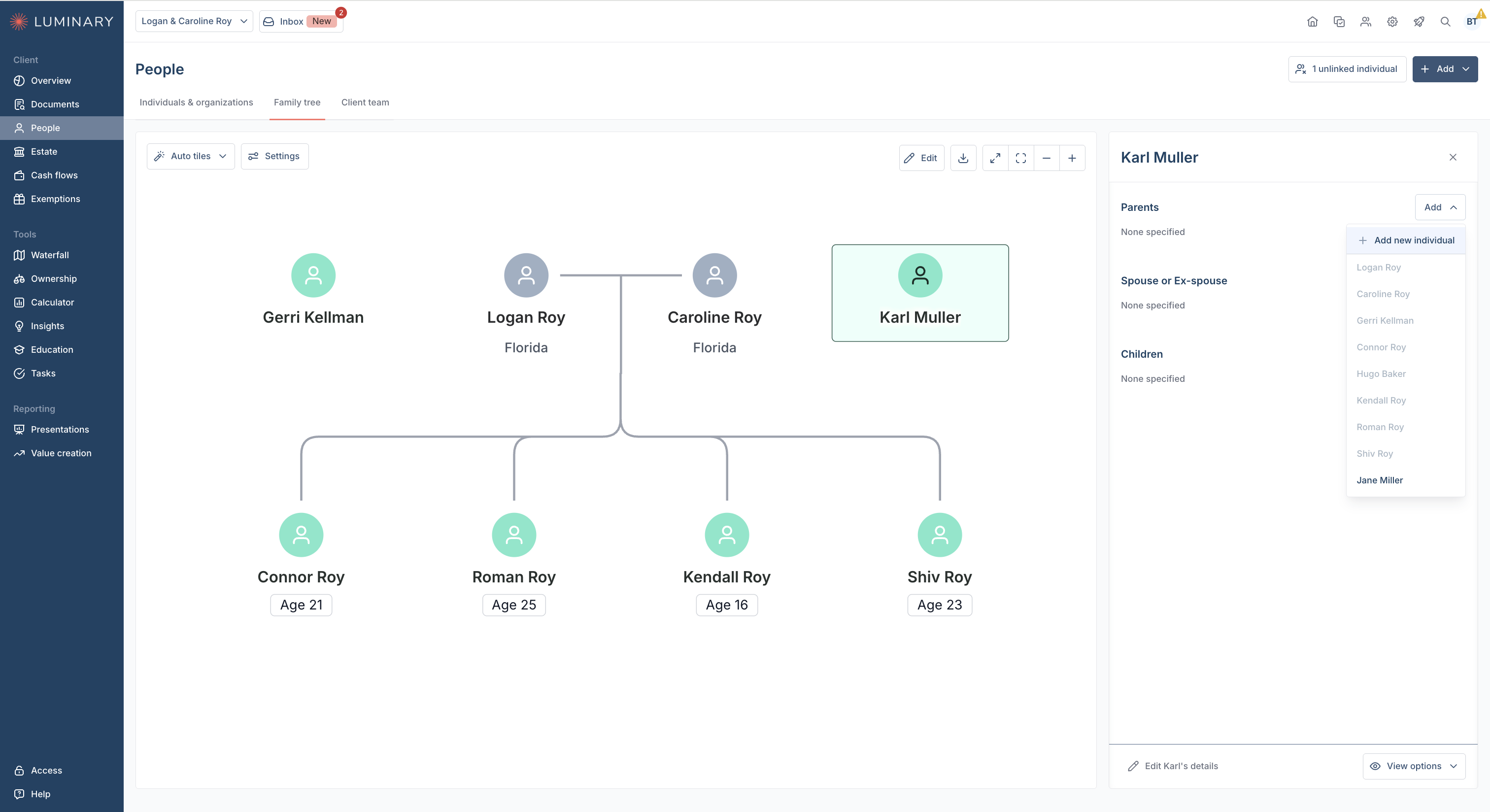
Define the parental, spousal, or child relationships for any individuals who aren't currently connected by a line to individuals on the tree.
Click on the individual you would like to tie to the family tree
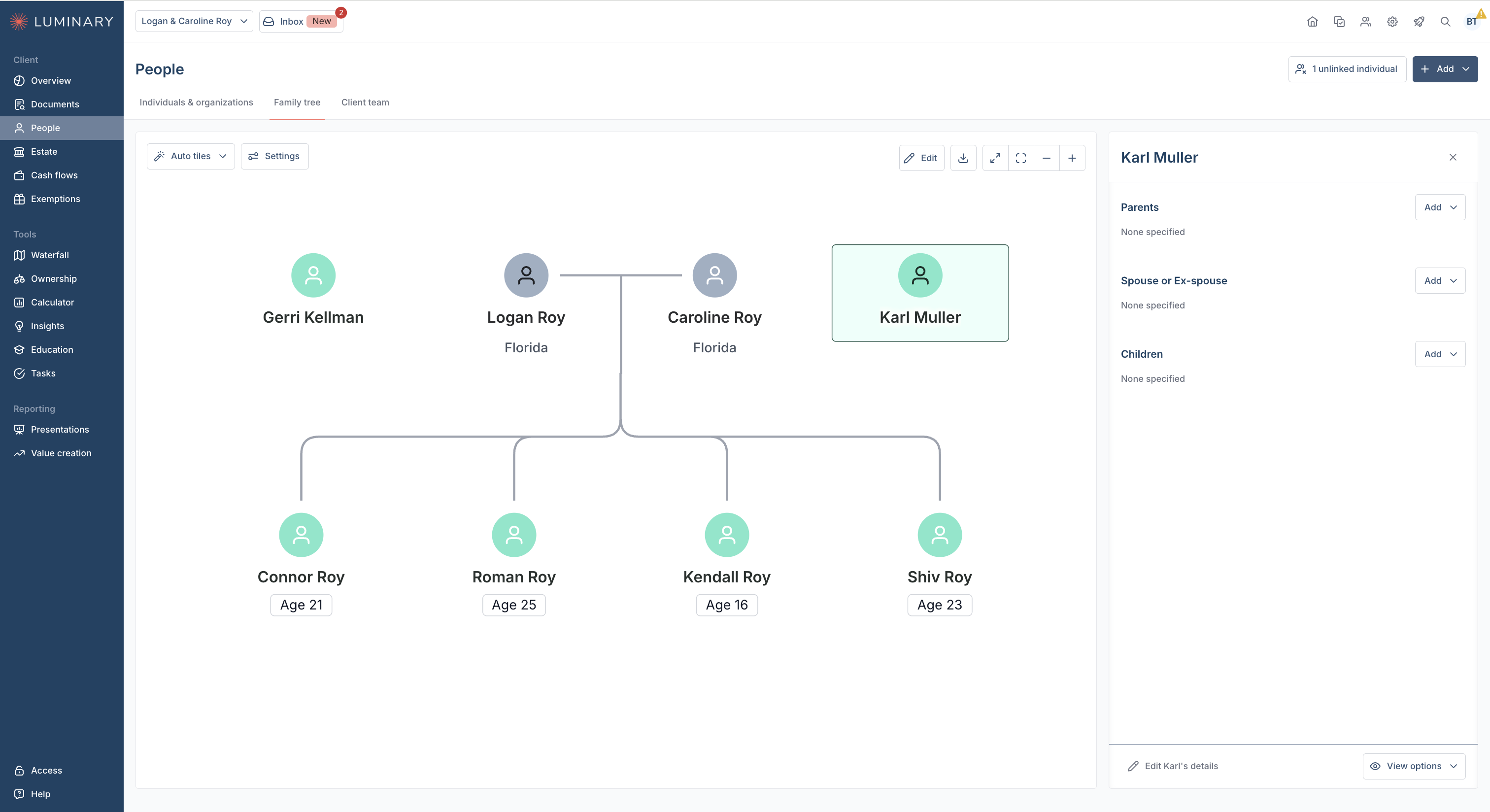
When the side panel appears, click Add next to the relationship you like to define. If this individual doesn't exist yet, click Add new individual from the drop down menu
Add any additional details on the individuals that you would like to display on your family tree. Options include:
Date of birth, this shows the individuals age on the tree
State of residence
Whether or not the individual is deceased, and their date of death
Notes
From the Settings drop down in the upper left, you can select which additional details you do or do not want displayed on your tree
Once you're done applying your customizations, you can include the family tree in your presentation builder!