FAQ: Removing a main client and grantor
Last updated: April 10, 2026
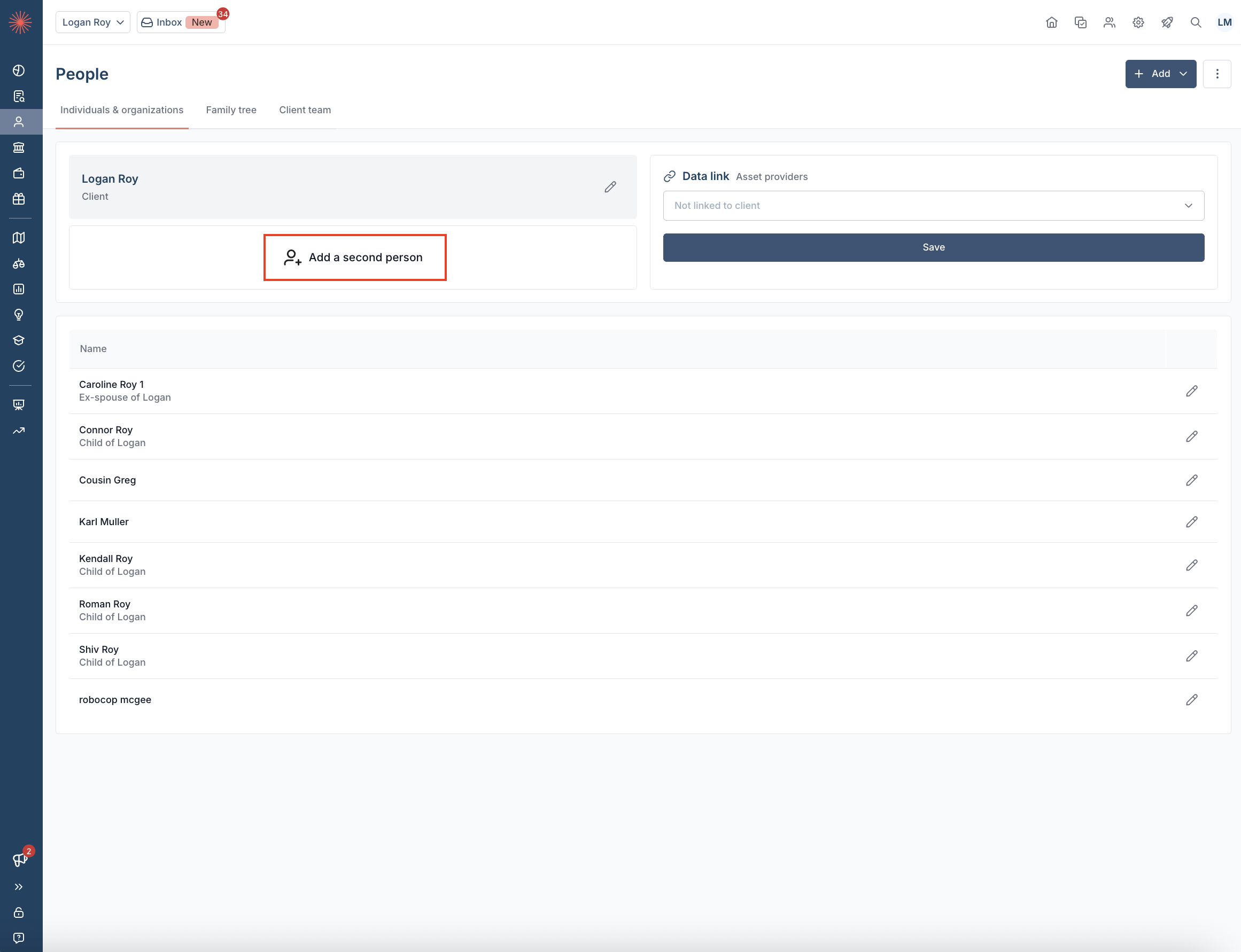
Luminary's concept of modeling a household depends on identifying 1-2 main clients, as well a default death order. You'll see this when adding a new client, or once added, under the People tab as shown below.
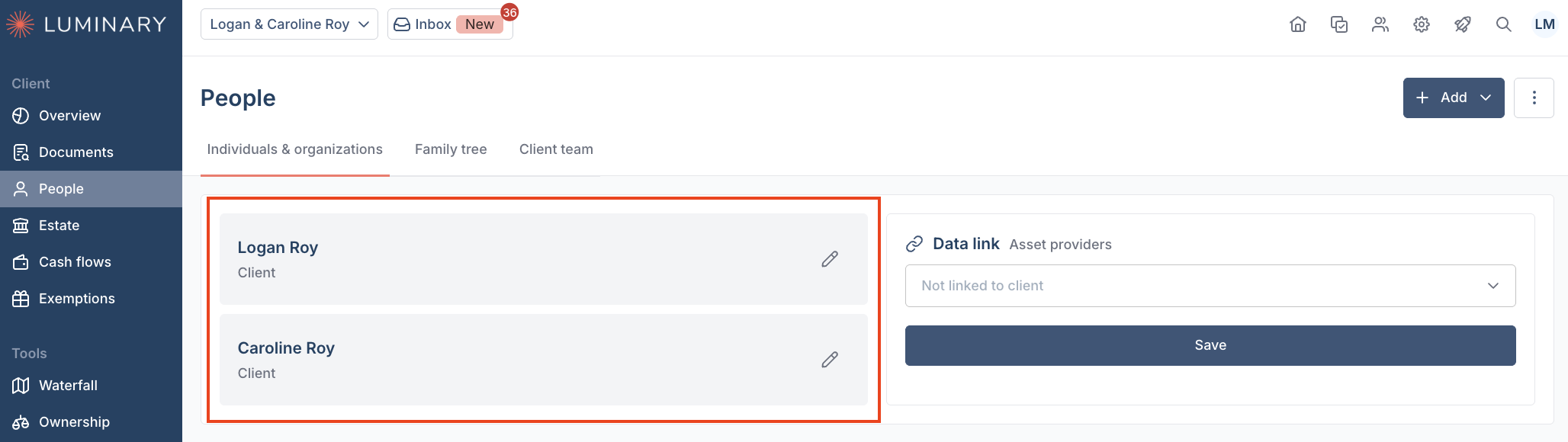
In the event you need to remove one of your main clients, like after passing or in divorce, follow the below steps to remove them as a main client.
Add the individual you'd like to remove as a main client as a secondary person on the client profile.
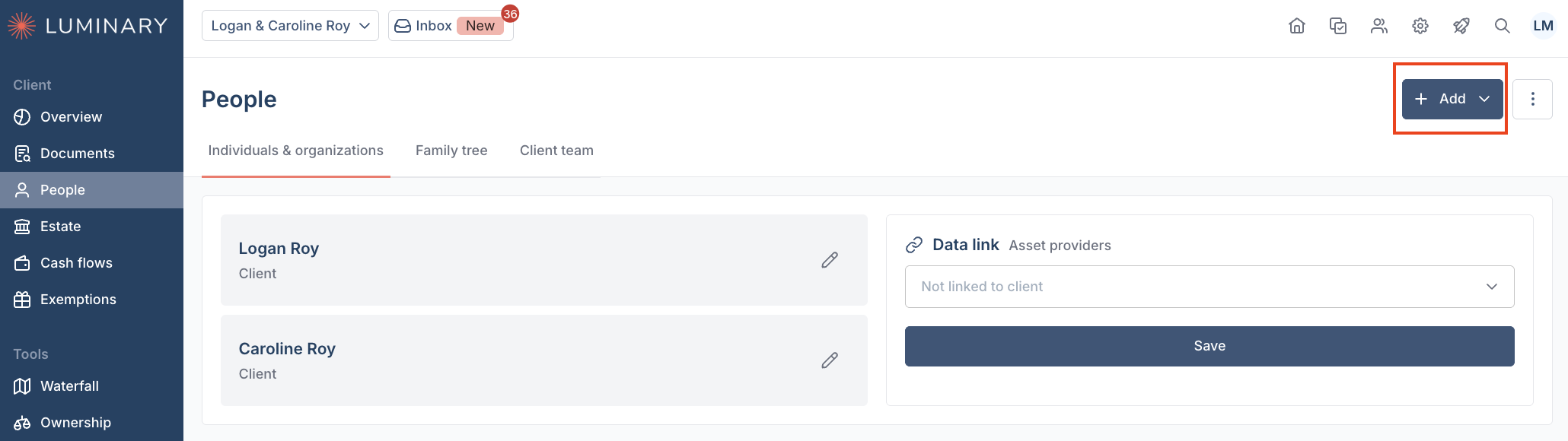
On the People tab, create another individual with the same name and information as the person you are removing as a client.
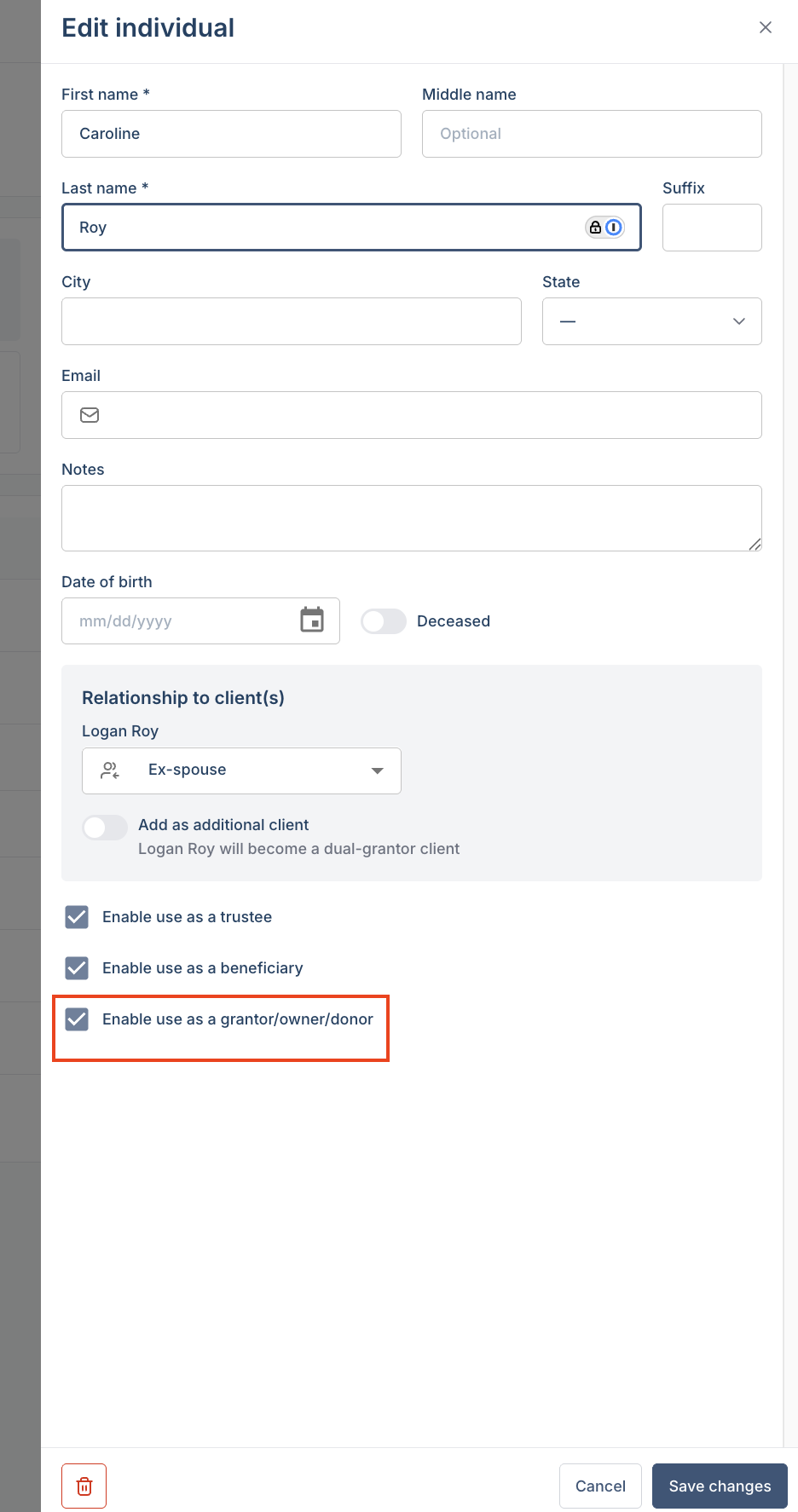
Note: If the person should remain a grantor/donor, be sure to check the box labeled Enable use as grantor/owner/donor, then click Add individual.
Associate all grantor, trustees, current access & dispositions to the new individual
Note: Luminary will not let you remove an individual from a client profile until all associations have been removed. If you are having trouble with this step reach out to support@withluminary.com.
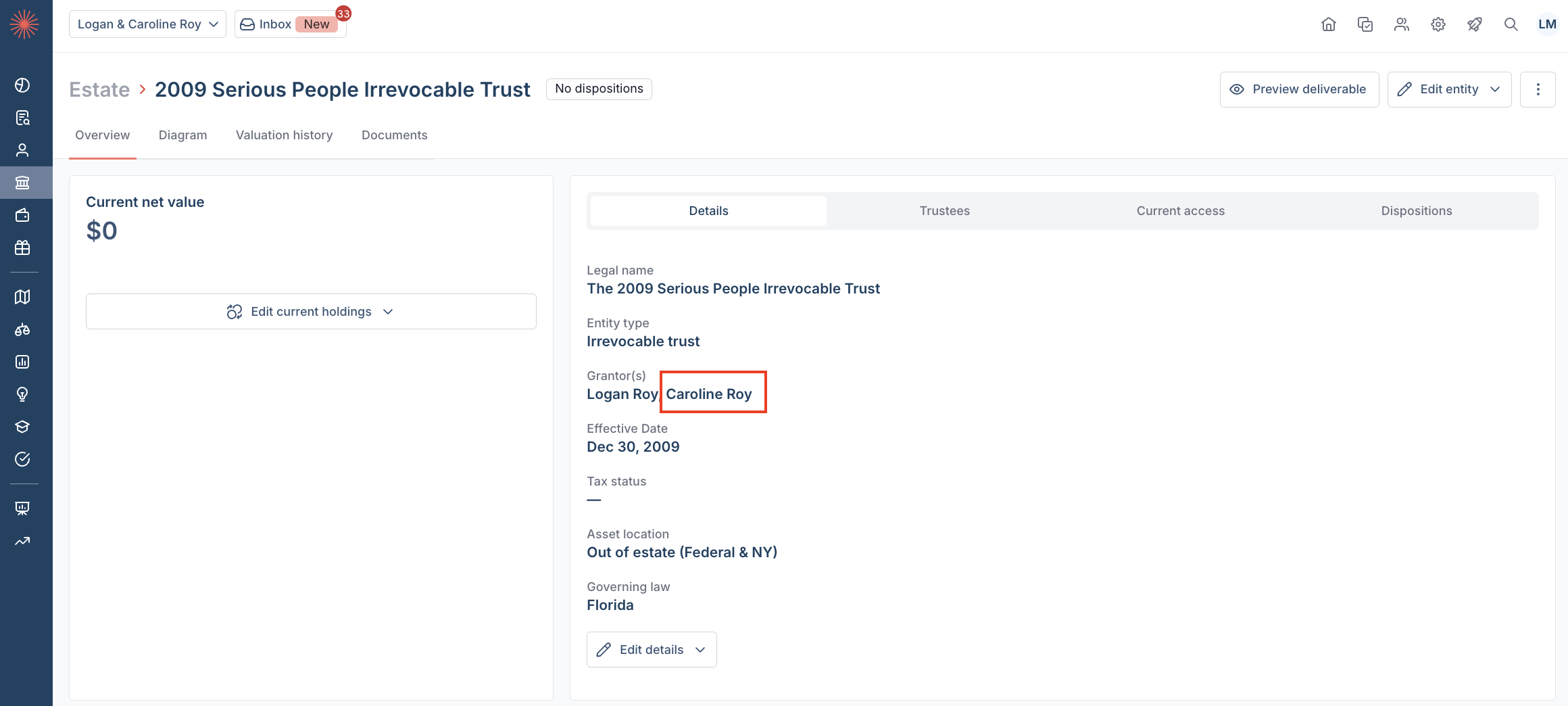
In the Estate tab, navigate to Trusts. Click into the overview of the first trust applicable to the client you want to remove.
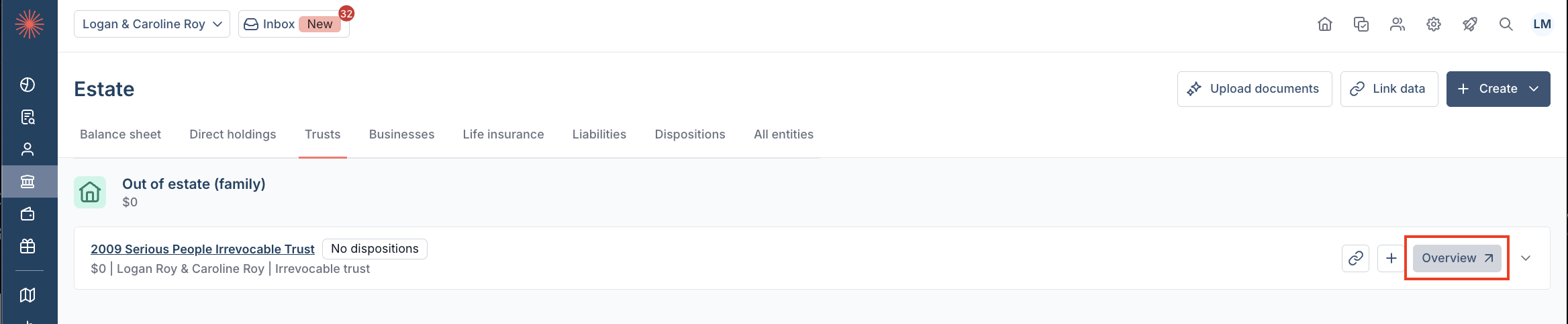
Switch the grantor to the new grantor you created by selecting Edit Details under the Details tab of the trust Overview page.
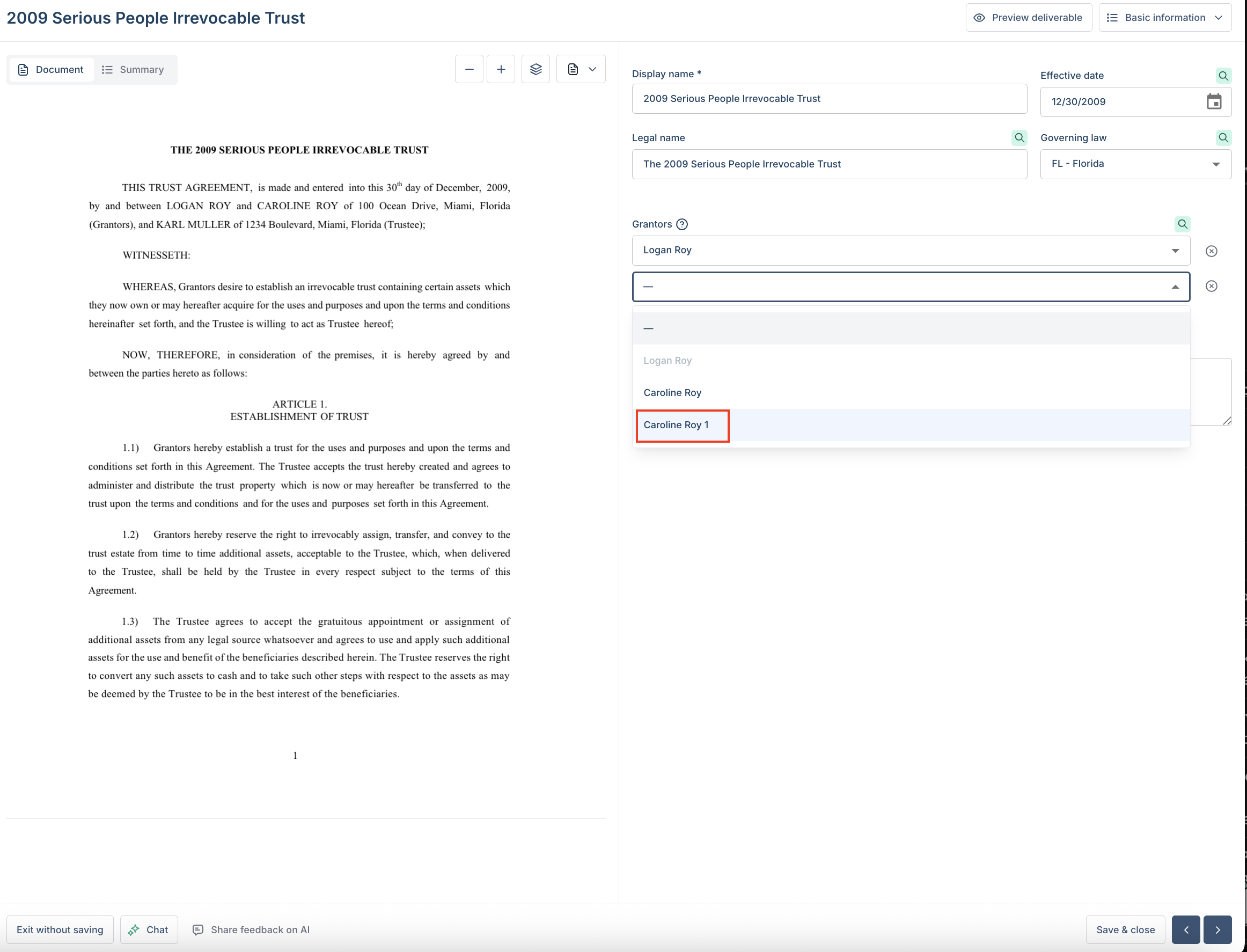
Set all applicable grantors, trustees, or beneficiaries as the new individual across all documents, making sure to click Save & Close.
Note: if you do not see the new individual's name in the drop down list of grantors, you need to mark them as a grantor, shown in step 1.
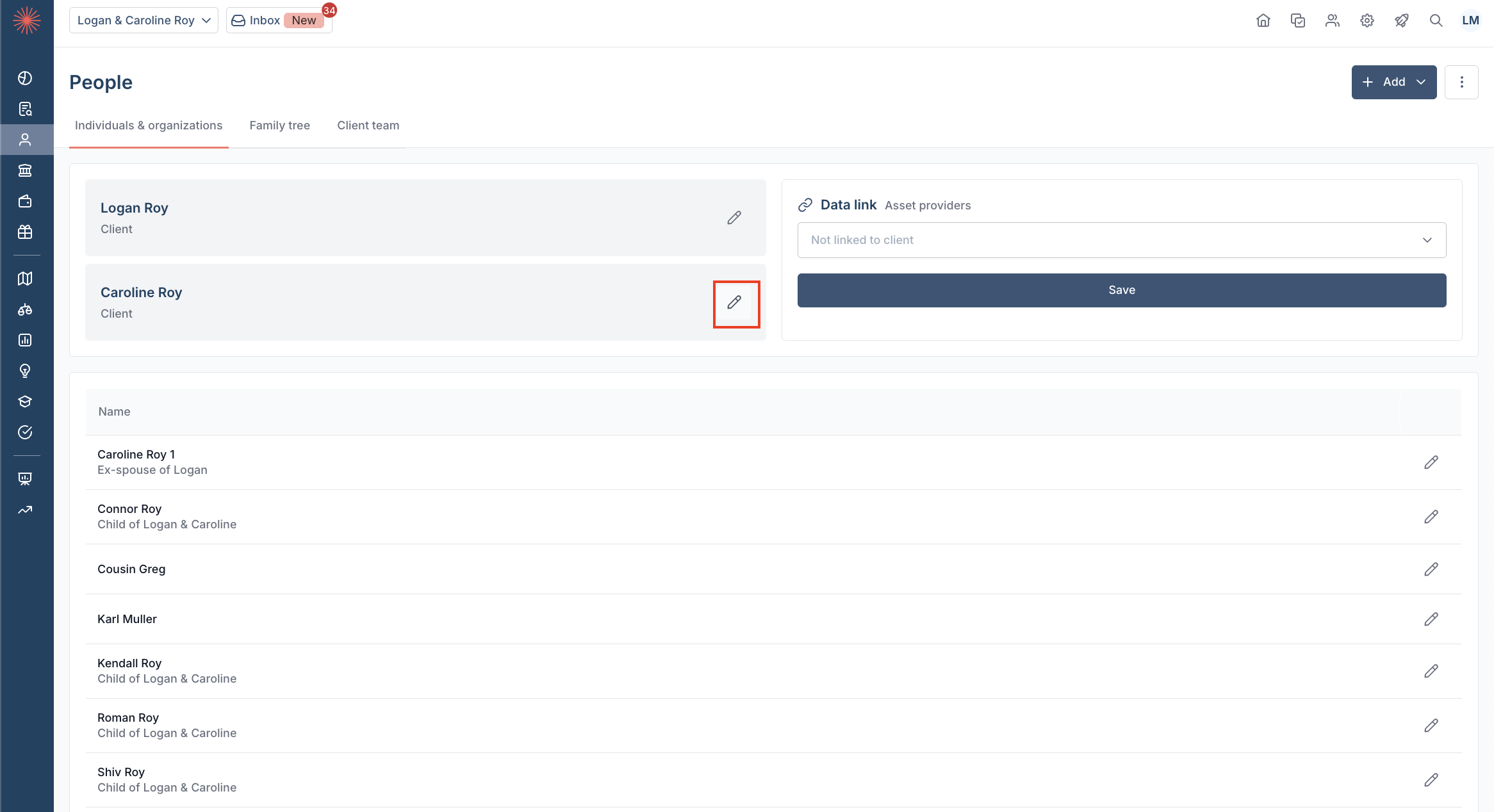
Once the original grantor is not tied to any entities, delete them.
Navigate to the People tab, then click the pencil icon next to the client's name you wish to delete.
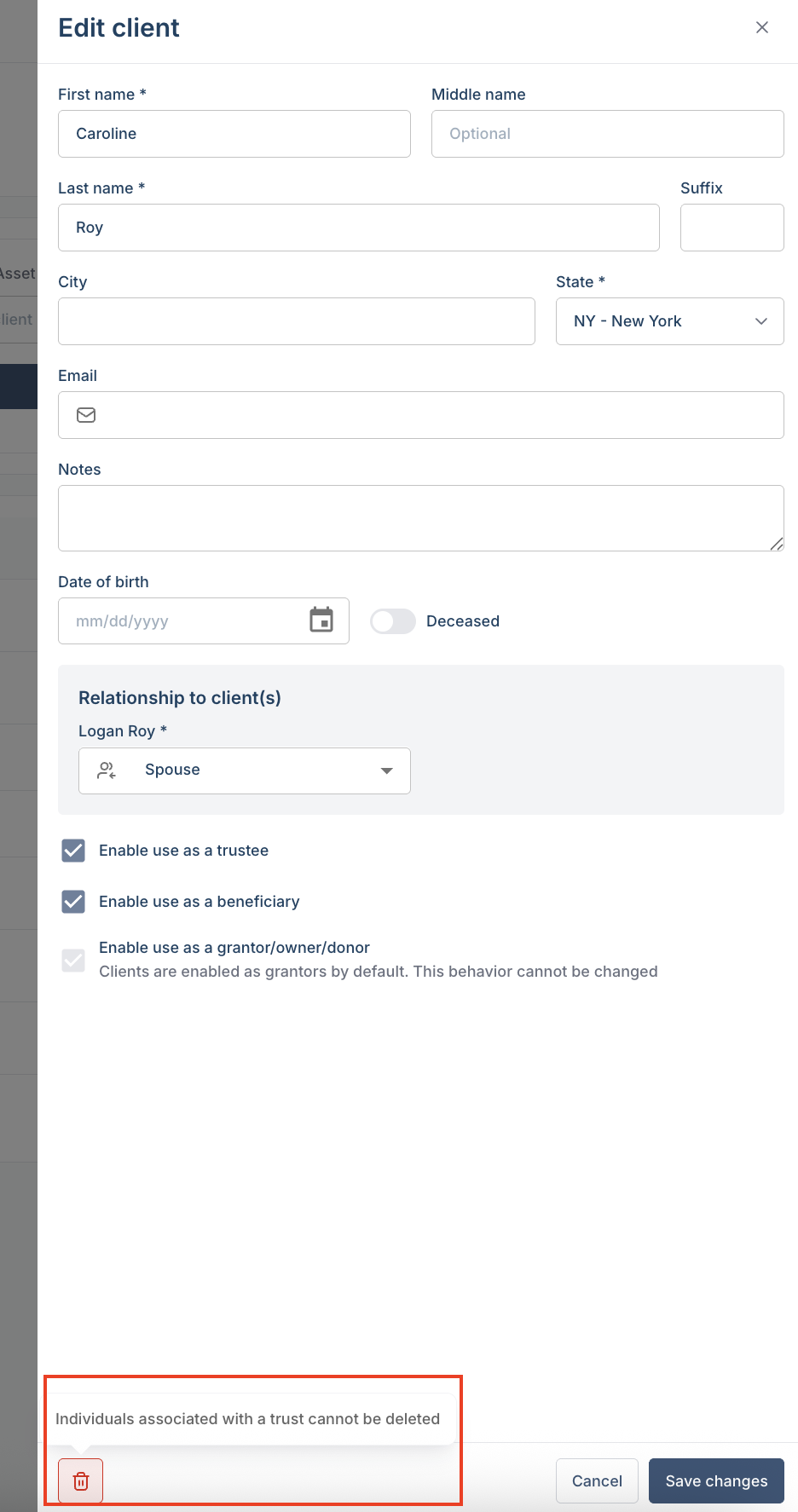
Click the trash can icon in the lower left corner of the popup window.
Note: You will not be able to delete the client if they are still associated with trusts.
Once removed, you should see only one client listed in the People tab, with the non-main client grantor listed below in the full list of associated individuals and organizations.
To see more information about adding non-client grantors, click here.
To see more information about adding new clients in Luminary, click here.