Invite External Collaborators & COIs
Last updated: April 14, 2026
Luminary’s Collaborator feature enables you to securely share information with your client’s external wealth team—such as CPAs, financial advisors, and attorneys—all in one place. By centralizing collaboration, it eliminates the need for back-and-forth emails and reduces data silos, making it easier for legal, advisory, and operations teams to stay aligned and up-to-date.
Please Note: Luminary's external collaborator feature is only for individuals outside your organization. To invite a colleague within your company, please click here.
Adding a Collaborator
Click the people icon in the upper-right corner of the platform, this will take you to the Collaborators page.

Select “Add External Collaborator.”

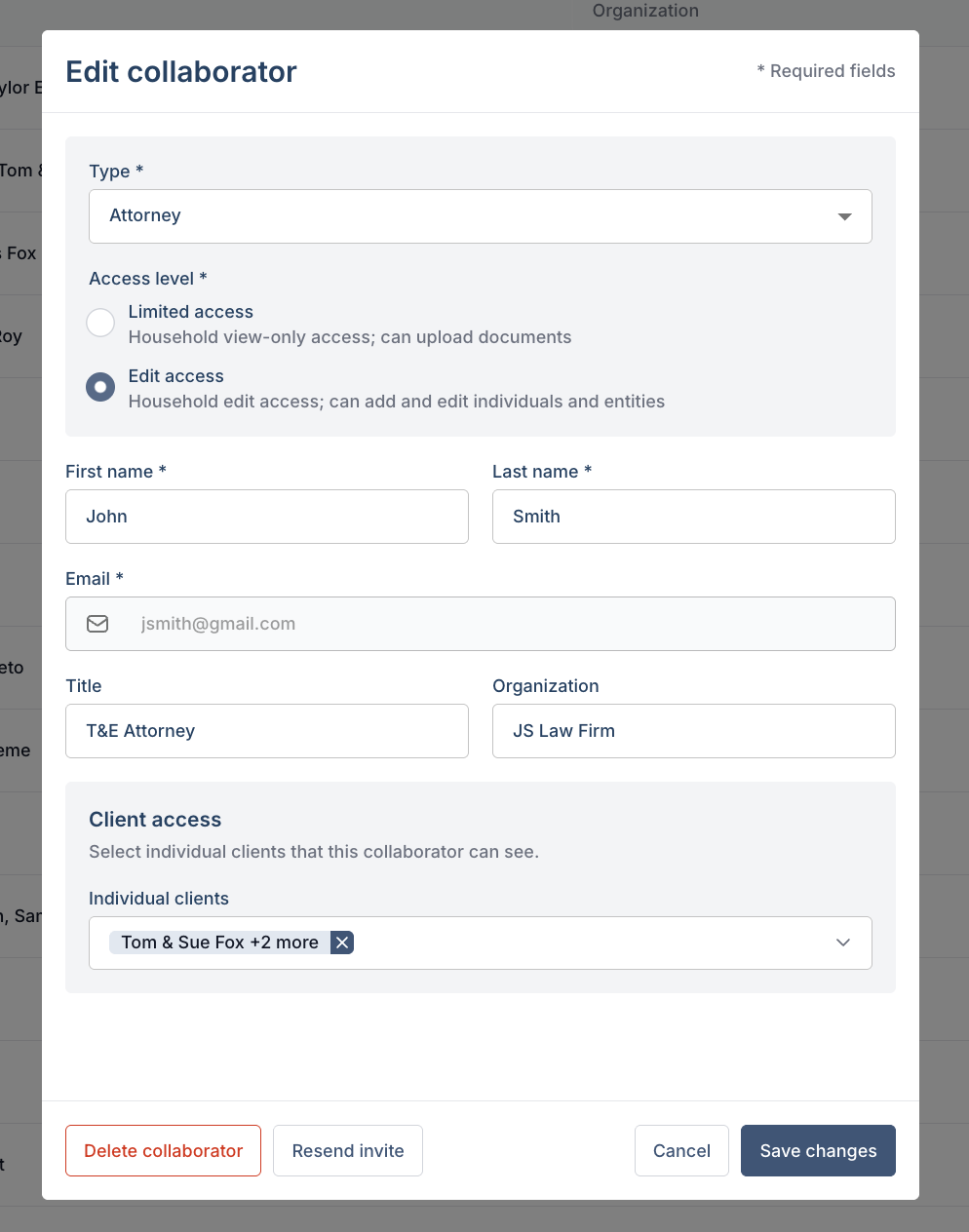
Fill in the required details:
Role Type
Desired Access Level
Specify whether the collaborator should have view only or full edit access
First Name
Last Name
Email Address (used to log into the platform)
Optionally, you can also add their Title and Organization.
Assign access to one or more clients.
This will send an email invite to the external user to join you on Luminary.

Once added, collaborators can access data records they have permission to review. Collaborator access can be revoked at any time.
Removing a Collaborator from an individual client profile
Navigate to the client profile where you'd like to revoke access.
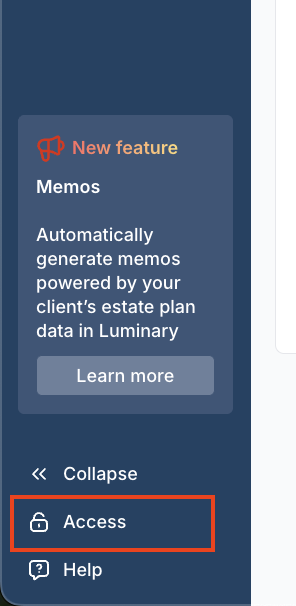
Go to the Access tab in the lower left corner of the navigation menu.
Click “Remove” next to the collaborator you would like to remove.
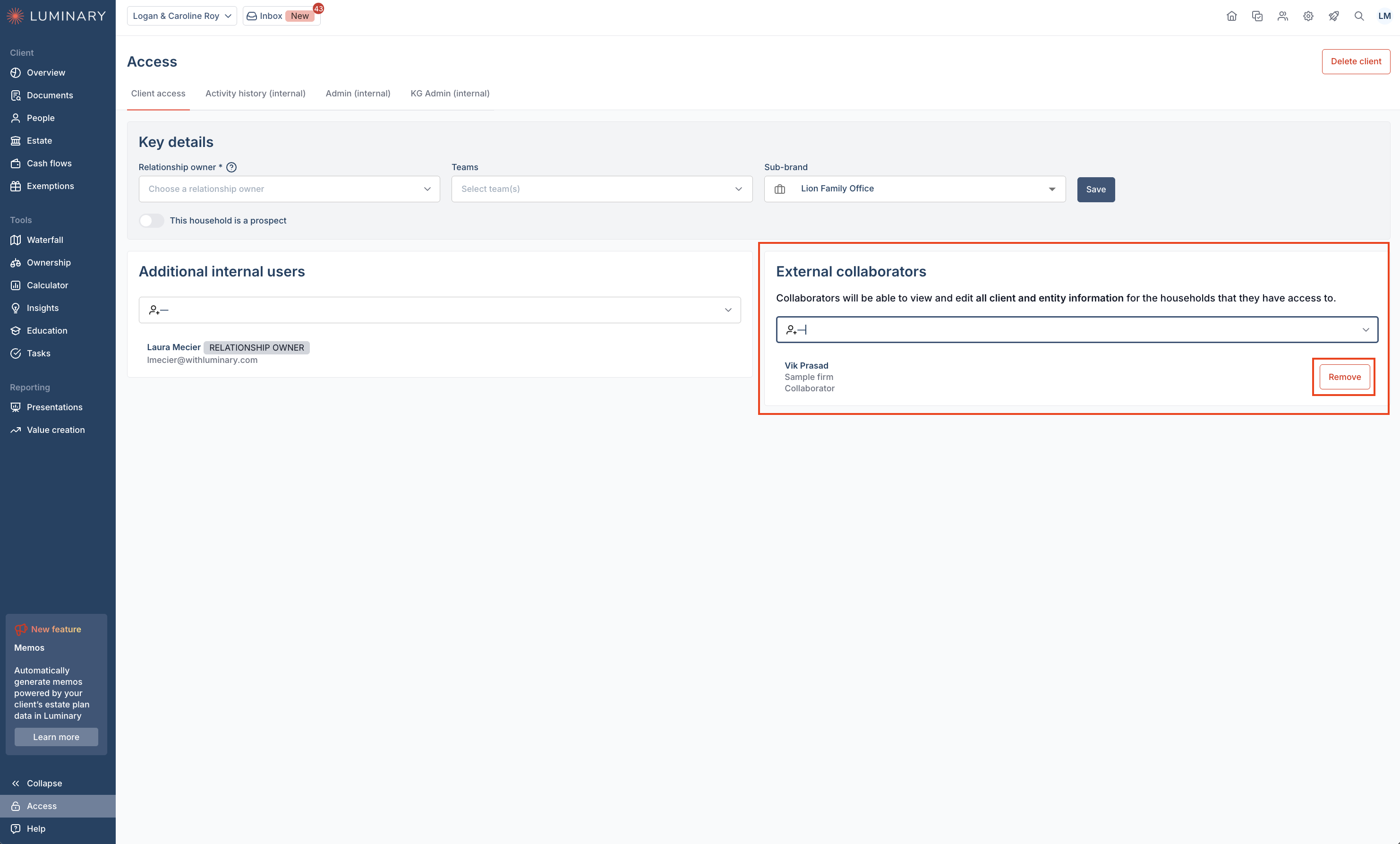
To remove a collaborator across all clients, follow steps below under Editing collaborator details and access.
Editing Collaborator details and access
Navigate to the Collaborators people icon in the upper right corner of the screen
Click the pencil icon on the right side of any external collaborator you'd like to edit access for.

Here, you can edit the collaborator's client access in the drop down menu, change their identified role type, delete the collaborator for all clients, or resend the invite to their email.