Set up a new client in Luminary
Last updated: May 8, 2026
This two-step process allows you to create a complete client profile and immediately begin working on deliverables.
Step 1: Add Client Details
From the main Clients tab, click "Add Client" to begin the setup process.
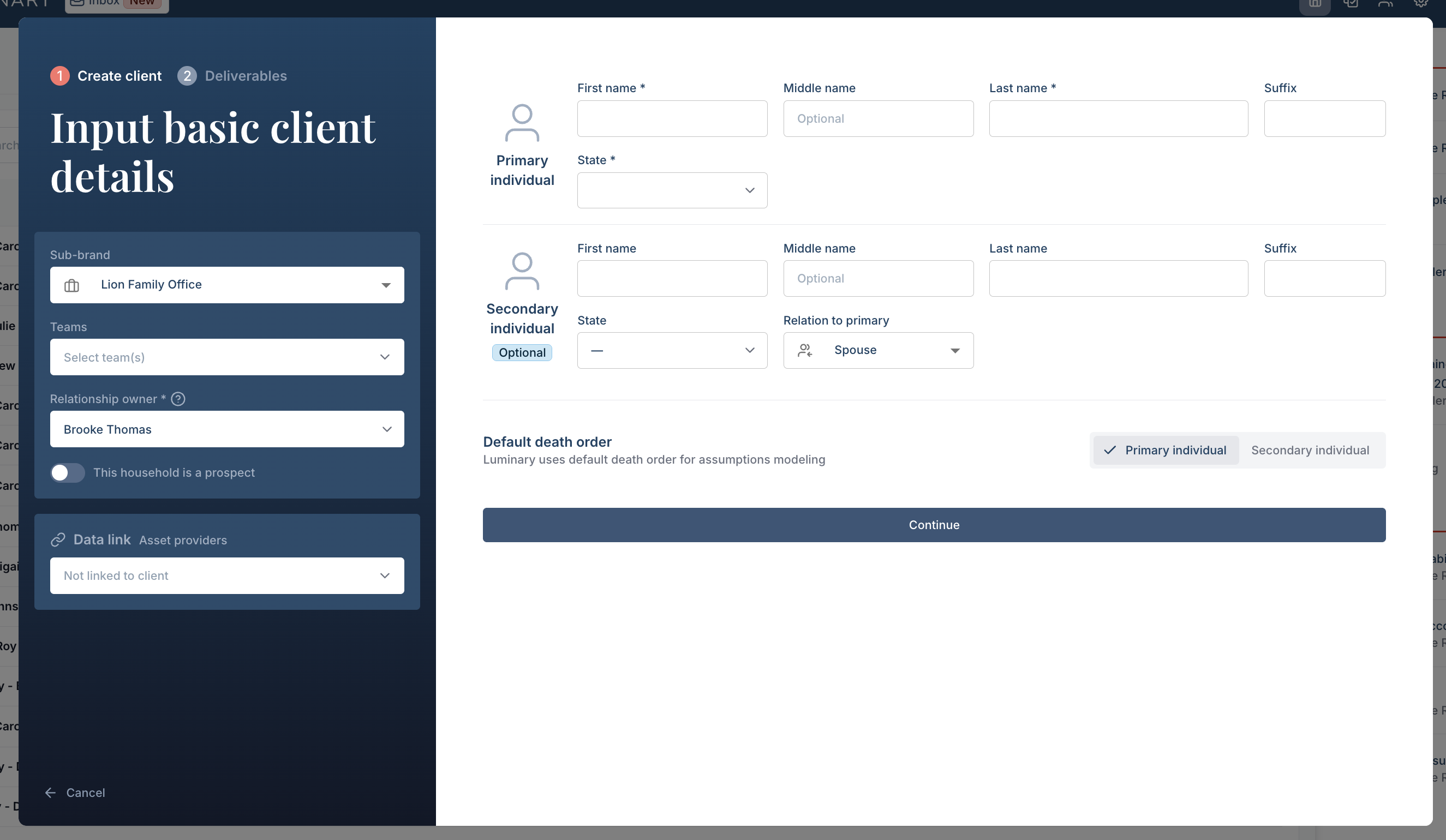
Required Information:
Primary Individual: First name, last name, and state (required fields)
Optional Settings:
Secondary Individual: Add spouse or partner details (best to complete up-front if it's a two client household)
Default death order: Select which client (primary or secondary) who will be modeled
Data Link: Connect to portfolio management integrations if available (this can always be done later from the People tab)
It's best to link the client upfront so that integration import options appear in step 2 when creating your first deliverable.
Step 2: Select Your Deliverable
Once initial client details are saved, you'll immediately move to the deliverable selection screen. Please note – for any deliverable options that have the green tag "AI-powered ✨", our full AI data extraction process will be run.
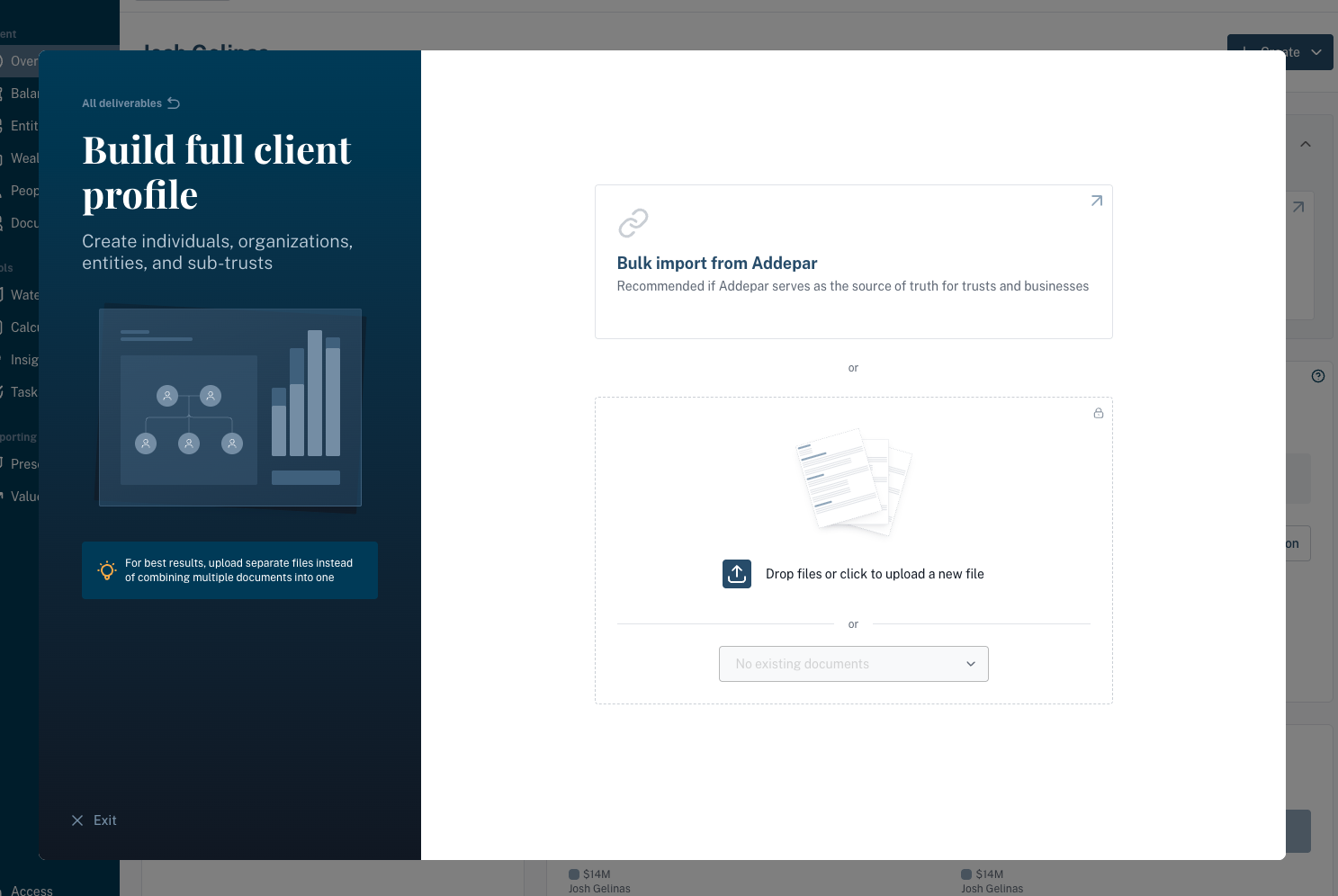
Build Full Client Profile (15 minutes)
Purpose: Create individuals, organizations, entities, and sub-trusts
Best for: Comprehensive client onboarding when you have extensive client information
Process: Upload client documents (trusts, wills, operating agreements, LLC agreements) and let Luminary AI build out the complete profile
AI-Powered: Automatically identifies people, organizations, and entities from documents for review
Open the notification inbox to review the newly identified data
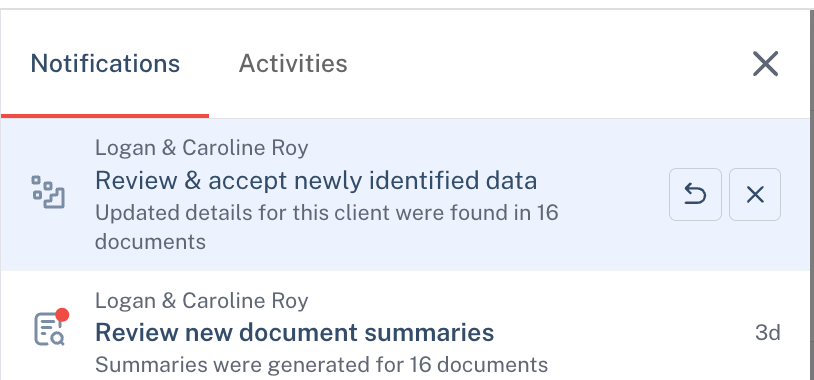
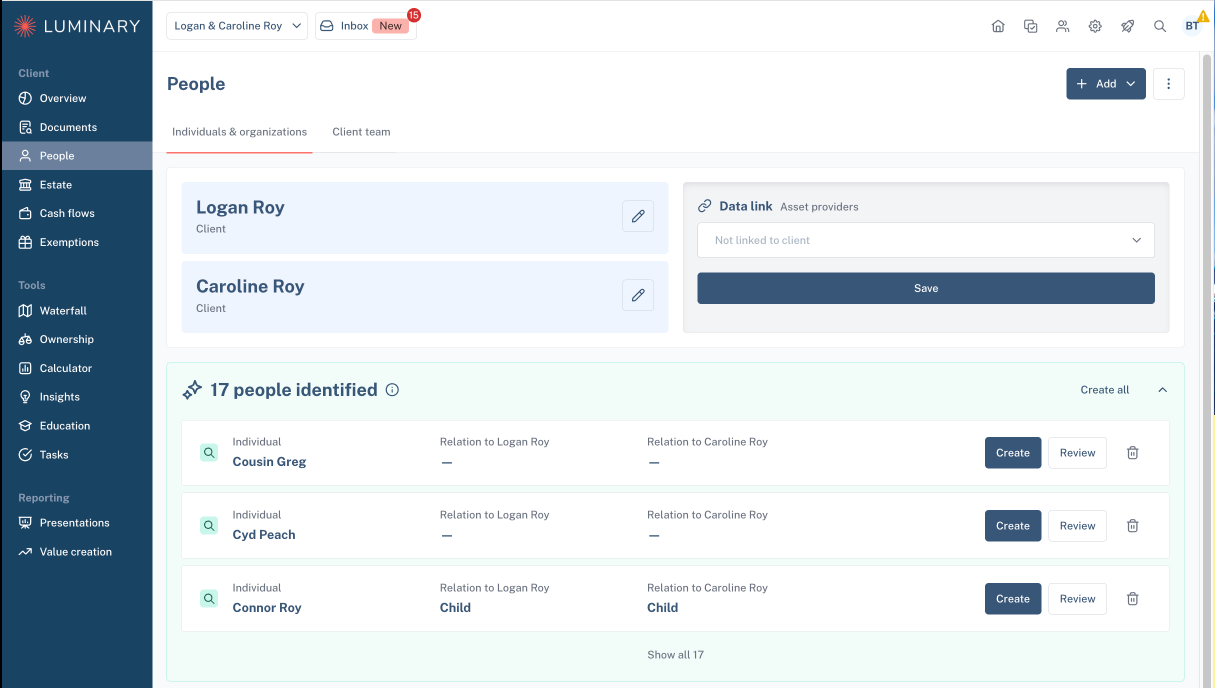
Review suggested individuals and organizations from the People tab
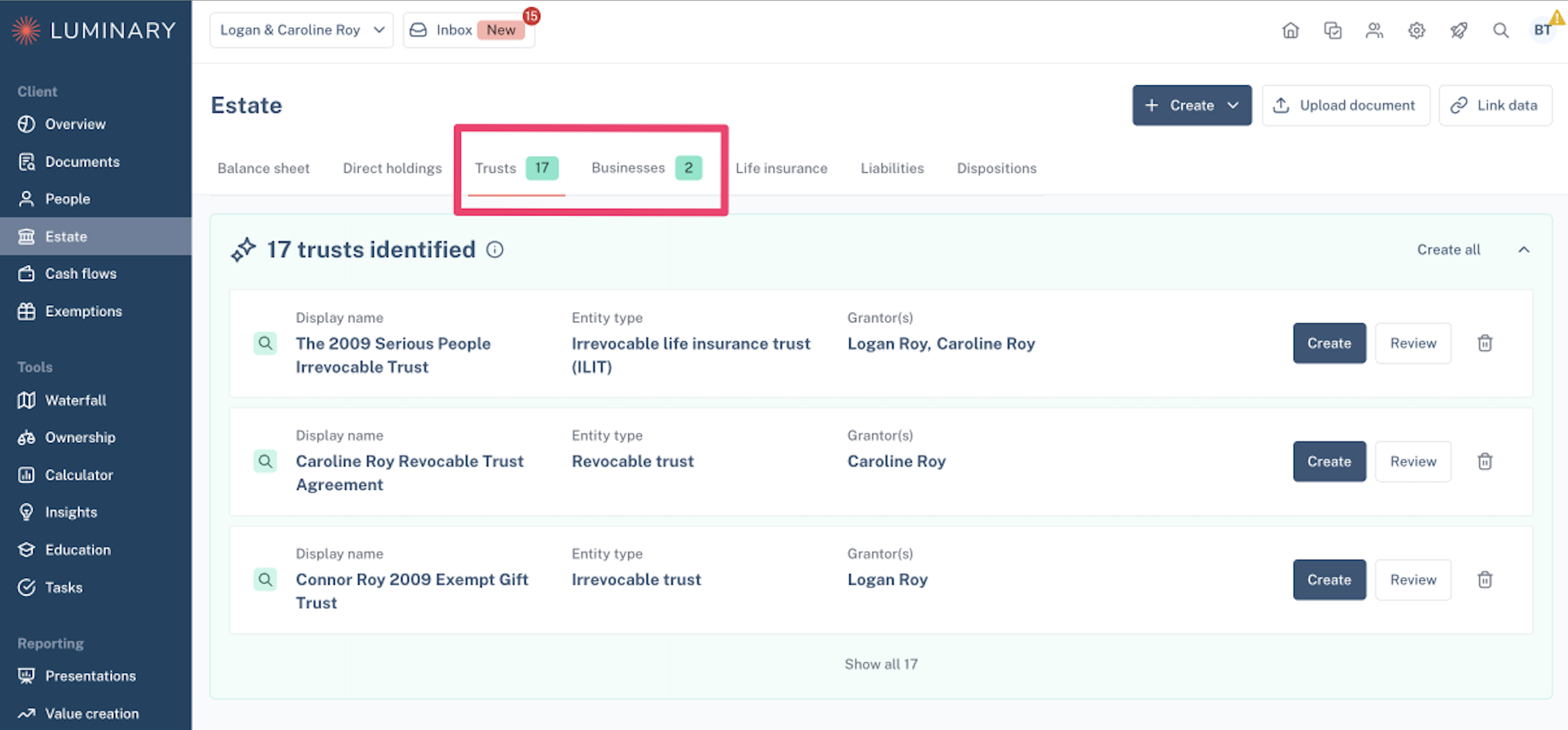
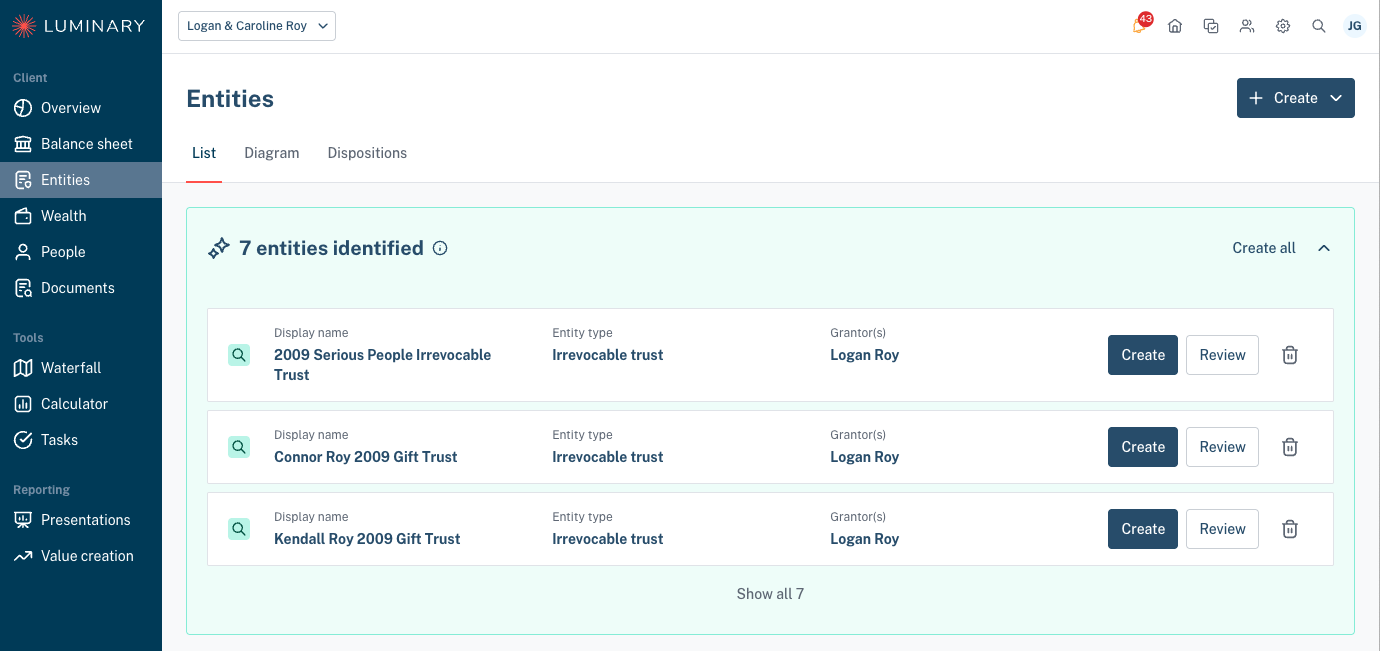
Review suggested entities from the Estate tab
If the Addepar integration is enabled, you can import entities in bulk first and then upload documents. You'll be guided from there on how to map documents to the newly created entities to trigger AI suggestions for the entity details (trustees, beneficiaries, etc). Select "Build full client profile" or "Build balance sheet" to get started.
Estate360
Purpose: Upload documents to generate a comprehensive estate overview
Best for: Delivering a professional estate summary for clients who do not require advanced modeling
Process: Upload a client's T&E documents for AI-powered summarization
AI-Powered: Generates white labeled, professional estate summary
Read more about our Estate360 here:
Create Document Summaries (5 minutes)
Purpose: Upload a document to generate a detailed summary
Best for: Quick document analysis and summarization
Process: Upload any client document for AI-powered summarization
AI-Powered: Generates comprehensive document summaries using Luminary's detailed templates
Model a Single Strategy (5 minutes)
Purpose: Calculate the impact of gifts, GRATs, CRTs, and CLTs
Best for: Prospects or clients who want high-level projections
Process: Input strategy parameters for immediate impact calculations
Use the hypothetical waterfall feature for more holistic scenario modeling based on the full financial profile.
Create Entity Overviews (10 minutes)
Purpose: Create a visual overview of trusts and business entities
Best for: Showing details and visuals for complex entity structures
Process: Confirm entity details and dispositions to view the diagram
AI-Powered: Automated entity suggestions and underlying entail details including dispositions
Review individual suggested entities from the Entities tab
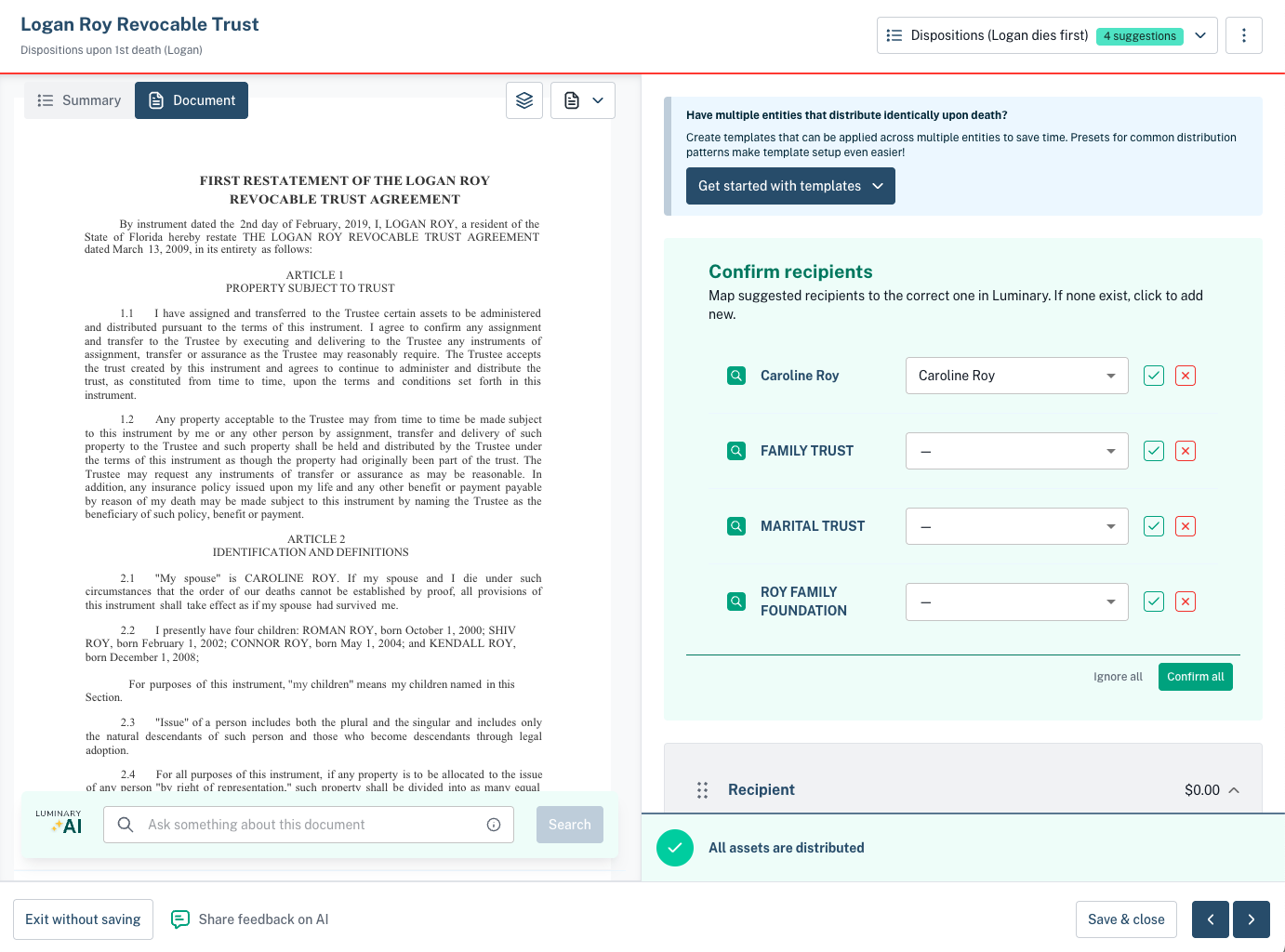
Review entity details by clicking into individual entities after confirming suggestions
Document Upload Best Practices
Supported File Types: PDF, Word (.docx), CSV, and Excel files
Best Document Types for AI Analysis:
Trust documents
Wills
Operating agreements
LLC agreements
Other common estate planning documents
Troubleshooting Document Issues:
Ensure files can be opened on your computer (no corruption)
Remove password protection from all files
Separate combined documents (don't combine will, trust, and POA in one PDF)
Note: Diagrams and spreadsheets are supported but may have less accurate results
After Client Setup
Create Additional Deliverables
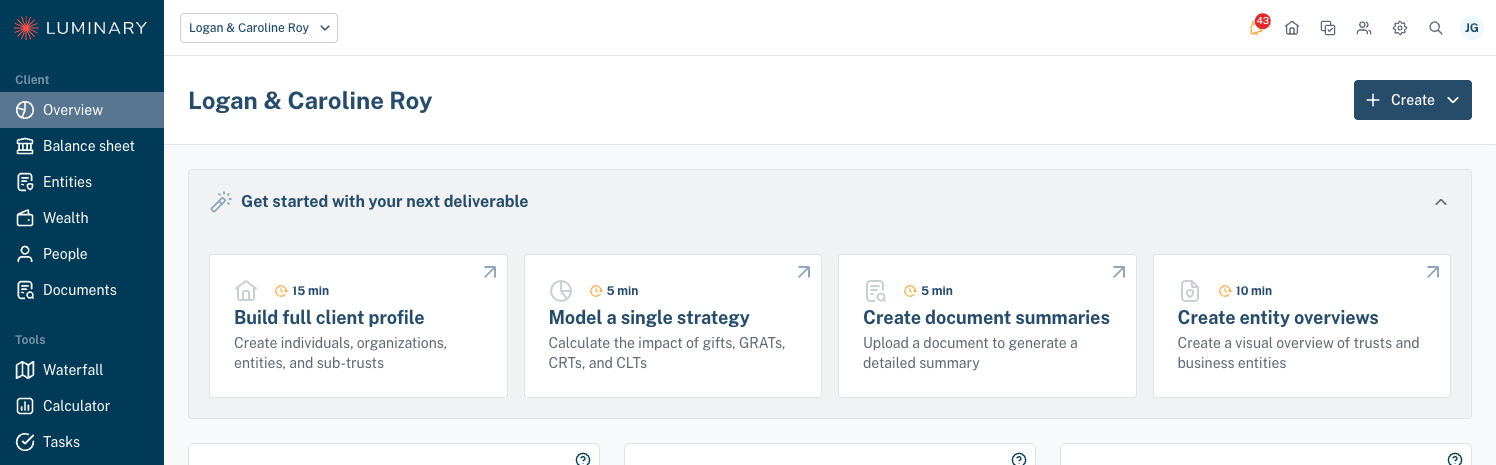
At any point, you can create new deliverables directly from the Overview tab:
Adding More Information Manually
Once your client is created, you can continue building their profile:
People Tab: Add children, beneficiaries, trustees, and other family members
Entities Tab: Create trusts, LLCs, directly held personal/joint accounts, and other planning vehicles
Documents Tab: Upload and organize client documents
Luminary Tips for Success
Starting Strategy: Start with the essential information needed to create your client's profile—such as your client's first name, last name, and state of residence. From there, Luminary’s AI-powered tools help you build comprehensive profiles quickly and efficiently. By extracting key details from documents—like beneficiaries, trustees, and dispositions—AI reduces the need for manual data entry, allowing you to populate records in just a few clicks.
Iterative Approach: You can always return to add more details, create additional entities, or run new AI analyses as client information evolves.