Waterfall overview page in the presentation builder
Last updated: August 15, 2025
The waterfall overview page in Luminary allows you to pull in various waterfalls you have created within Luminary. When you click on Waterfall overview from the list of page options in the presentation builder, the following modal will appear:
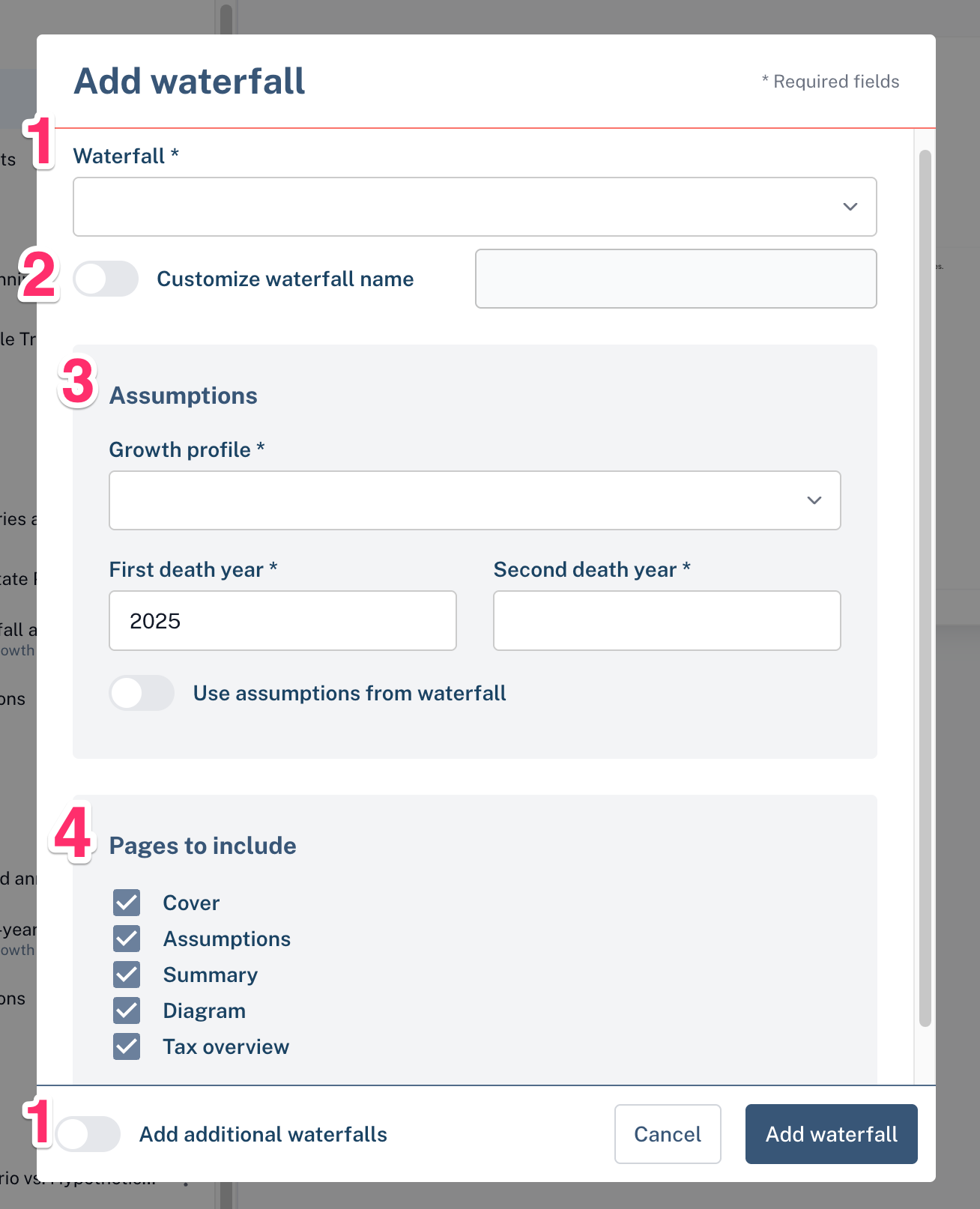
From the "Waterfall" drop down menu, select the waterfall you want to pull into your presentation. If you plan on adding multiple waterfalls, you can toggle on "Add additional waterfalls" in the lower left corner allow you to add new waterfalls more quickly.
If you would like the waterfall to have a different name in the presentation material than it is titled within Luminary, toggle on "Customize waterfall name" and type the name as you would like to appear on your deliverable.
The assumptions that appear by default will be whichever are currently applied to your waterfall. If you would like to change the growth profiles or death years, you can click directly into each of these fields and either type in your new desired value for death years, or select your growth profile from the existing drop down. You can also add a new growth profile directly from this drop down menu.
Turning on the "Use assumptions from waterfall" toggle locks in the assumptions you've already modeled in Luminary. When enabled, it grays out the growth profile and death year fields, preventing further edits.
If you’ve made any changes, toggling this on will revert them to match the original waterfall scenario. You can always toggle it off later if you need to adjust those fields.
By default, all pages in the waterfall bundle will be included when you add a waterfall to your presentation. You can uncheck any pages you’d like to exclude. See below for a breakdown of what each sub-page includes:
Cover - Displays the waterfall title (or any custom name you’ve applied), along with a body section where you can add your own text—perfect for framing the scenario or adding key context.
Assumptions - Outlines key factors that influence the estate waterfall calculation—such as growth rate, projected remaining exemption, liabilities, and, for hypothetical scenarios, any gifting or transfer strategies layered into the model.
Summary - Presents a high-level view of estate outcomes before and after each death event. This mirrors the summary view in the app, now styled with your custom branding colors.
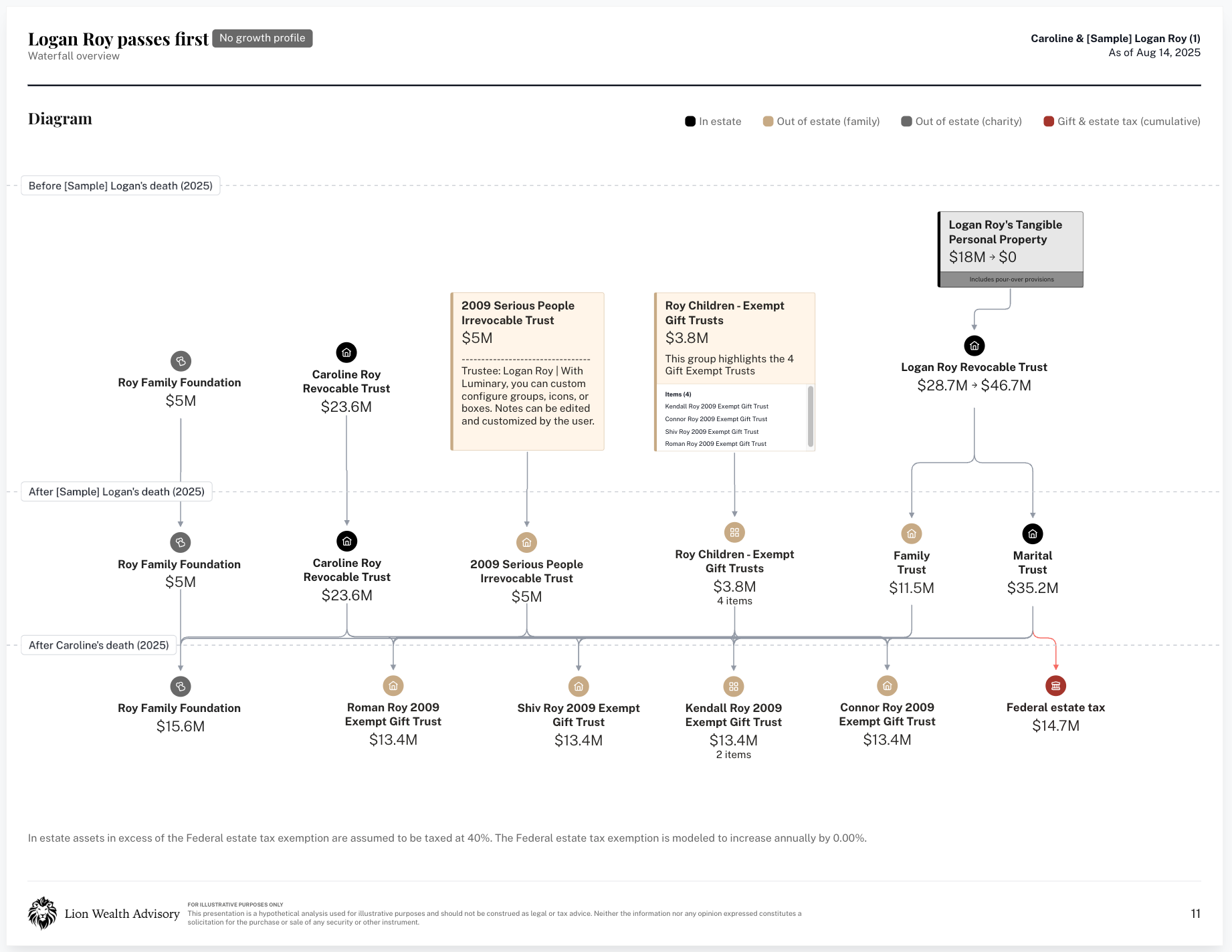
Diagram - Displays the estate waterfall exactly as modeled in Luminary. All customizations—like notes, grouping, layout, and icons—will carry over to the presentation page.
Tax overview - Outlines a high level overview of various tax considerations before and after each death event such as tax liabilities and asset transfers made at each event.
Once you've selected your settings, click “Add Waterfall” to include it in your presentation.
Need to make changes later? Click the three dots next to the page title in the left-hand presentation navigation menu, then select “Manage” to update your customizations.