Waterfall comparison page in the presentation builder
Last updated: August 15, 2025
The waterfall comparison page is a powerful tool for showcasing the impact of proactive planning. It allows you to display side-by-side outcomes from multiple waterfall scenarios you've modeled—whether you're highlighting tax savings, differences in family and charitable giving, or the effect of varying return assumptions.
You can use this page to help clients clearly see the value of strategic decision-making.
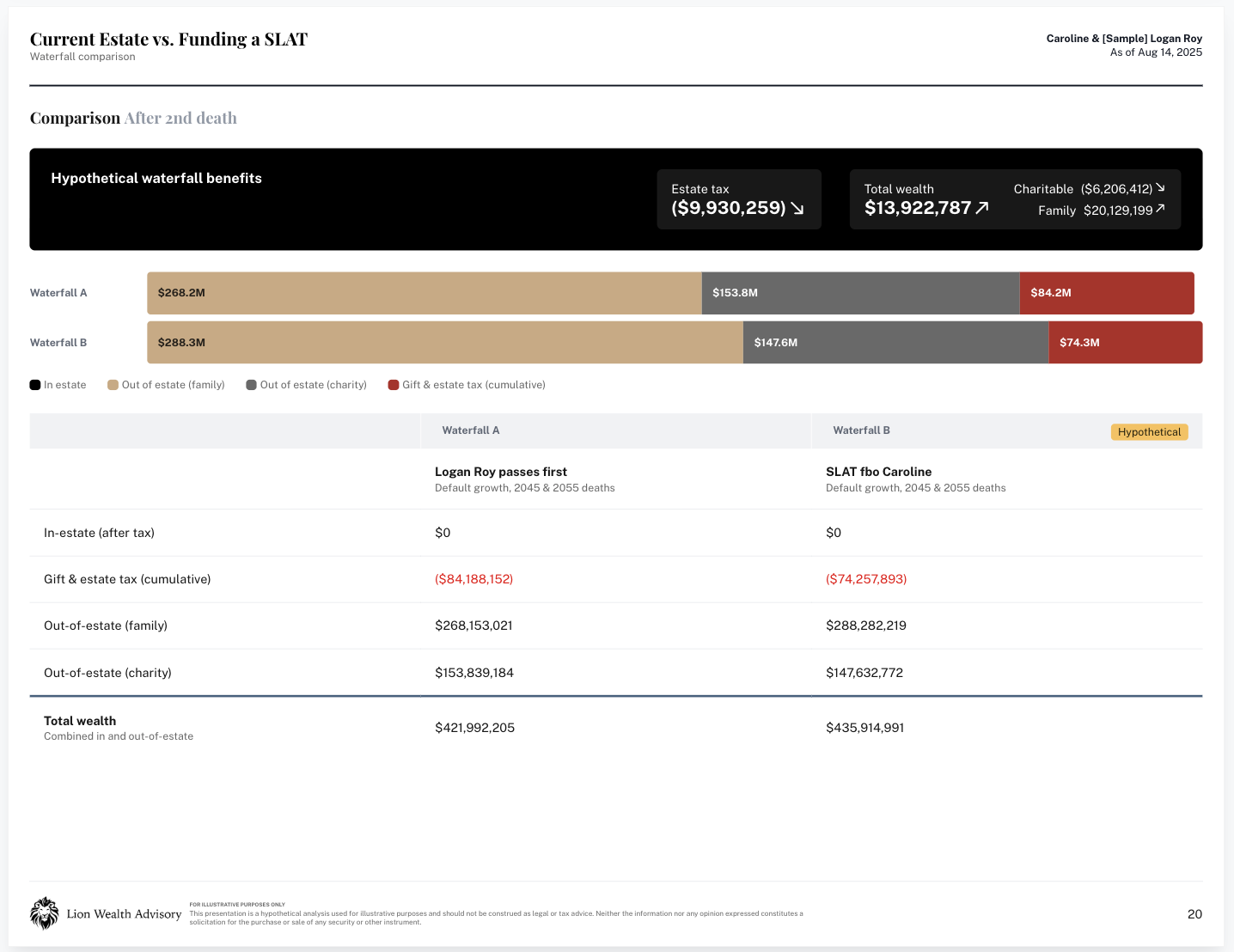
When you click on Waterfall comparison from the list of page options in the presentation builder, the following modal will appear:
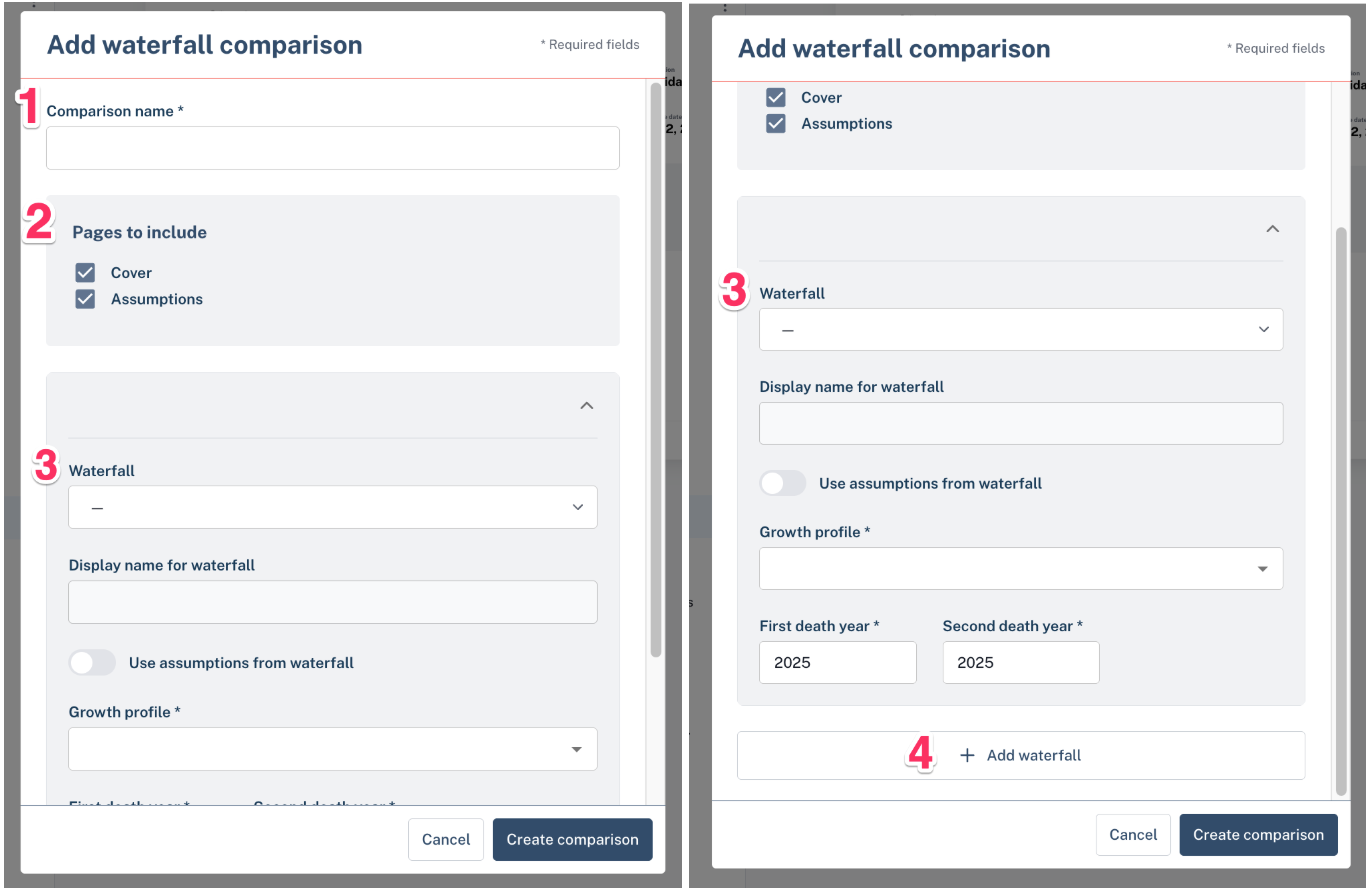
Name your comparison page. A common convention is to title it based on what you're comparing—e.g., "Current Estate vs. Funding a SLAT." This helps keep your presentation clear and easy to follow for clients.
Select which pages to include in your comparison bundle.
Cover - Displays the comparison page title, along with a body section where you can add your own text—perfect for framing the scenario or adding key context.
Assumptions - Outlines key factors that influence the estate waterfall calculation—such as growth rate, projected remaining exemption, liabilities, and, for hypothetical scenarios, any gifting or transfer strategies layered into the model. An assumption page will be included for each waterfall you have pulled into your comparison.
Select the first waterfall scenario you'd like to include in your comparison. From there, you can customize the display name (how it will appear in the presentation) and choose which assumptions you'd like to apply for that scenario.
Click "+ Add waterfall" to start adding your additional scenarios. You can add up to 4 waterfalls at a time to display side-by-side in the presentation.
Pro tip: After adding your waterfalls, you can collapse each scenario by clicking the ^ arrow next to it. This gives you a clear, side-by-side view of the growth rates and death years applied to each scenario—making it easy to confirm you’re working with the correct assumptions.
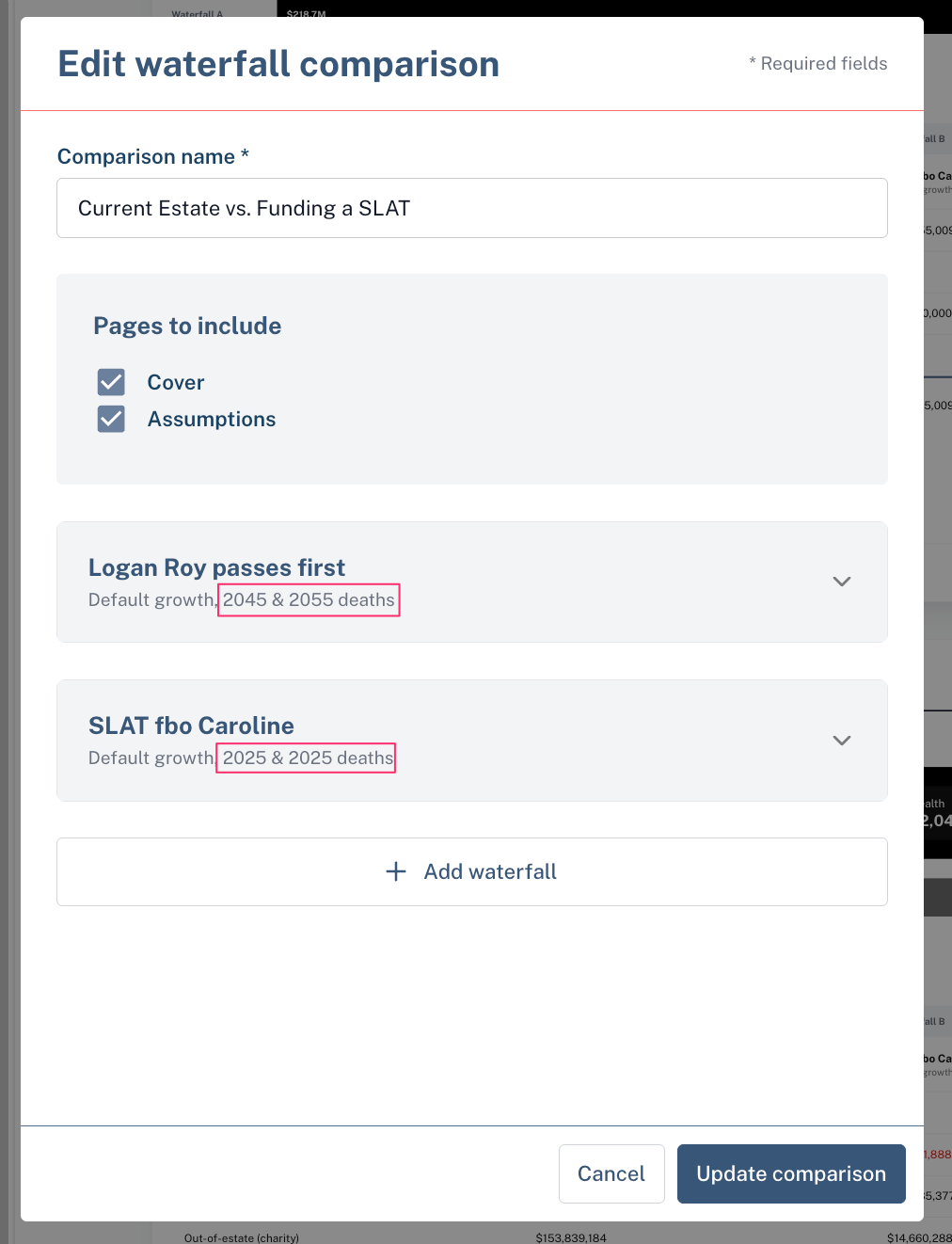
Once you've selected your waterfalls and settings, click “Create comparison” to include it in your presentation.
Need to make changes later? Click the three dots next to the page title in the left-hand presentation navigation menu, then select “Manage” to update your customizations.