Sub-brand management
Last updated: April 1, 2026
Overview
Create sub-brands in Luminary to display different branding for teams, sectors or divisions of your company. For example, if your family office team has different branding from your wealth management team, you can manage it here.
How to create a Sub-brand
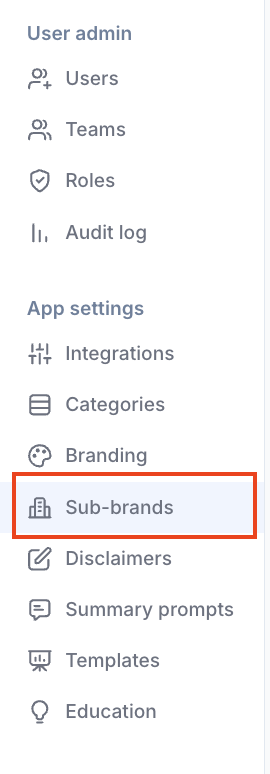
Luminary administrators can create sub-brands by navigating to Settings in the upper right corner of the screen, then selecting Sub-brands from the left side navigation menu.
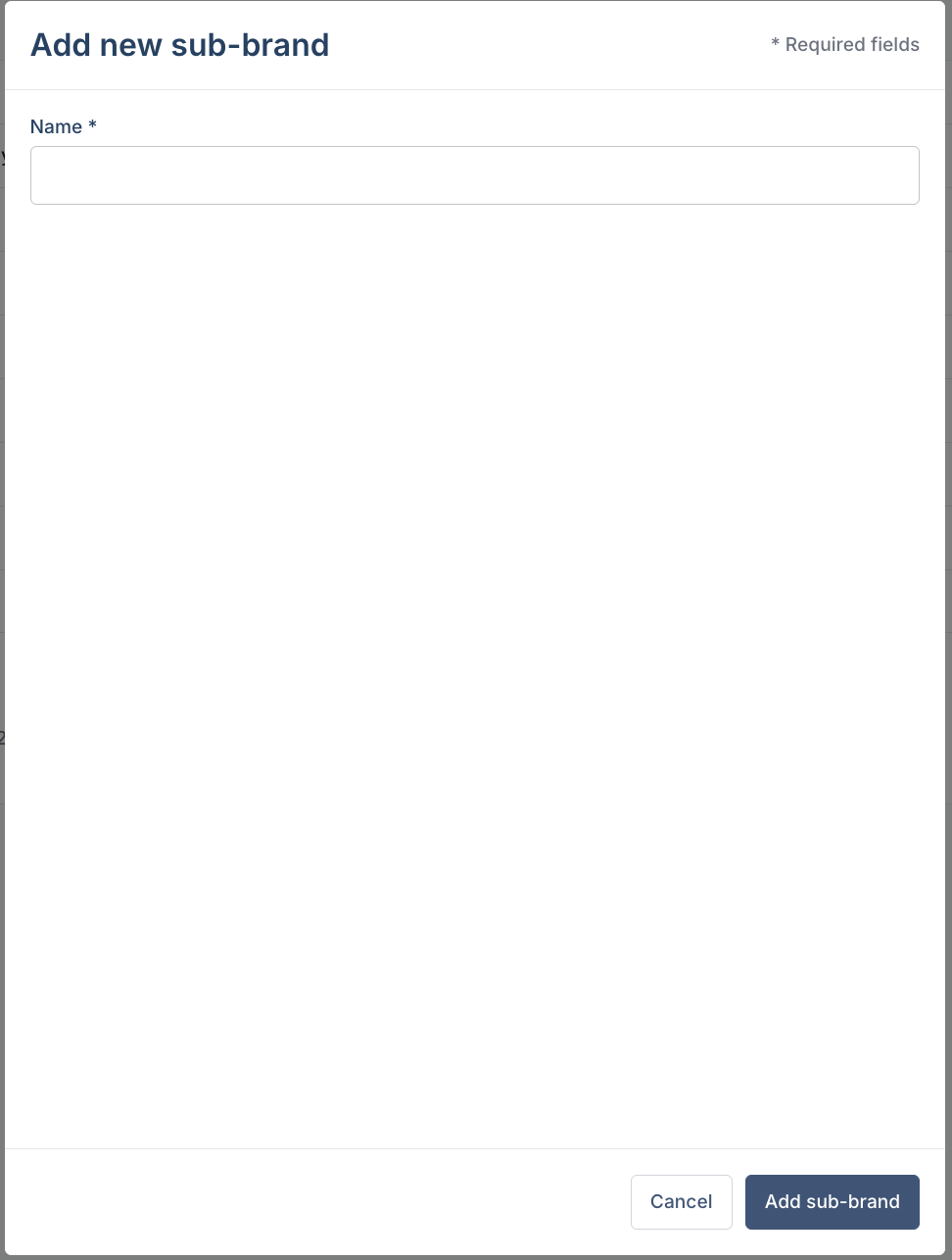
From the sub-brands screen, select Add new sub-brand. Enter the sub-brands name in the pop-up, then click Add sub-brand to save.
Branding for sub-brands
Administrators can create customized color-schemes and upload logos for any sub-brands within their logos. To change logos and color schemes for sub-brands, visit the Settings tab in the upper right corner of any screen. From Settings, select the Branding tab. Here, select the sub-brand drop down and choose any sub-brand you want to customize.
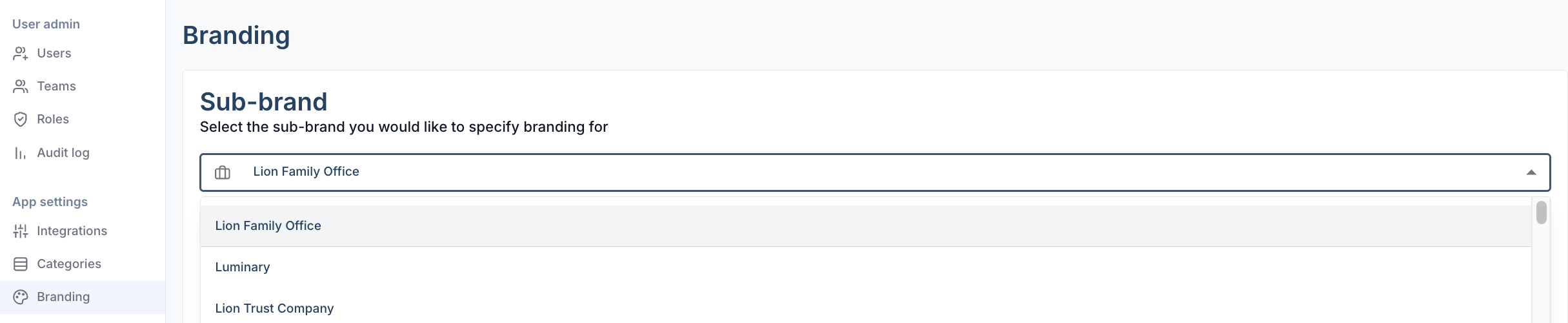
After selecting the sub-brand you want to customize, you can move between screens to upload brand logos or select custom colors. Click Save at the bottom of either screen to implement your changes.

View and manage sub-brands across clients
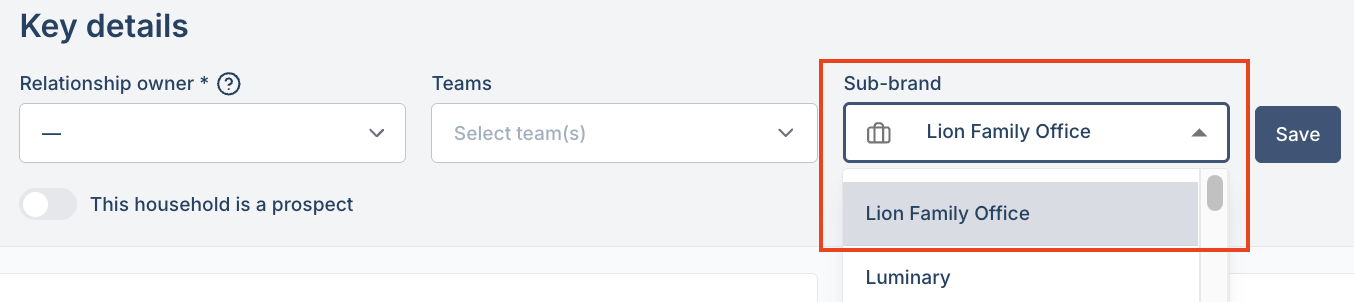
To change a client's tagged sub-brand, visit the Access tab in the lower left corner of the screen when on a client's profile. From the Access tab, click the sub-brand drop down, and choose applicable sub-brand, then Save.
For more information about brand logos and colors specific to your company, click here.