Income taxes in growth profiles
Last updated: November 12, 2026
Overview
Income tax drag lets you model the taxes on investment income that trusts and directly held assets generate each year, so the Estate Waterfall shows after-tax growth instead of pre-tax growth.
Without it, every entity compounds at its full growth rate. In reality, a portion of each year's return goes to income taxes, and who pays those taxes matters: when a grantor pays the tax on a grantor trust's income, that payment is effectively an additional tax-free transfer out of the taxable estate. Tax drag makes both effects visible to you and your clients.
How it works
You configure the feature in two parts on the Edit tax drag page, which lives under the Growth profiles page:
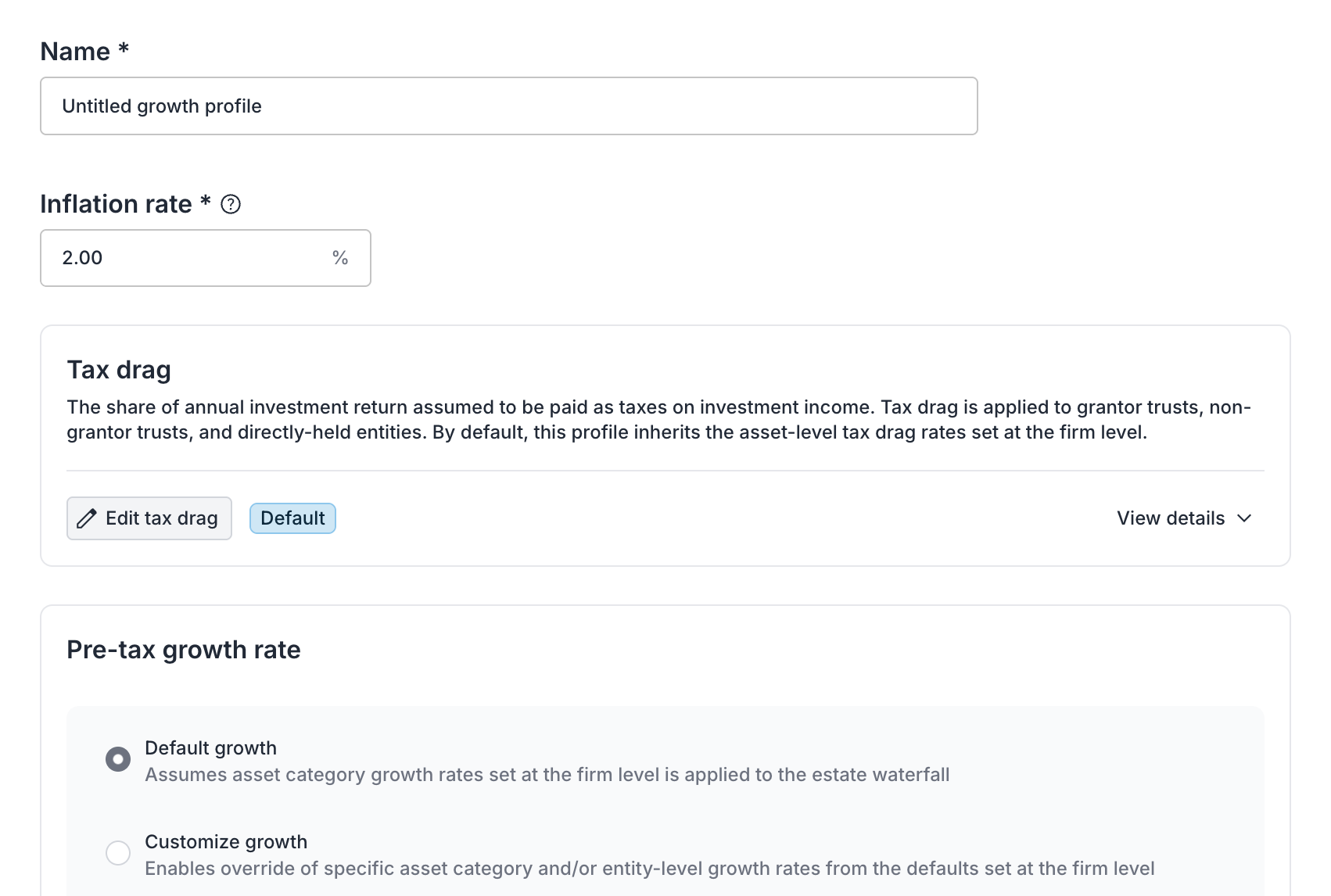
Income tax drag: the rate at which each entity's investment return is reduced by taxes.
Tax paying entity: which entities actually pay those taxes.
How tax drag is calculated
Tax drag is a percentage of the annual investment return, not of the asset value. It reduces the net growth rate the Estate Waterfall uses for that entity.
Example: a trust holds $1,000,000 and grows at 10% per year.
Step | Amount |
|---|---|
Pre-tax return (10% of $1,000,000) | $100,000 |
Tax drag of 20% on that return | $20,000 in taxes |
Return kept by the trust (if it pays its own tax) | $80,000 |
Net growth rate | 8% |
A 20% tax drag does not mean the trust loses 20% of its value each year. It means 20% of that year's return is assumed to go to taxes.
The example assumes the trust pays its own taxes. Tax drag determines how much tax is due; the Tax paying entity settings determine who pays it. If the trust is taxed to the grantor, the $20,000 is drawn from the grantor's paying entities instead, and the trust keeps its full $100,000 return.
Which entities it applies to
Tax drag applies to grantor trusts, non-grantor trusts, and directly held entities.
Entity type | Who is taxed on investment income | How it's modeled |
|---|---|---|
Grantor trusts (e.g., revocable trusts, IDGTs, GRATs, SLATs) | The grantor | Tax is calculated on the trust's return and paid by the entities you choose under Entities taxed to the grantor |
Directly held entities (individual and joint) | The grantor | Same as grantor trusts |
Non-grantor trusts | The trust itself | Tax is paid by the trust (default setting), or you can opt to follow the grantor's payment settings |
Not modeled with tax drag: ILITs, QPRTs, charitable trusts and entities, retirement accounts, UTMA/UGMA, and 529 plans. These either hold tax-deferred assets or are tax-exempt, so no annual income tax drag applies.
Modeling tax drag
Step 1: Set your tax drag rates
Your firm's administrator sets default tax drag rates for each asset category (for example, liquid investments, real estate, private equity). Those firm defaults flow into every growth profile automatically, so most advisors can start modeling without changing anything.
To review or change the tax drag:
Open the client's household and go to the Estate Waterfall.
Open the growth profile you want to adjust and select Edit tax drag.
Under Income tax drag, choose one of two options:
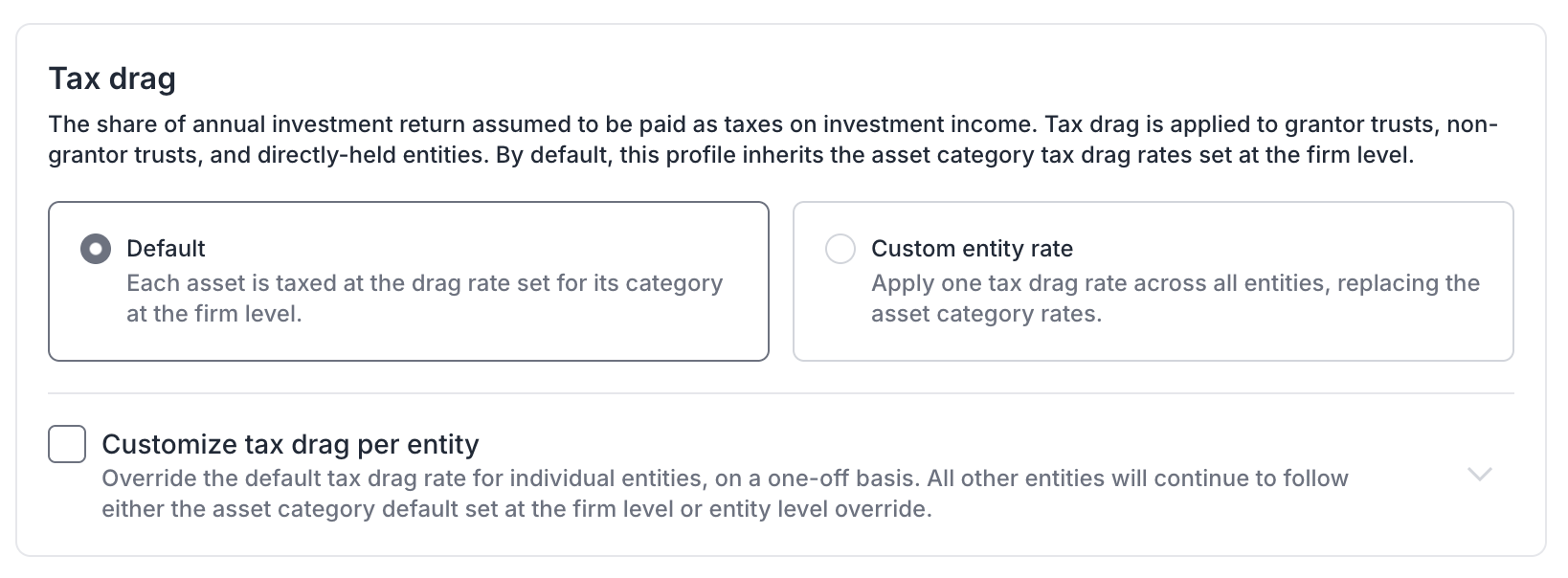
Default: each asset is taxed at the drag rate set for its asset category at the firm level. Choose this if your firm's rates fit the client.
Custom entity rate: set your own tax drag rate at the entity level. This replaces the asset category rates. You can apply it to all entities or to specific ones.
If you want to customize the rate for a specific entity(s), check Customize tax drag per entity, then select the entities and enter a rate for each. All other entities keep their asset category rates.
Which rate wins: When tax drag is applied in more than one place, an entity-level rate always takes precedence over asset-level rates. If you set a tax drag rate on an entity, it applies to every asset that entity holds, and any rate entered on an individual asset is ignored.
Step 2: Choose who pays the taxes
On the same page, the Tax paying entity section controls which entities pay the taxes on investment income. Tax drag sets the amount; this section sets where the money comes from.
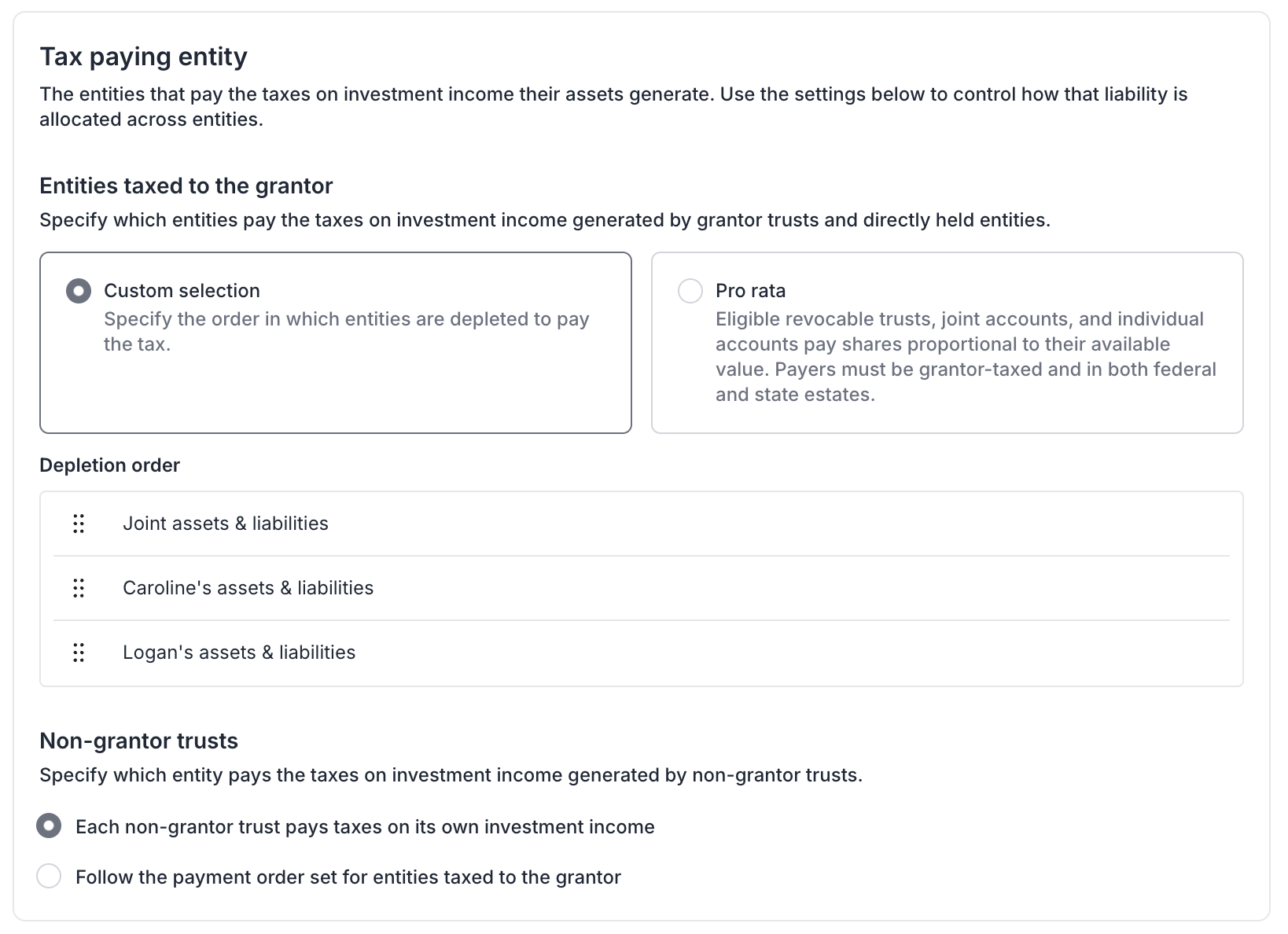
Entities taxed to the grantor (grantor trusts and directly held entities) — choose how the tax is drawn from the grantor's in-estate taxable entities:
Pro rata: the tax is deducted proportionally from each in-estate taxable entity, based on its value.
Custom selection: you specify the order in which entities are depleted to pay the tax. The first entity pays until it runs out, then the next, and so on.
Non-grantor trusts — choose one:
Each non-grantor trust pays taxes on its own investment income (default) — the trust's growth is reduced by its own tax drag.
Follow the same method selected for entities taxed to the grantor — the trust's taxes are paid using the pro rata or custom selection setting above.
Why this matters: when the grantor pays taxes on a grantor trust's income from in-estate assets, the trust grows at its full rate while the taxable estate shrinks. This "tax burn" is a core benefit of grantor trust planning, and these settings let you show it.
FAQ and limitations
What rate should I use? Tax drag depends on the client's portfolio and tax situation. A heavily tax-managed portfolio might warrant a lower rate than one generating mostly ordinary income. Non-grantor trusts reach the top federal bracket at a much lower income level than individuals, so consider a higher rate for them.
Does tax drag reduce the value of the trust or just its growth? Just its growth. The rate applies to each year's return, not to the principal.
Can I model a grantor trust that turns off grantor status partway through the plan? Not yet. Grantor status is fixed for the full Estate Waterfall projection in this version.
What isn't included in this version?
Taxes on distributions or payouts (for example, CRT payouts or non-grantor trust distributions to beneficiaries)
Cost basis tracking and step-up at death
Charitable deductions for CRTs and grantor CLTs
These are on our roadmap. Contact your Customer Success manager with questions or feedback.