Presenting the balance sheet to clients
Last updated: August 24, 2026
Introduction
Exporting the balance sheet for client facing materials is a critical part of the balance sheet functionality. Luminary supports three main exports: (1) Excel, (2) PNG, and (3) Presentation PDF.
Export to Excel
Luminary supports exporting the entire balance sheet with every detail expanded by default. In order to export to Excel, go to the Balance sheet section of the Estate tab and click on the Export dropdown. Below is an example of the output:
Export to PNG
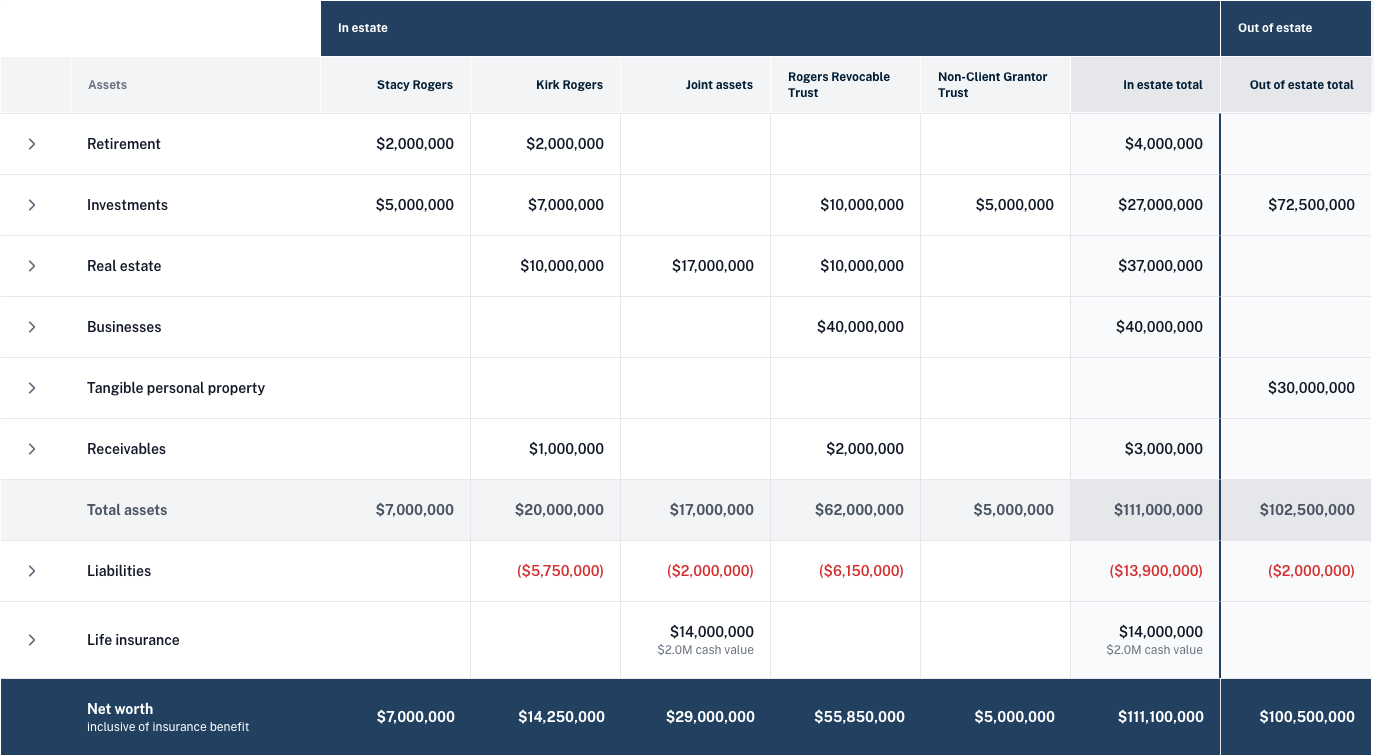
Luminary supports exporting the balance sheet to PNG. In order to export to PNG, go to Balance sheet under the Estate tab and click on the Export dropdown. When exporting to PNG, the view configured in the app showing in that moment will be exported to PNG. Below is an example of the output:
Export to Presentation PDF
Luminary supports including the balance sheet as part of your white labeled client presentation, which can be exported to PDF. In order to include the balance as part of a presentation, go to the Presentation section and create a new presentation.
Add slides to your presentation by clicking the plus icon in the left hand side panel.
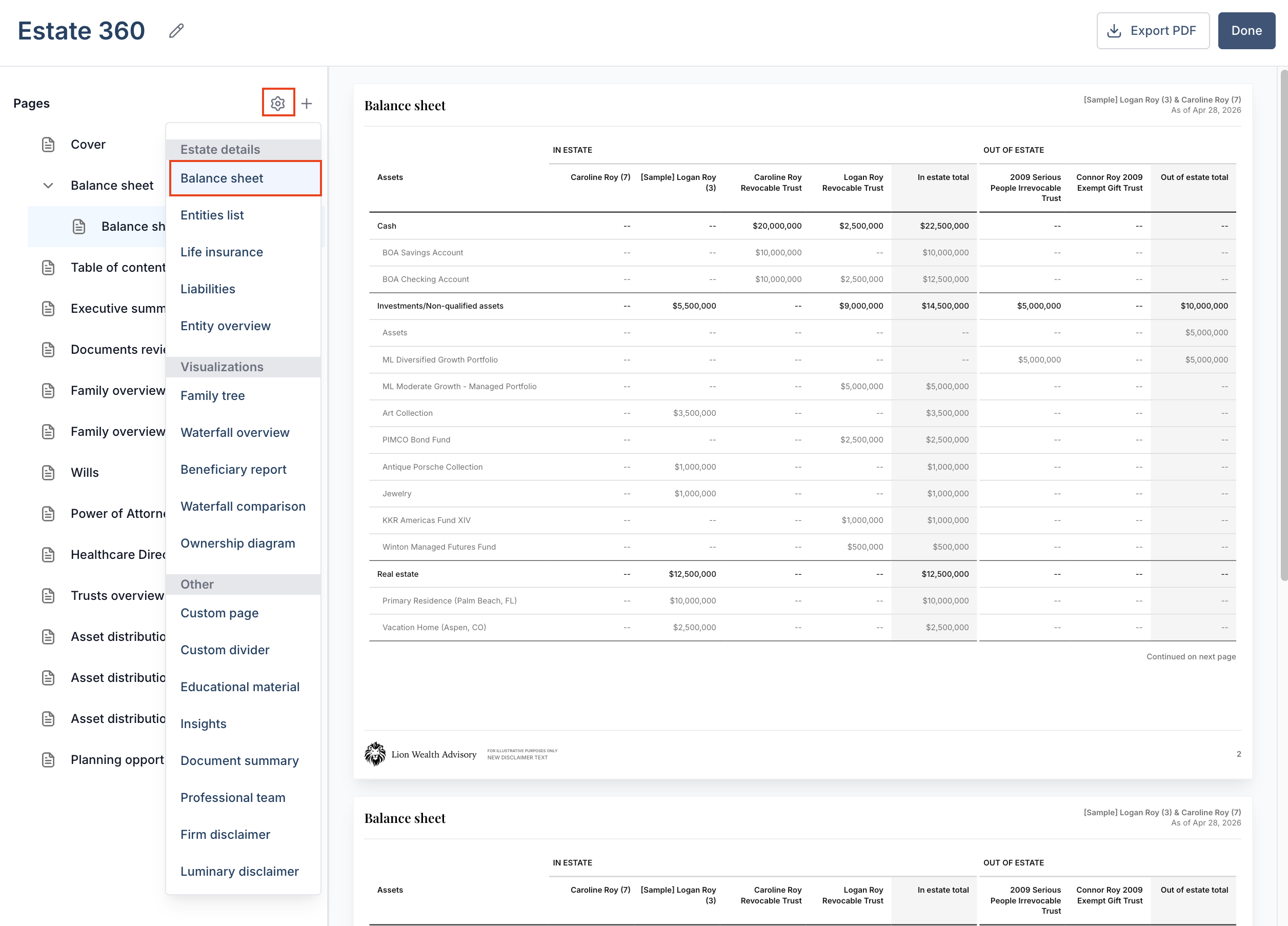
From here, you can click Export PDF to download, add more balance sheets with custom filters, or edit current balance sheets by following the steps below.
Adding multiple balance sheets
These views are modifiable, and can be changed by clicking the three vertical dots next to the balance sheet slide on the left side panel.
To see configurations available on the presentation balance sheet, click here.