Luminary Memos
Last updated: April 17, 2026
Memos
Overview
Luminary Memos generates client-ready, cross-plan documents directly within the platform. Each memo is powered by your client's estate planning data, drawing from the trusts, entities, roles, and strategies already mapped in the household.
Key capabilities
Generate the documents that tie an entire estate plan together in seconds, without leaving Luminary. Every memo synthesizes information across trusts, entities, and fiduciary relationships that already live in the household, then exports in your firm's branding.
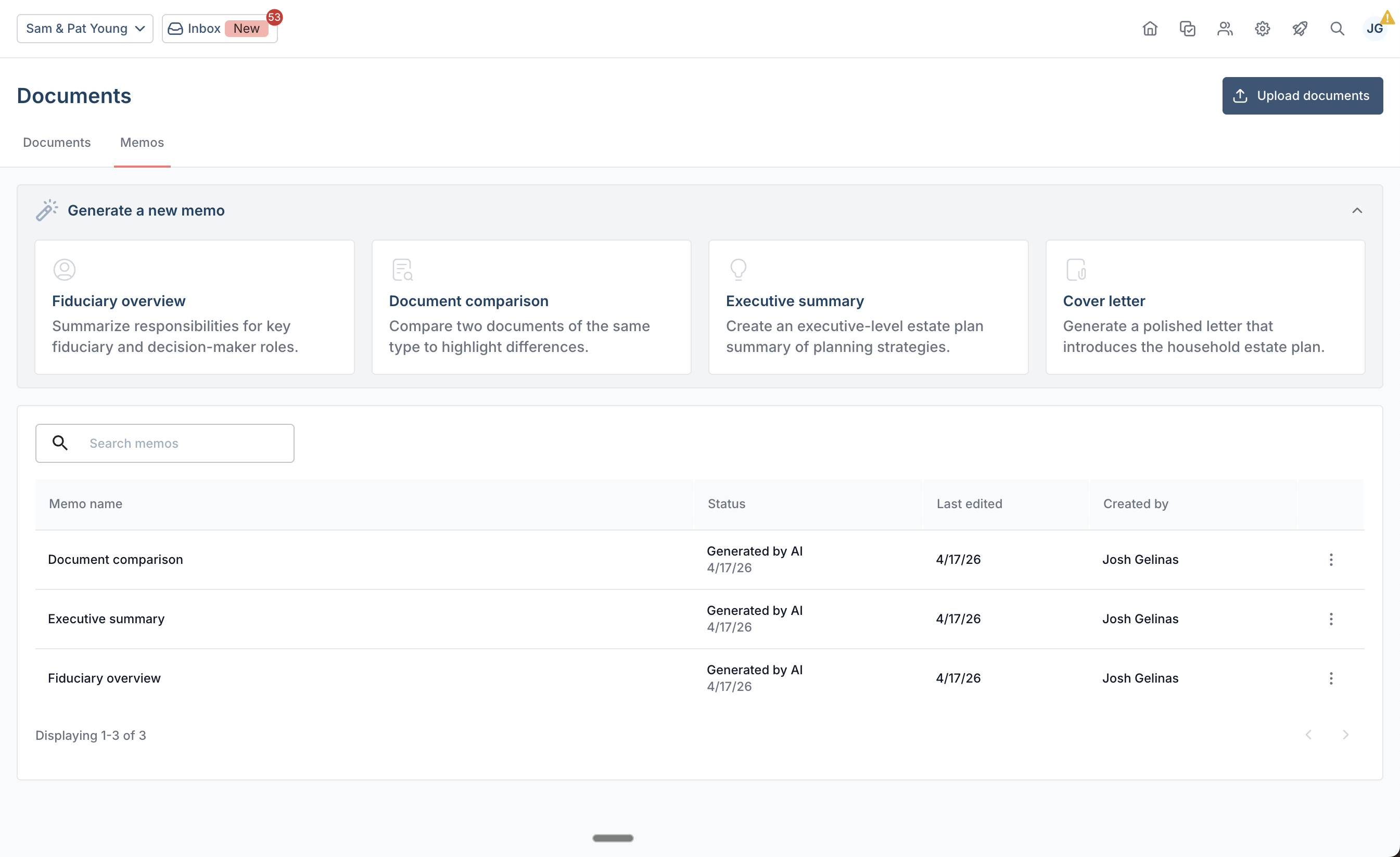
Four ready-to-use memo types: Fiduciary Overview, Document Comparison, Executive Summary, and Cover Letter
Cross-plan synthesis: Pull from every trust, entity, role, and strategy across the household in a single document
Split-screen editor: Refine drafts alongside the source, and regenerate with additional instructions when a different emphasis is needed
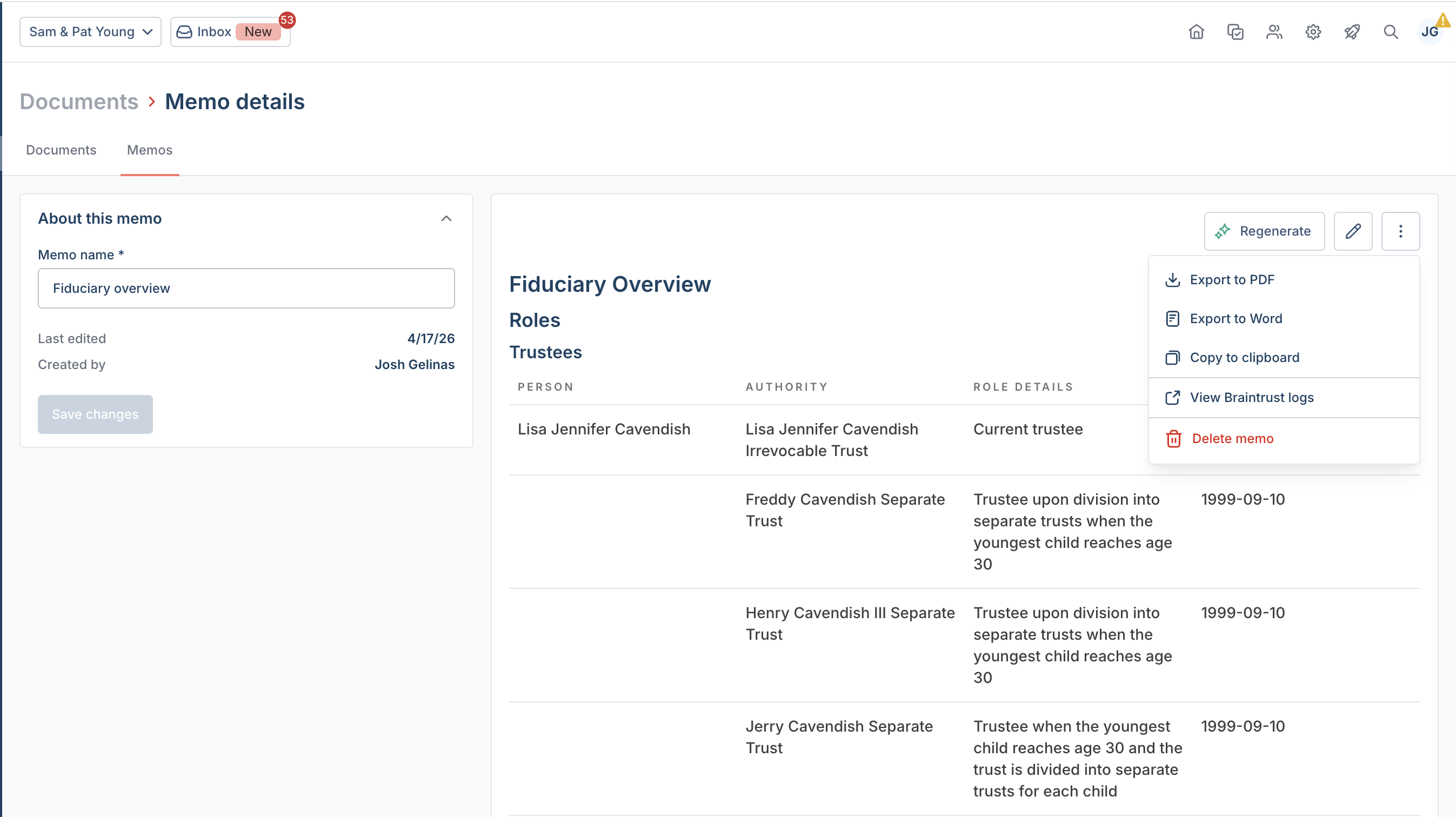
Branded exports: Export as a client-ready PDF in firm styling, a Word document, or plain text copied to clipboard
Getting started
(1) Navigate to the Documents page for any client household in Luminary and click the new Memos tab.
Note: The household's document should be uploaded first which provides the necessary context for Luminary to generate the memos.
(2) Select a memo type:
Fiduciary Overview — Summarizes the responsibilities of key fiduciaries and decision-makers across all entities in the household, useful for keeping roles and appointments current as a plan evolves.
Document Comparison — Compares two documents from the household, such as two revocable trust agreements, and produces a structured memo highlighting substantive differences, drafting irregularities, and open questions.
Executive Summary — A high-level overview of the full household covering trust structures, key fiduciaries, and planning strategies, ideal for onboarding, stakeholder meetings, or annual reviews.
Cover Letter — A professional letter summarizing the estate plan's structure, key strategies, and next steps, ready to accompany a document packet for new or returning clients.
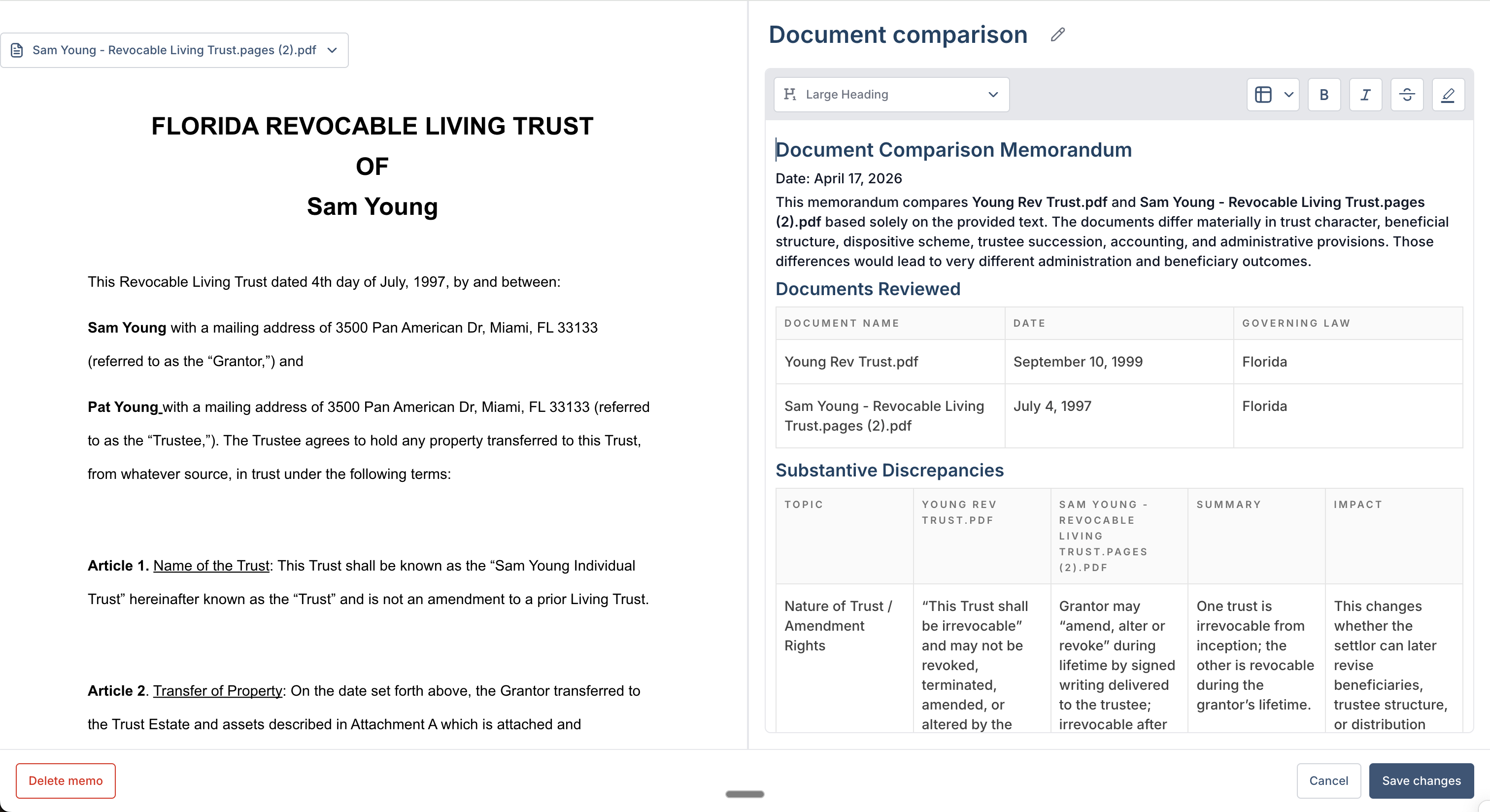
(3) Review the generated memo in the split-screen editor. The draft appears side by side with the source, so content can be validated against the underlying plan before it goes out.
(4) If the first draft needs a different emphasis — for example, highlighting more details around the charitable component of a plan — provide additional instructions and regenerate without starting over.
(5) Export the finished memo as a client-ready branded PDF, a Word document, or plain text copied to clipboard. No reformatting required.
Tips
For Document Comparison memos, make sure both documents are uploaded to the household and have the correct document type assigned before running the memo
Use the regenerate-with-instructions flow rather than manually rewriting large sections — it keeps the memo grounded in knowledge graph data while adjusting tone, emphasis, or scope