How to create presentation
Last updated: November 26, 2025
The client presentation builder helps you quickly turn all your work in Luminary into a clean, professional presentation—fully branded with your firm’s logo and colors. With just a few clicks, you can pull everything together into a polished deliverable that wows your client and brings your planning to life.
Getting Started
To build a new client presentation,
Click the Presentations page from your left hand navigation menu.
Click Create presentation.
Title your presentation in the upper right hand corner, which will update the title on your cover page. That's it!
Each new presentation will come pre-loaded with the following pages:
Cover page
Table of contents
Balance sheet
Entities list
Firm disclaimer and/or Luminary disclaimer, if your firm administrator has enabled this
Using the presentation builder
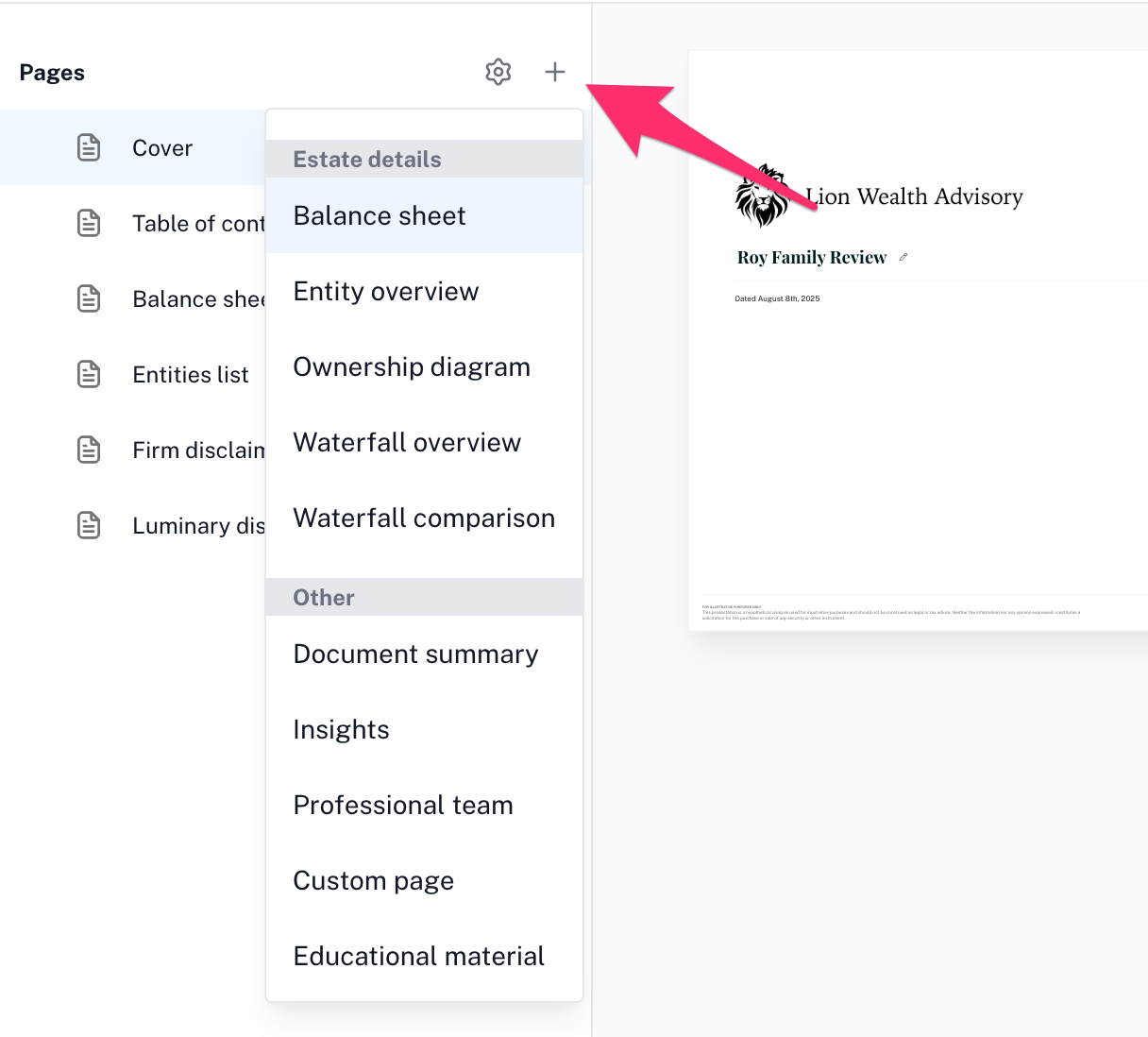
To add a new page to your presentation, click the plus (+) icon at the top of the left-hand navigation menu. You’ll see a dropdown menu with options for the type of page(s) you can add.
The new page will be inserted right below the one you’re currently viewing—look for the blue highlight in the left-hand menu to confirm which page is active.
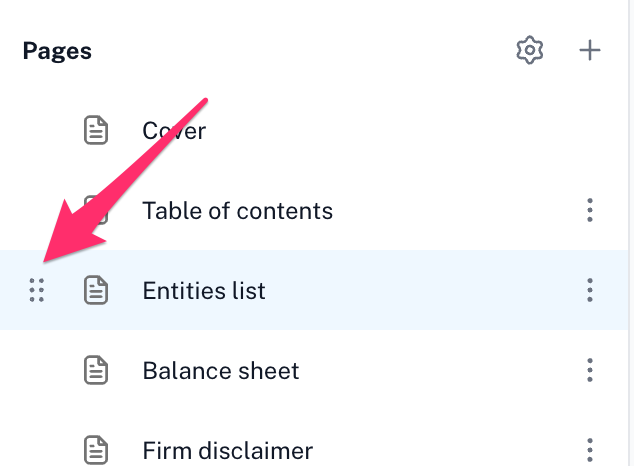
To move a slide, hover over the page you want to reposition in the left-hand navigation menu. You’ll see six dots appear to the left of the page title—this is your drag handle.
Click and drag the page to your desired spot, then drop it into place. Your presentation will update automatically.
To delete a page, click the three dots to the right of the page title you would like to delete and click "Delete."
The table of contents is dynamic! As you add, rearrange slides, or delete slides, your table of contents will update automatically.
Sharing your presentation
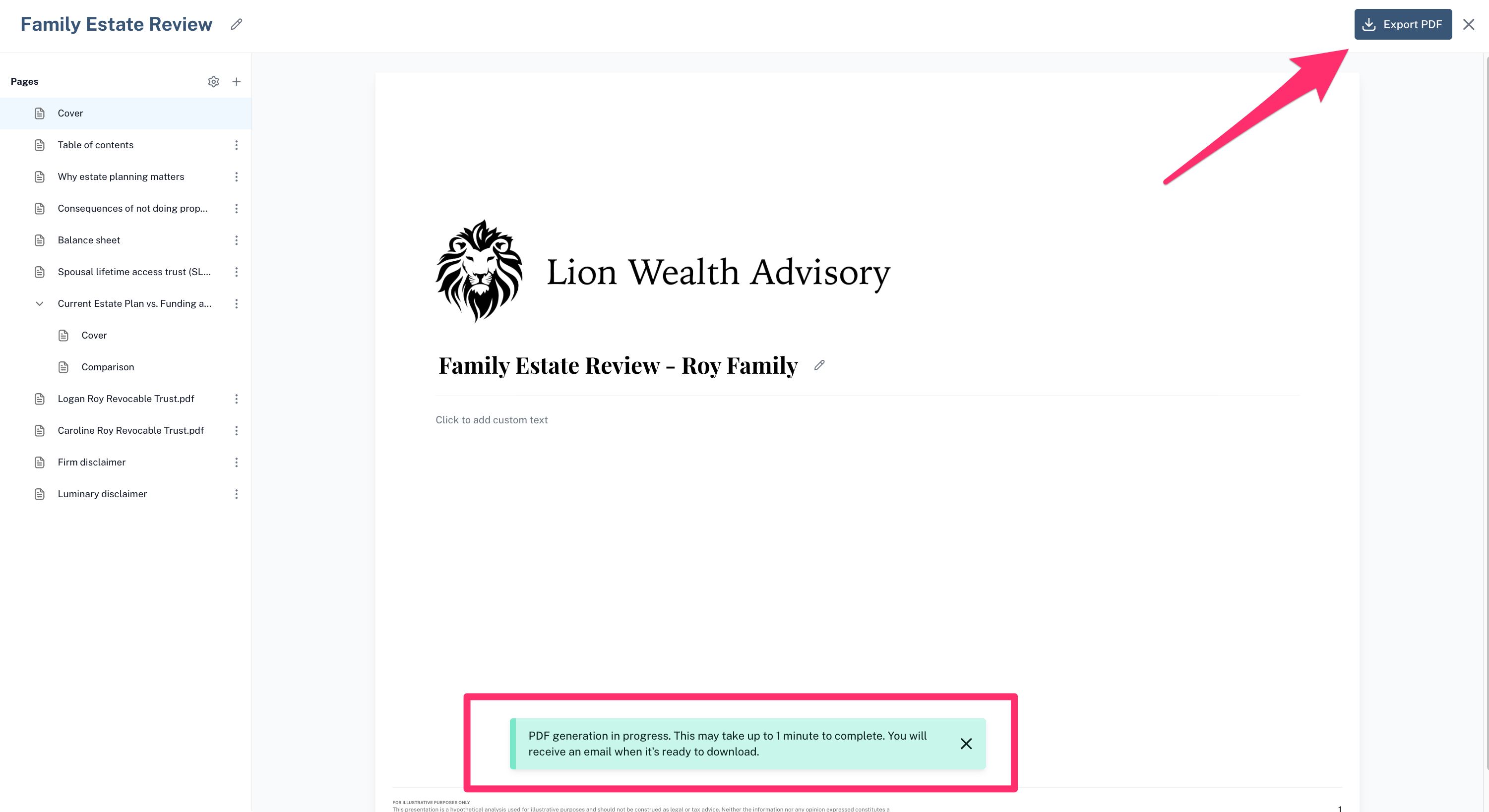
When you're ready to share your presentation, click “Export PDF” in the upper right corner of the presentation builder. A notification will appear at the bottom of your screen to let you know the PDF is being generated.
Once it's ready, you'll receive an email with a download link. You can either:
Click the link in the email, or
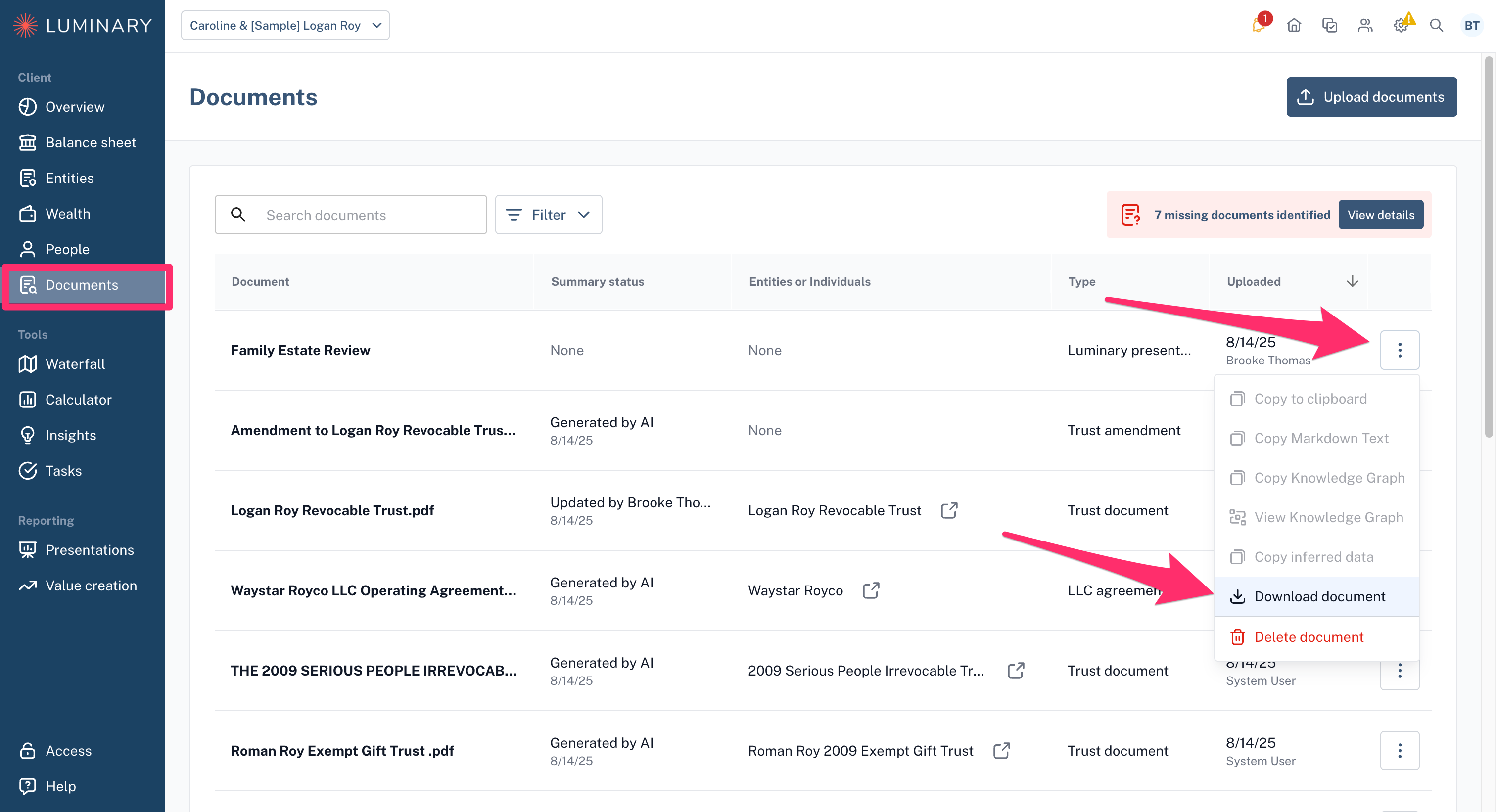
Go to your client's Documents section, click the three dots next to the presentation, and select “Download document.”