Entering dispositions/beneficiaries for entities
Last updated: August 21, 2026
Getting started
There are 3 ways that you can edit the dispositions creation workfow.
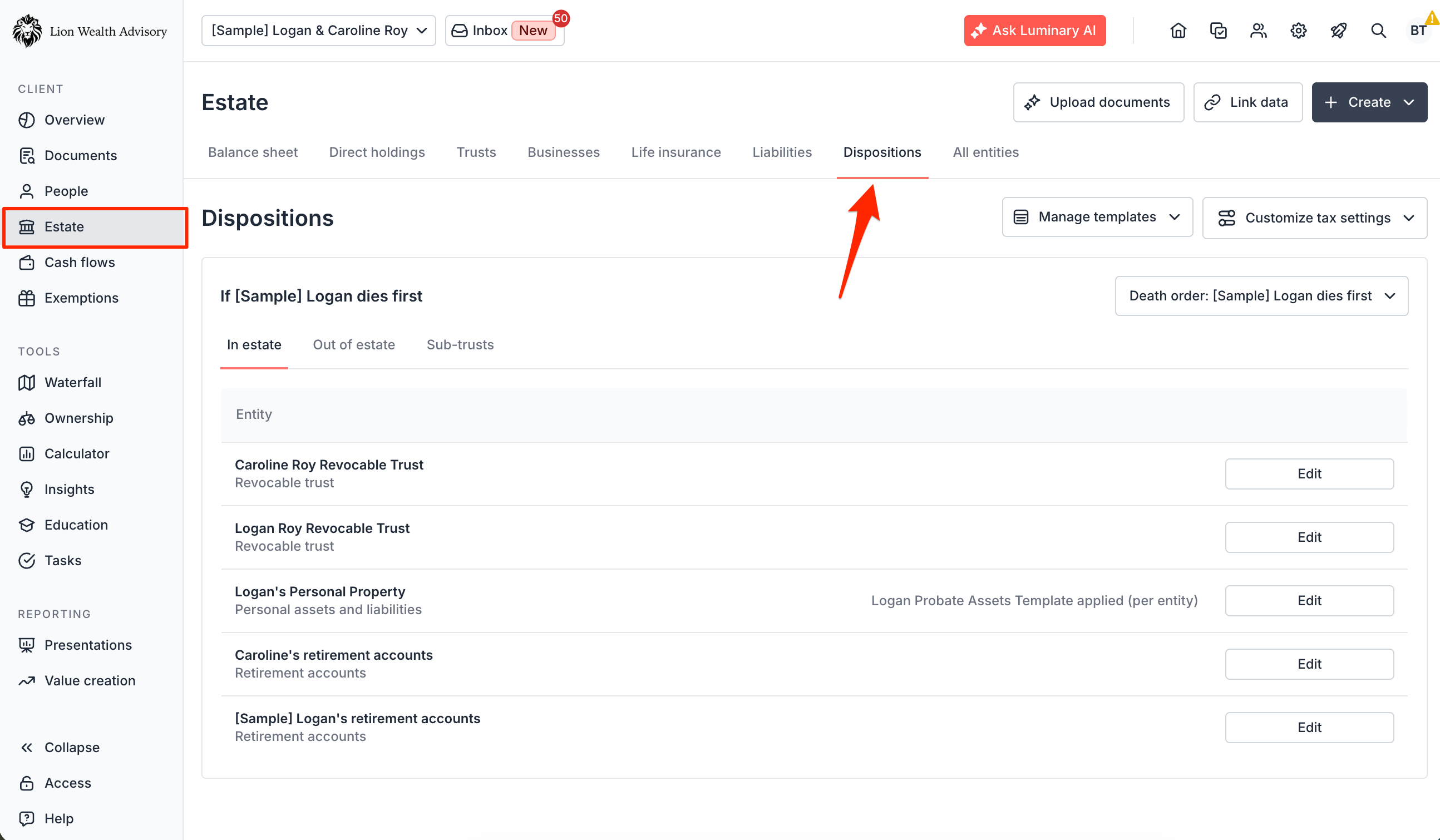
Navigate to Estate > Dispositions to edit dispositions for entities in bulk
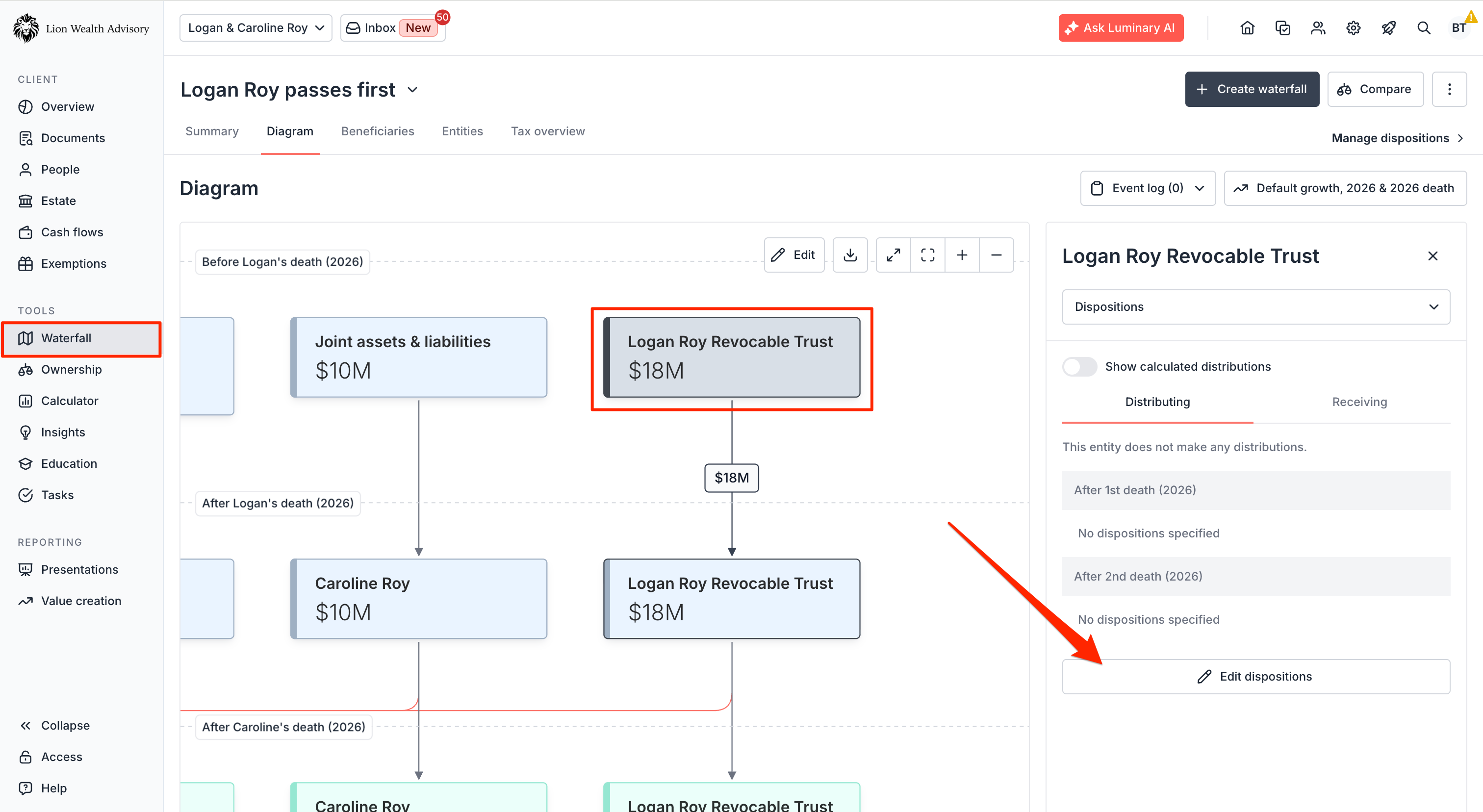
Navigate to Waterfall > Diagram
Click on the tile you want to enter dispositions for and click Edit dispositions
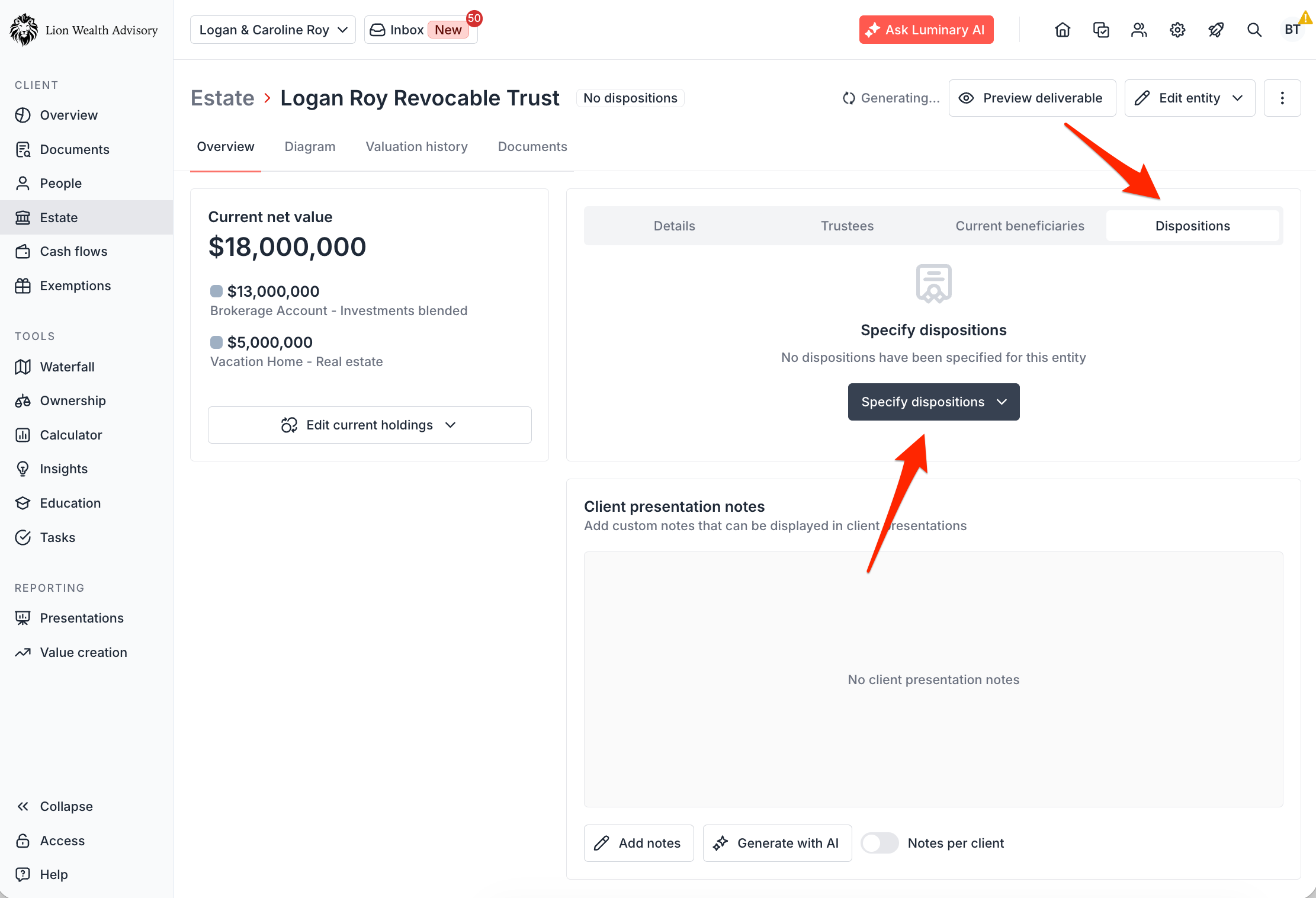
Navigate to Estate > Trust or holding group name > Dispositions (or Beneficiary designations)
Click Dispositions and Specify dispositions
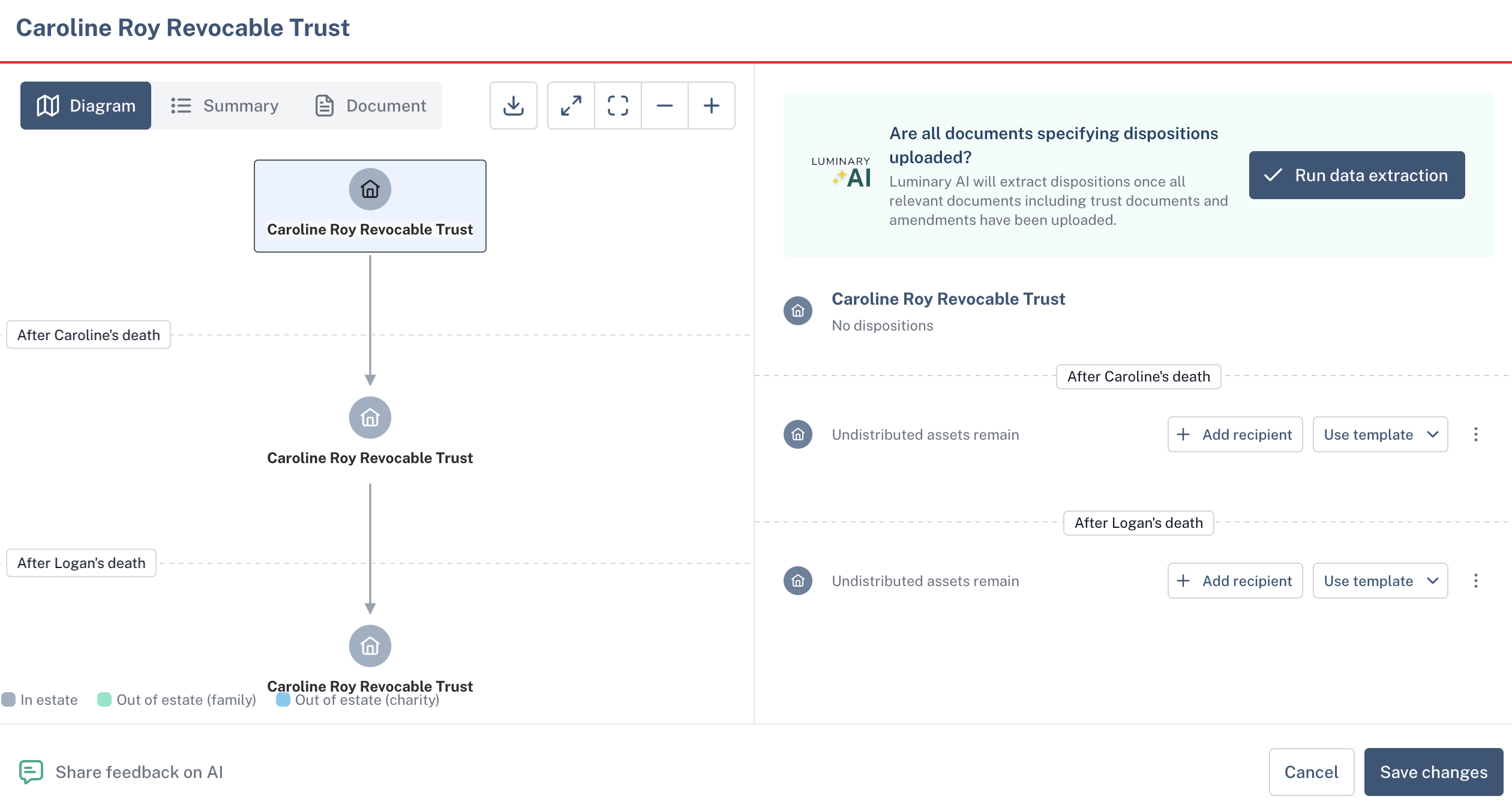
Adding dispositive provisions
Select client death order by clicking the "Logan dies first" or "Caroline dies first" button
You can map one or both death orders in Luminary for illustration to your client. We recommend most customers map one death order for their dispositions (for example, the husband passes first). From there, many customers only enter in Dispositions for the second pattern if the beneficiary outcomes will differ materially.
Enter Dispositions for the death order specified
On the left side of the screen, click the entity icon that you would like to add dispositions for and then click "Add recipient" to add a disposition
Choose from a dropdown list of existing Recipient options across the Surviving Spouse, an existing Individual, an existing Organization, or an existing Entity.
To add a new recipient to the client profile, click “Add New” and provide the required details.
Select Recipient type from the dropdown menu. This selection determines the estate tax treatment used in calculations.
If you're unsure which option to select, click “Which type should I pick?” under the input box for guidance. Learn more:
Specify Distribution type and associated distribution value
Choose the type of distribution: Percentage of the entity’s assets, Specific Dollar Amount, or Formula (e.g., remaining federal/state exemption, anything left over, etc.)
To add more recipients, click “Add Additional Recipient”
If you are using a common distribution pattern, click the "Use template" button to use an out-of-the-box template or to create a new template.
Choose the appropriate template or choose "No Preset" for custom template creation
Learn more about creating templates
📄 Create a disposition Template
Validate distribution totals
If the entity is not fully distributed, you will see an "undistributed assets remain" warning. To resolve this, click "add residuary" to whom the rest of the assets will be distributed.
Adding a residuary will create a new recipient with the formula "anything left over" to ensure that all assets in the trust will be distributed
Note: you can still save dispositions even if the entity has the "Undistributed assets" warning
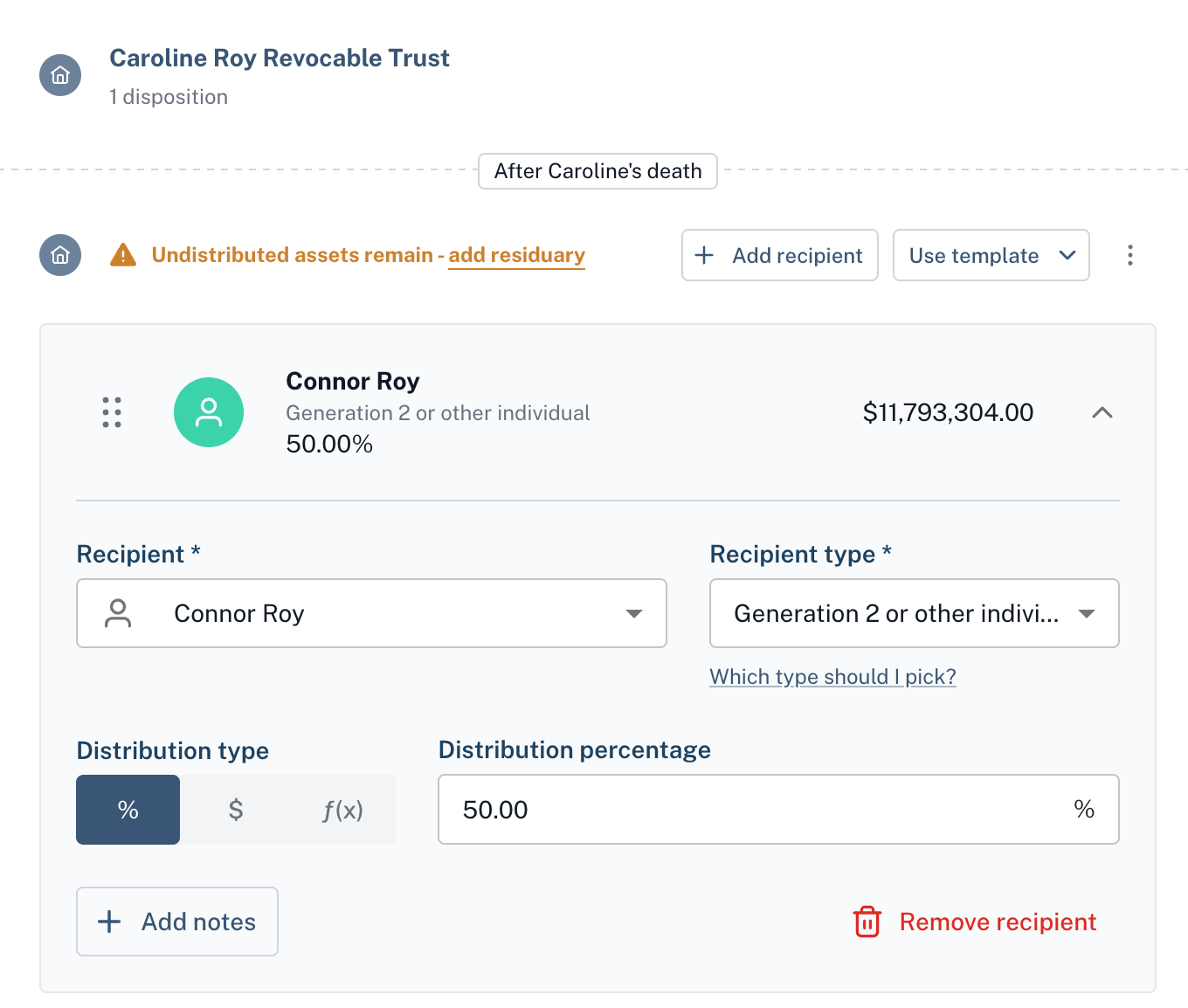
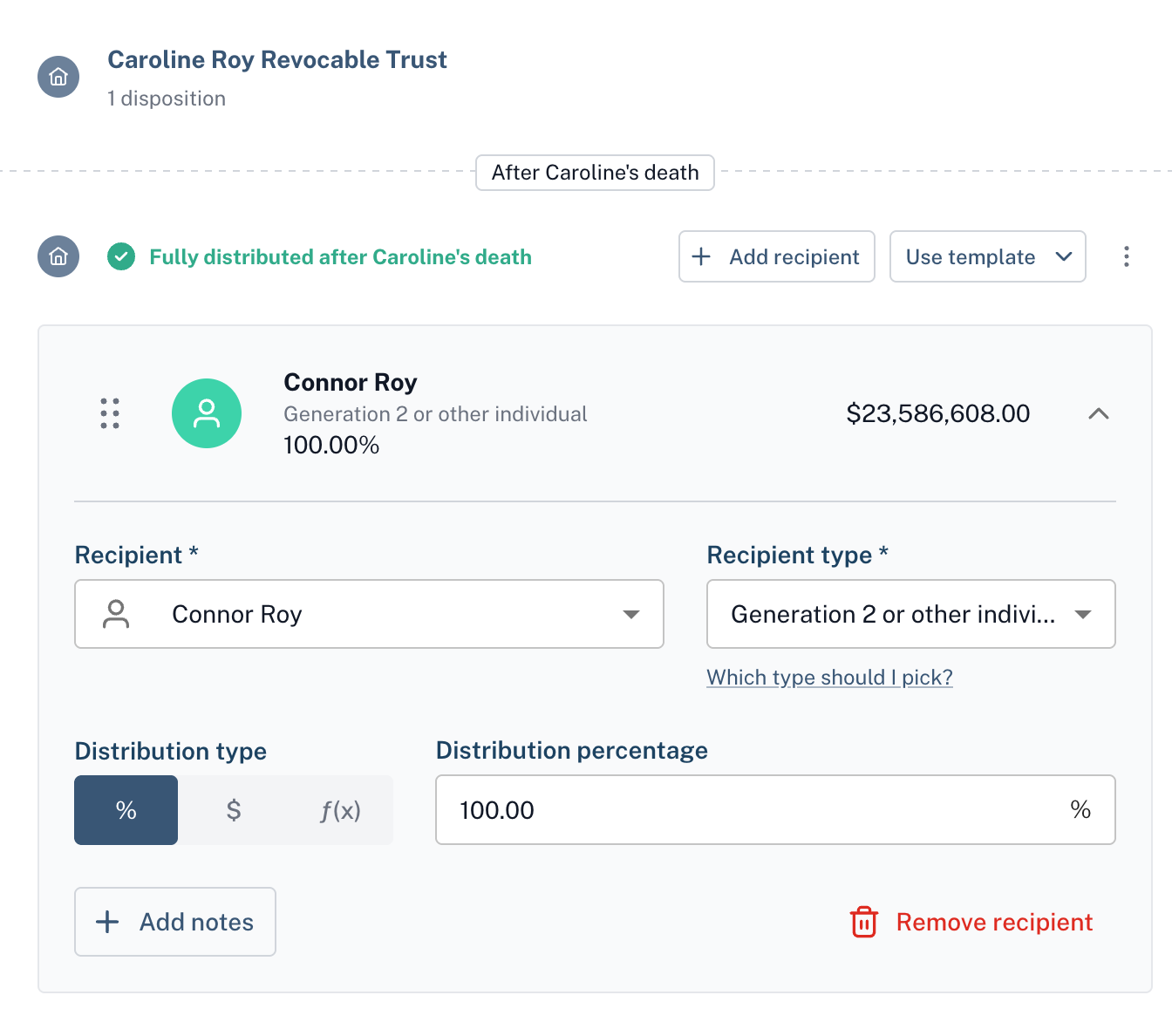
Once all assets are distributed, a green check mark and the message “Fully distributed after death” will appear.
Reorder the recipients as needed by using the drag and drop handles on the left of each recipient box. Luminary will automatically recalculate any formulaic options and illustrate the new totals.
Adding Dispositions for multiple entities and sub-trusts
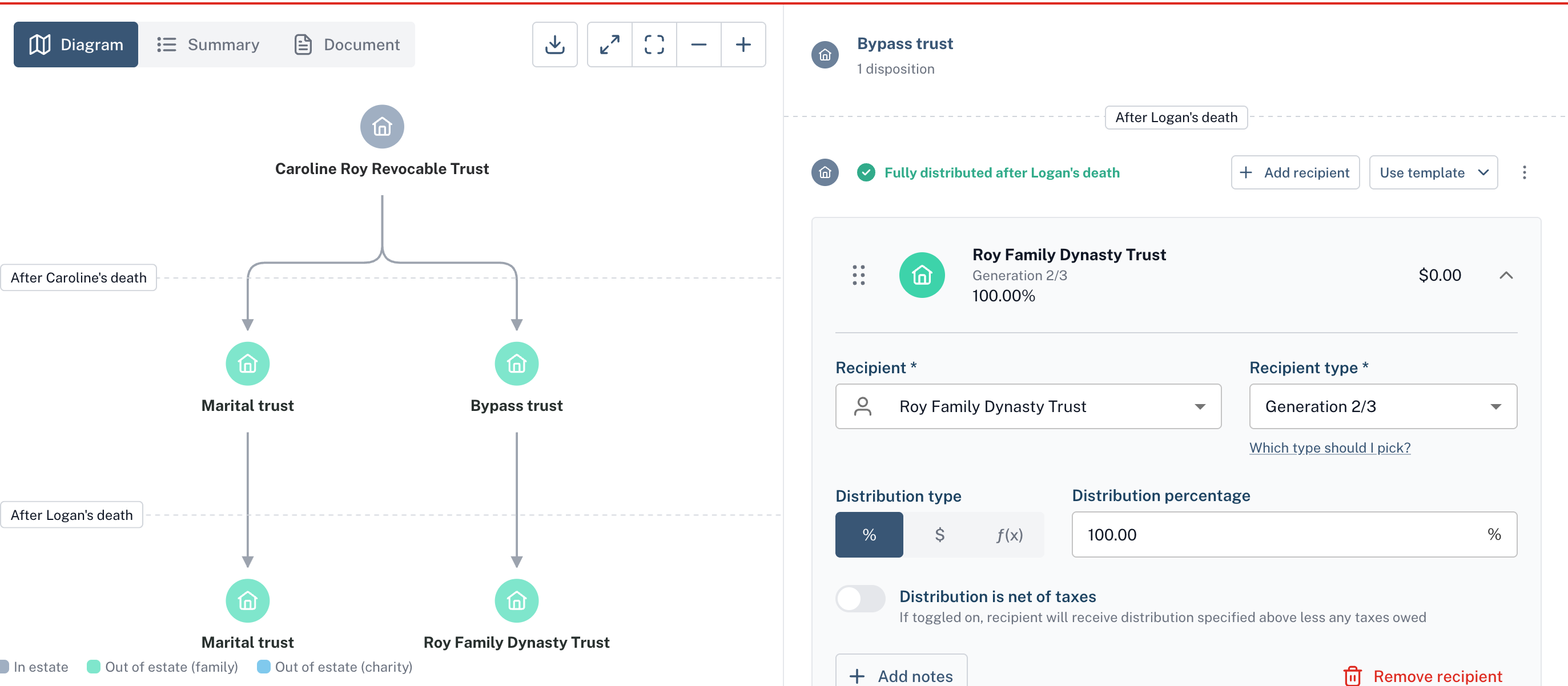
If an entity distributes into another existing entity or a sub-trust or testamentary entity, you can specify dispositions for those entities within the same screen.
Click on the sub-trust tile on the diagram on the left side of the screen
Enter dispositions for that entity on the right side of the screen
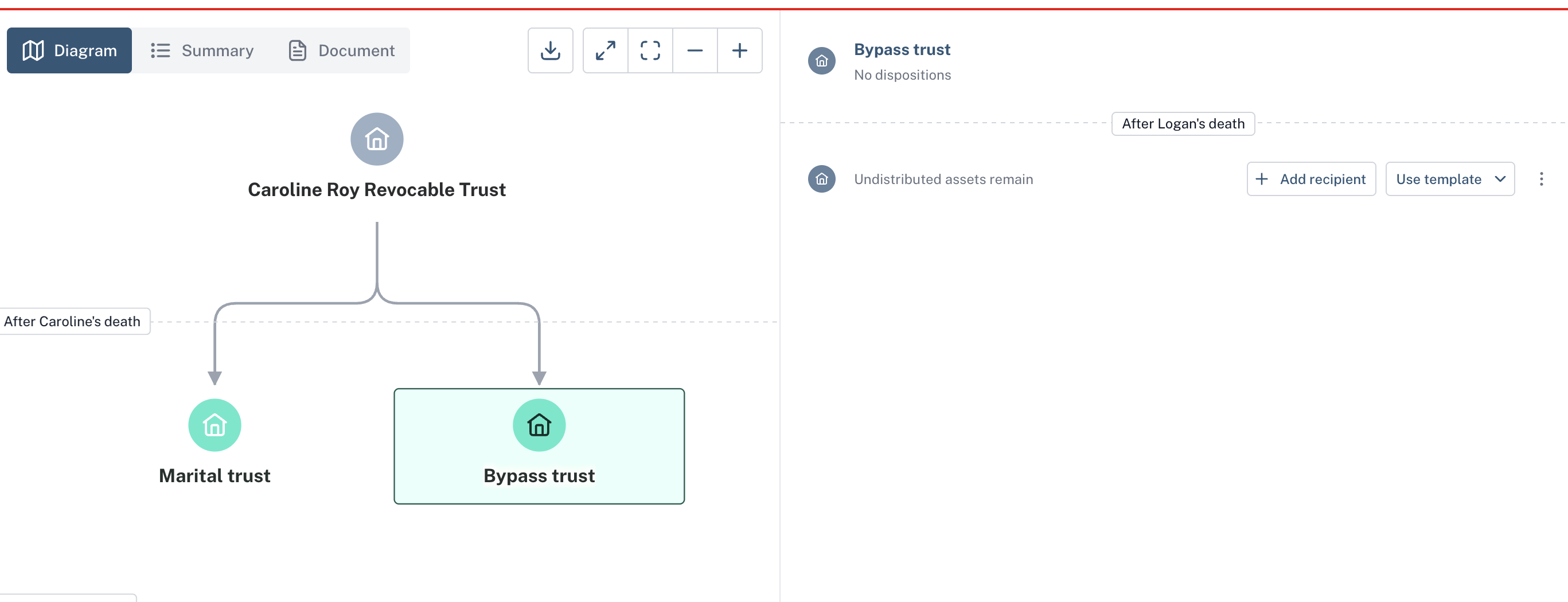
The diagram will automatically update to include the recipient of the trust
FAQs
Can AI help me complete Dispositions?
AI can help extract Dispositions from trust documents. See guide on using AI to extract dispositions.
I’ve entered new dispositive provisions and my layout is now cluttered. How do I fix this?
You can quickly reorganize cluttered tiles by using our auto-position function from within the waterfall editing view. See guide on configuring the Estate Waterfall. See guide on configuring the Estate Waterfall.
When can dispositive provisions be entered?
Dispositive provisions can be set to take effect upon the death of a grantor, ensuring their wishes are carried out seamlessly. At this time, we do not support other triggering events such as at the specific age of a recipient.
My client’s entity makes distributions at both death events. How can I model this?
While the platform currently is designed to model dispositive provisions for a single death event, you can easily account for both events by first entering the dispositive provisions for the beneficiaries of the first death event. Then, allocate the remaining assets to a testamentary entity, where you can define the provisions for the second death event.
How do I model more complex disposition patterns?
If you want to model more specific dispositions such as a percentage of remaining exemption, percentage with a dollar cap, asset dispositions, or inflation adjustment, see this guide on Modeling complex dispositions.