Duplicating a client profile
Last updated: May 11, 2026
If you need to duplicate a client (household) profile, please contact support at support@withluminary.com or submit a support ticket. Be sure to include the household name or a direct URL to the profile you’d like duplicated. Keep in mind the following suggestions:
Before requesting a duplication, make sure the profile is set up exactly as you want it. We recommend fully building out the client profile in advance to minimize additional cleanup.
Double check that the scenario you're looking to run is best run by creating a new profile rather than a hypothetical comparison.
Linked data will not change. For details on changing or deleting linked holdings, visit our academy article about Troubleshooting integrations.
When is duplicating a profile recommended?
We recommend duplicating profiles in the event you want to retain your initial work but make structural changes. Scenarios you may want to consider duplicating a profile include:
Modeling estate tax implications in multiple states of residence
Modeling potential changes to the clients relationship to one another (domestic partners, marriage, divorce, remarriage after one passes, etc)
When are hypothetical transfers or hypothetical dispositions recommended?
Use hypothetical waterfalls when you want to simulate changes to the family's estate plan, whether through gifting, advanced planning strategies, or changes to dispositions. For more information, review our luminary academy article About hypotheticals.
Manual edits after changing a main client's name
If you're changing one or both main clients after Luminary duplicates a profile, keep the following list of manual changes in mind:
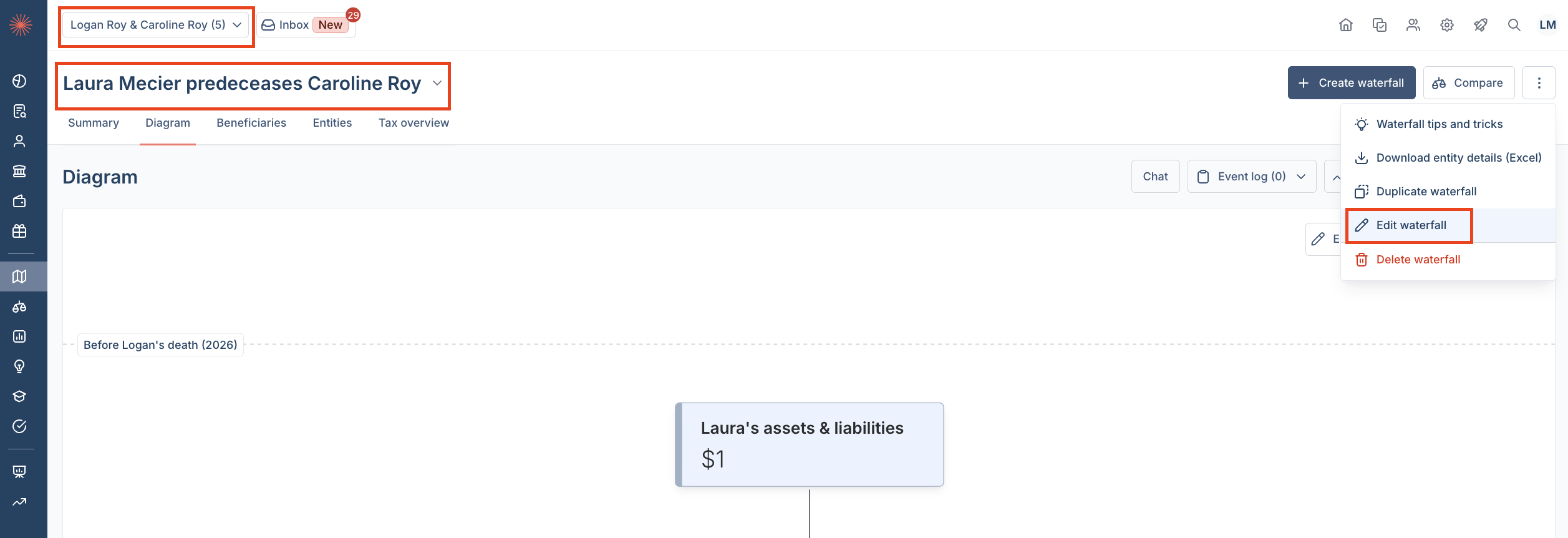
The waterfall diagram title will not change names. To update, click the three vertical dots in the upper right corner of the waterfall diagram, then select Edit waterfall.
Holding group names in the Direct Holdings page of the Estate tab will not change. To update these, follow the steps below:
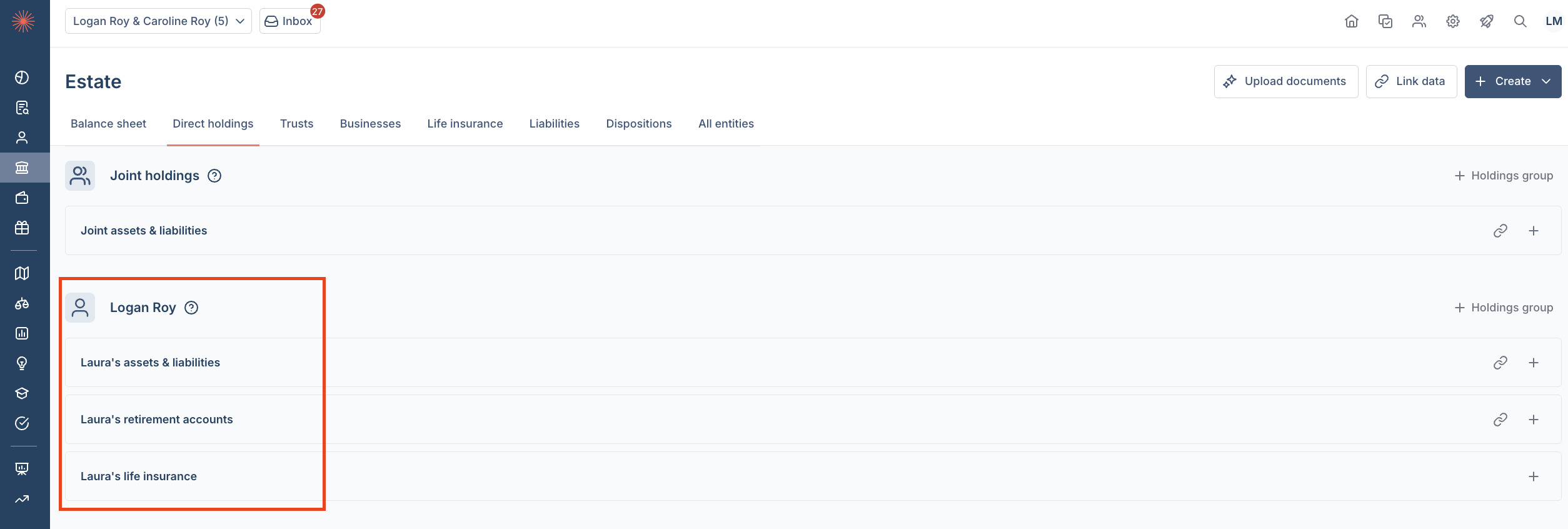
If the entities hold assets, go to the Overview page of each entity. click the three vertical dots in the upper right corner, and select Delete Entity.
If the entities do not hold assets, add at least $1 of assets to the entity using the plus icon on the right side of each entity or holding group, then follow the same steps above to delete.
To add entities or holding groups back, click + Holding group on the right side of each owner.
Cash flows do not change. To edit, click on the cash flow. To delete, click the three vertical dots on the right side of any unwanted cash flows.
