Add holdings: manually
Last updated: October 24, 2026
Use Luminary AI to add holdings by opening the assistant chat and typing holdings you want to create. For more information about adding holdings with AI, click here.
Assets can be added to trusts, businesses, and holding groups by:
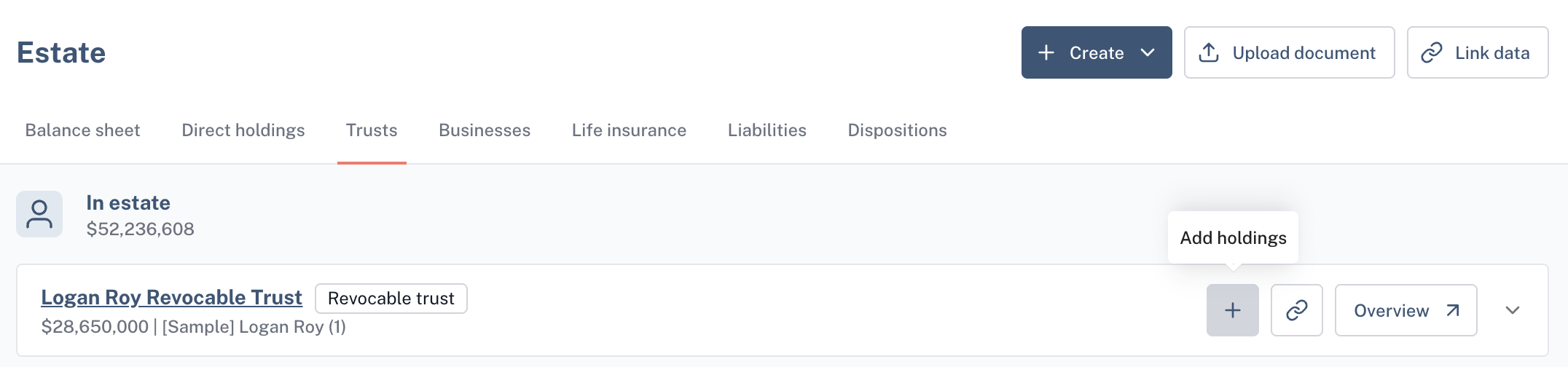
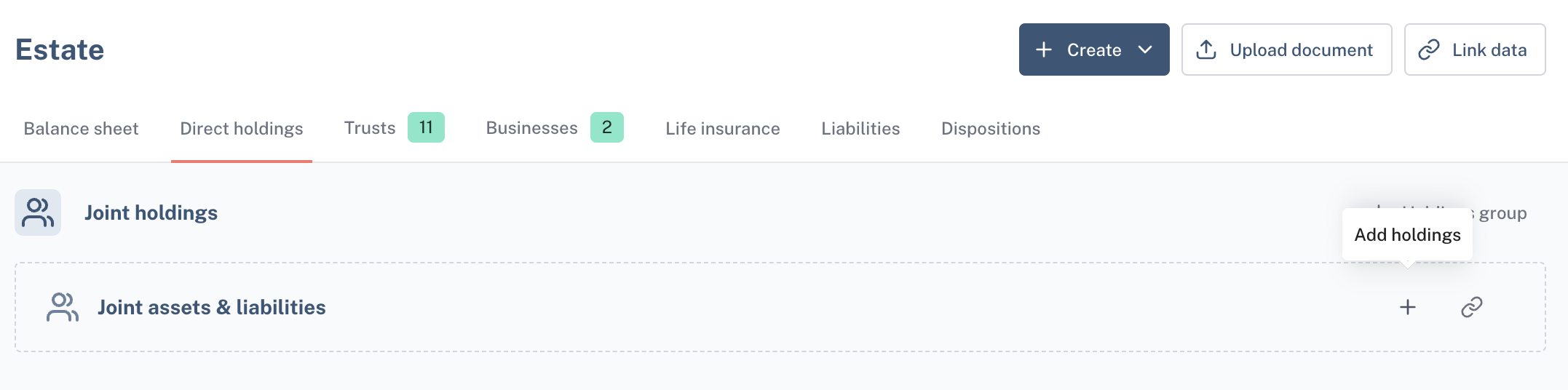
Clicking on the + icon for a direct holding group, trust, or business directly from any of the cards shown across the tabs in the Estate section.
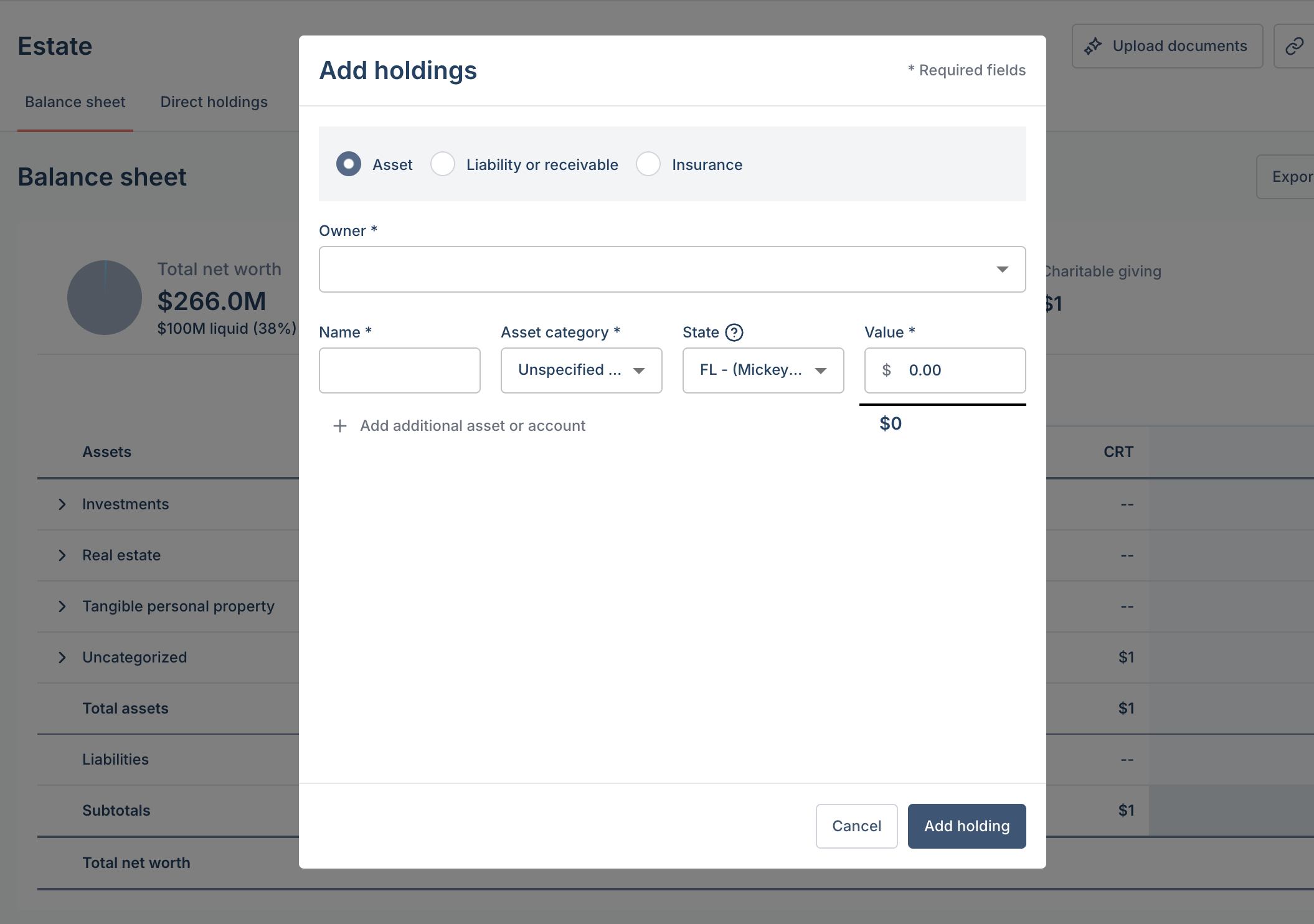
Clicking "Add holdings" from the Create menu of the Estate page. From here, you'll select the type of holding, the owner, and the asset details (name, category, state, and value).
The state location of the asset indicates the physical location of the asset for state estate tax purposes. By default, assets are assumed to be in the resident state of the owner. Any real or tangible personal property that is located in a non-resident state may be subject to that state's non-resident estate tax.
Opening a given entity's entity overview and clicking on the “Edit current holdings” dropdown which surfaces the option to “Update current holdings"
The level of detail depends on the conversation you want to have with your client. If high-level values are sufficient, you can enter overall net worth as a single asset (e.g., "Investments - Blended"). If you're aiming for a more detailed view of an entity's holdings, you can list as many individual assets as needed.
Luminary pre-creates a set of holding groups (learn more here) for direct holdings. These are not officially active and viewable across the platform until at least one holding is added.
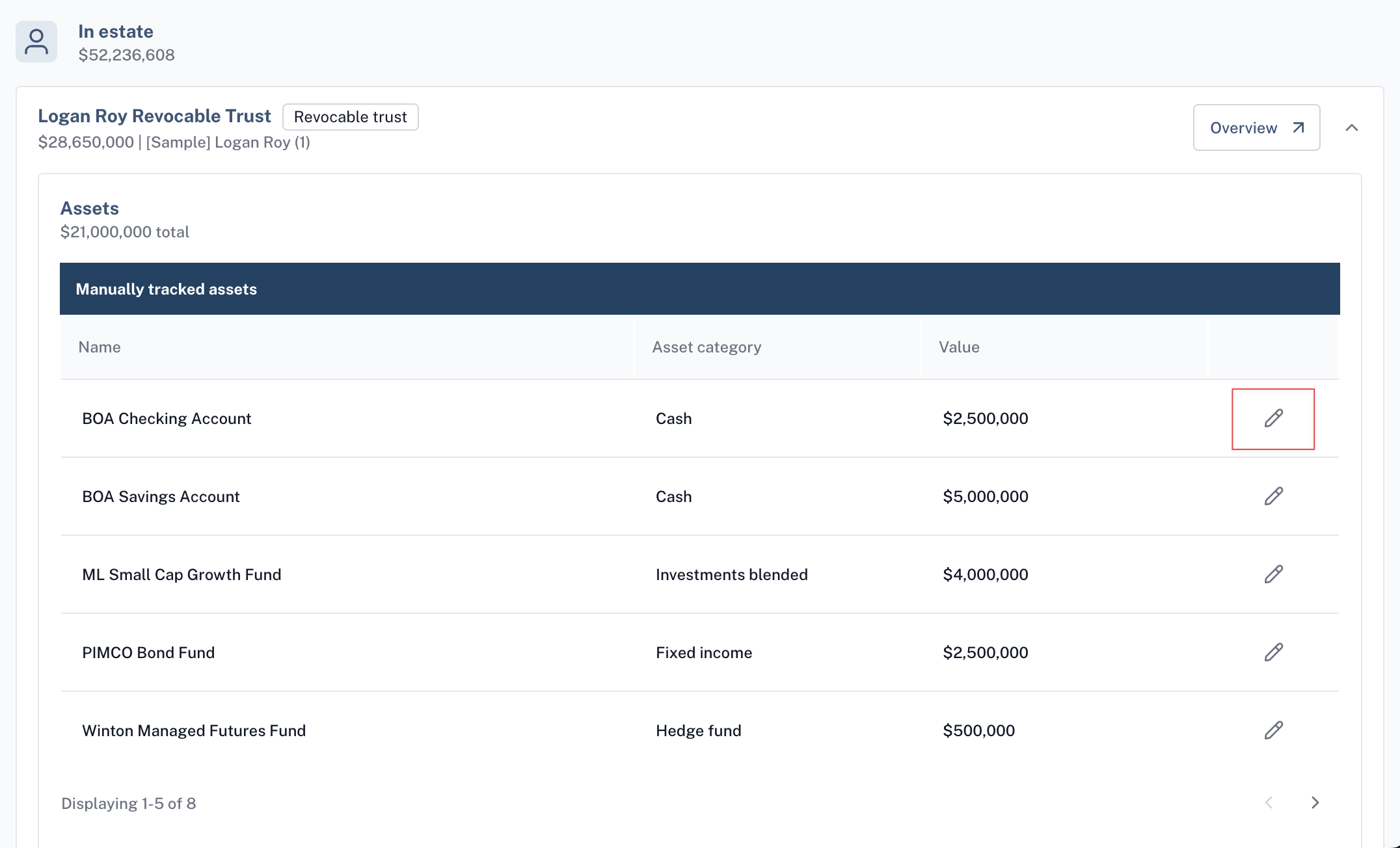
To view and edit holdings already entered, you have the option to expand the trust, business, or holding group card and view everything it owns. Click on the ✏ icon for each holding to edit directly without leaving the Estate page.
The valuation date at the bottom right will be recorded for all the assets structured. When entering via options 1 and 2 listed above, today's date is used by default.
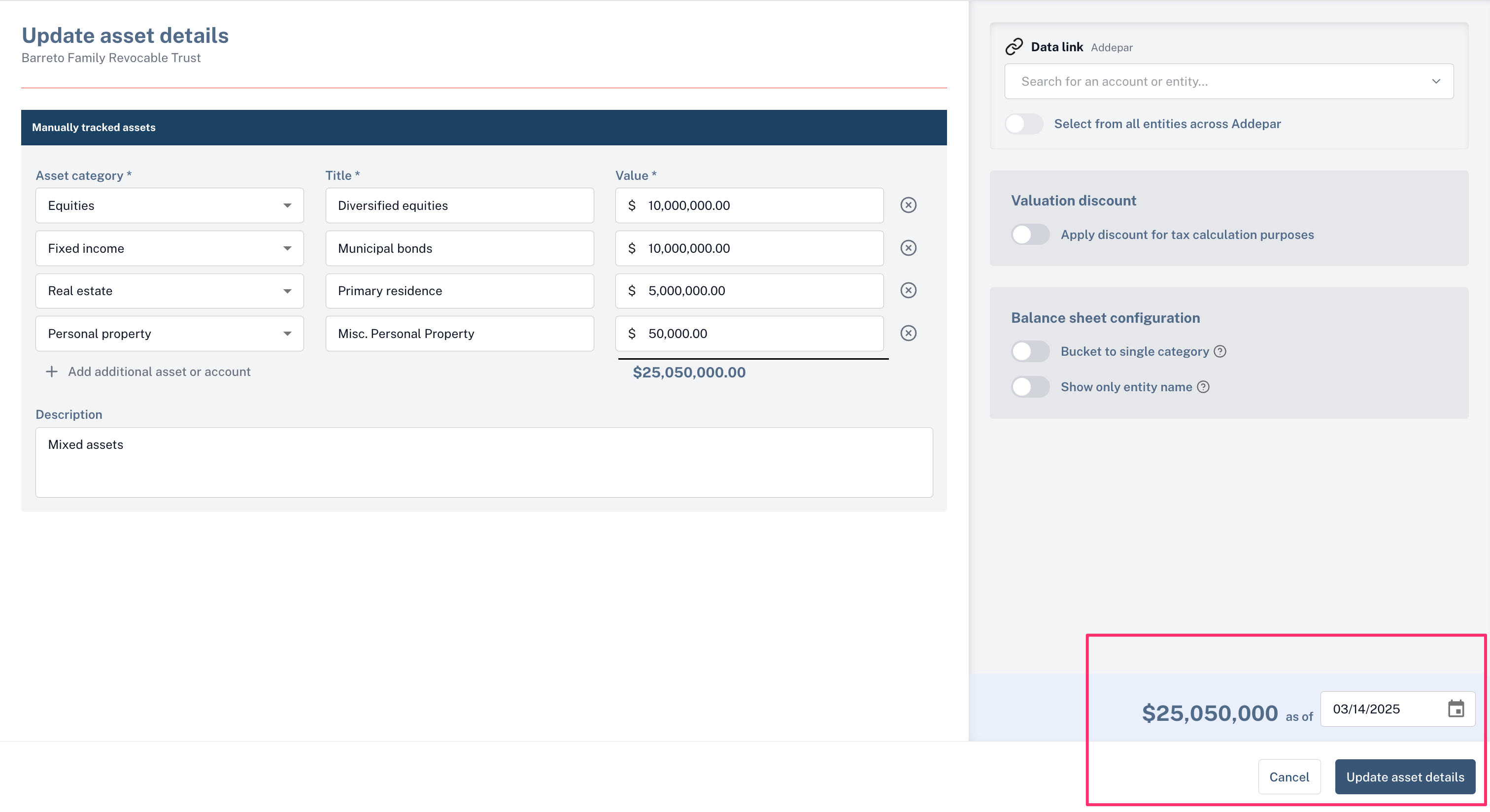
When new assets are added, the default state is to set the asset category as “Unspecified (Liquid)” . This can be edited from the Update holdings screen at any time.

Learn more about asset categories and category management here:
📄 Configure Balance Sheet