AI summary prompt management
Last updated: November 7, 2025
Overview
Luminary allows administrator and wealth strategist users to create custom prompts. Customizable summary prompts are available across various document types so firms can set their voice and depth of output. A great example use case is for trust admin teams to create checklists and compliance frameworks to run documents against.
How to manage summary prompts
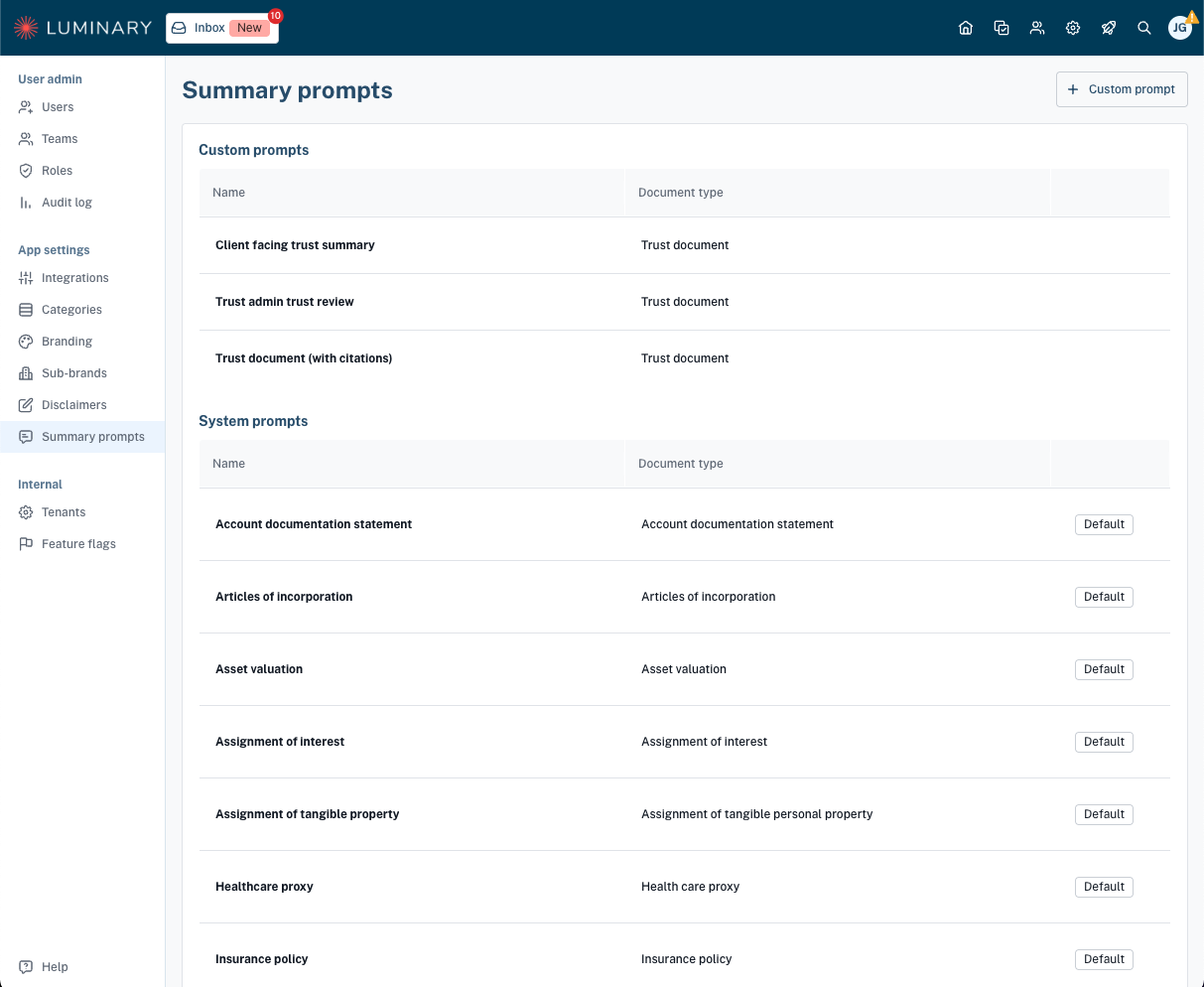
Start by opening settings by clicking on the gear icon at the top right. Navigate over to the Summary prompts page from the left side menu. Here you will see any existing custom prompts shown at the top along with Luminary's system prompts.
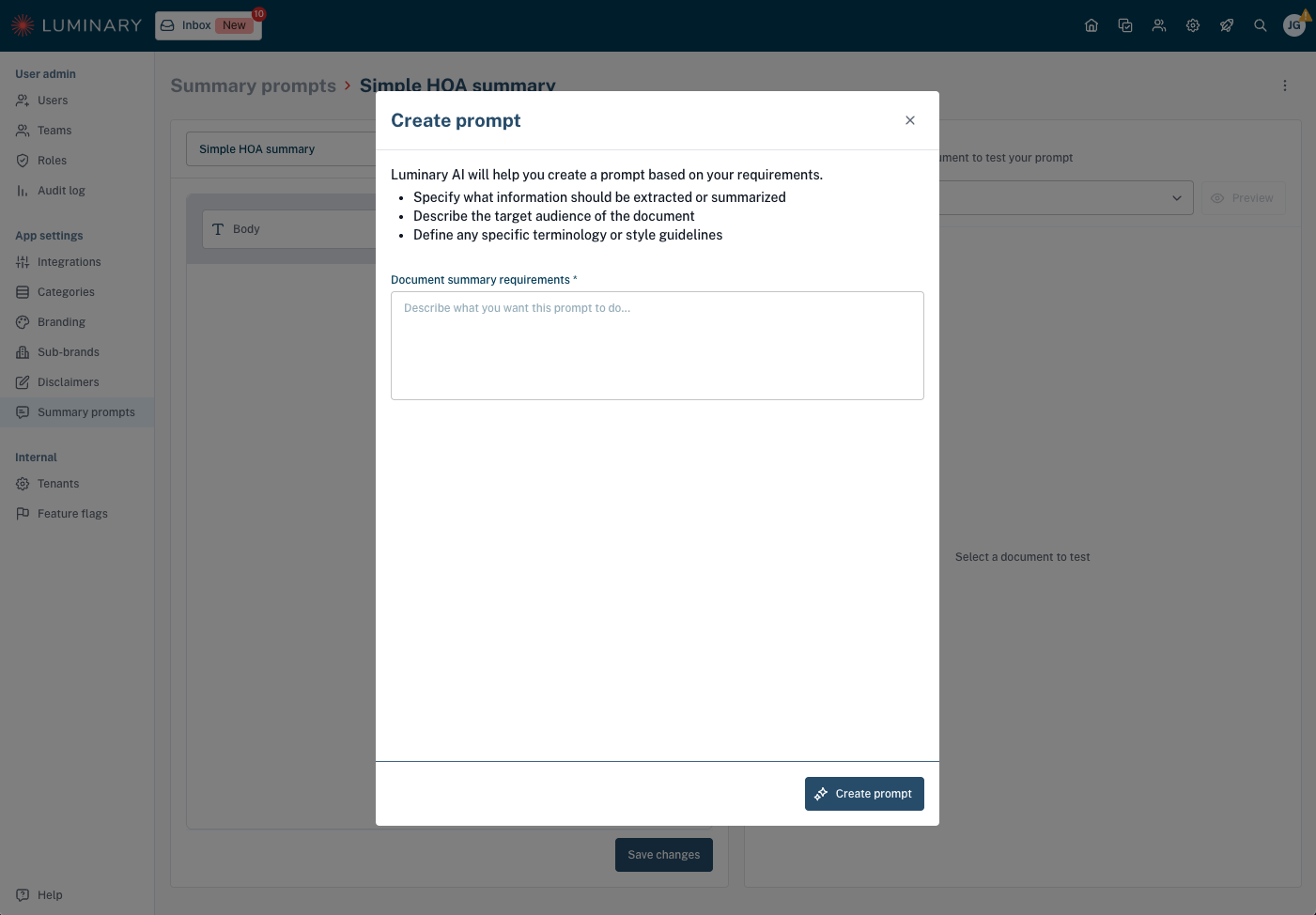
Click + Custom prompt at the top right if you want to start from scratch to create an entirely new prompt. Write the prompt manually or leverage the Create prompt option for help from Luminary AI. Simply describe the desired content and formatting of your summary, and the prompt will get generated for you.
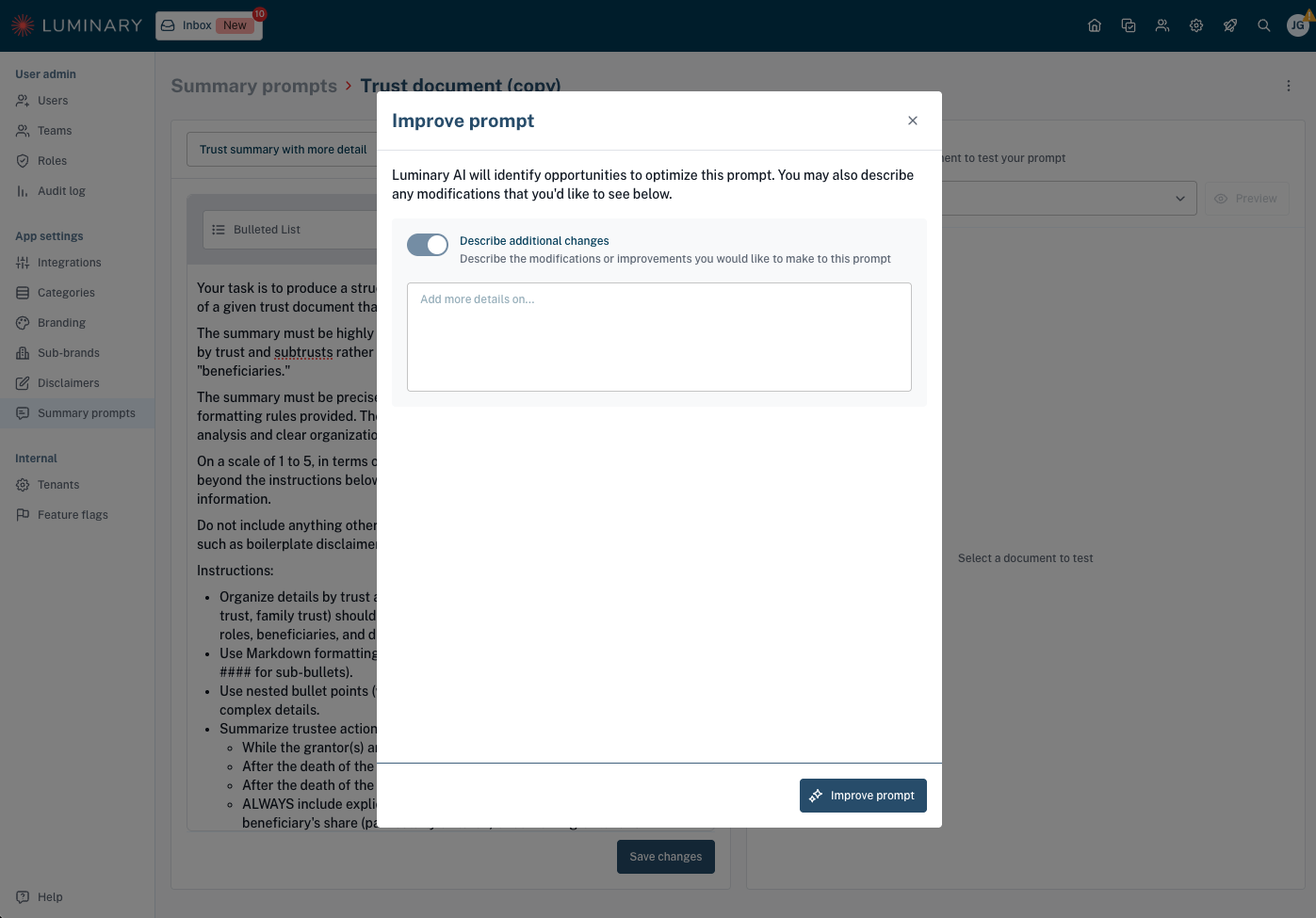
Open a system prompt and click Duplicate to customize if you want to make changes to specific details. You can make these edits manually or click Improve prompt for Luminary AI to assist with prompt editing. Toggle on the option to Describe additional changes to provide your input.
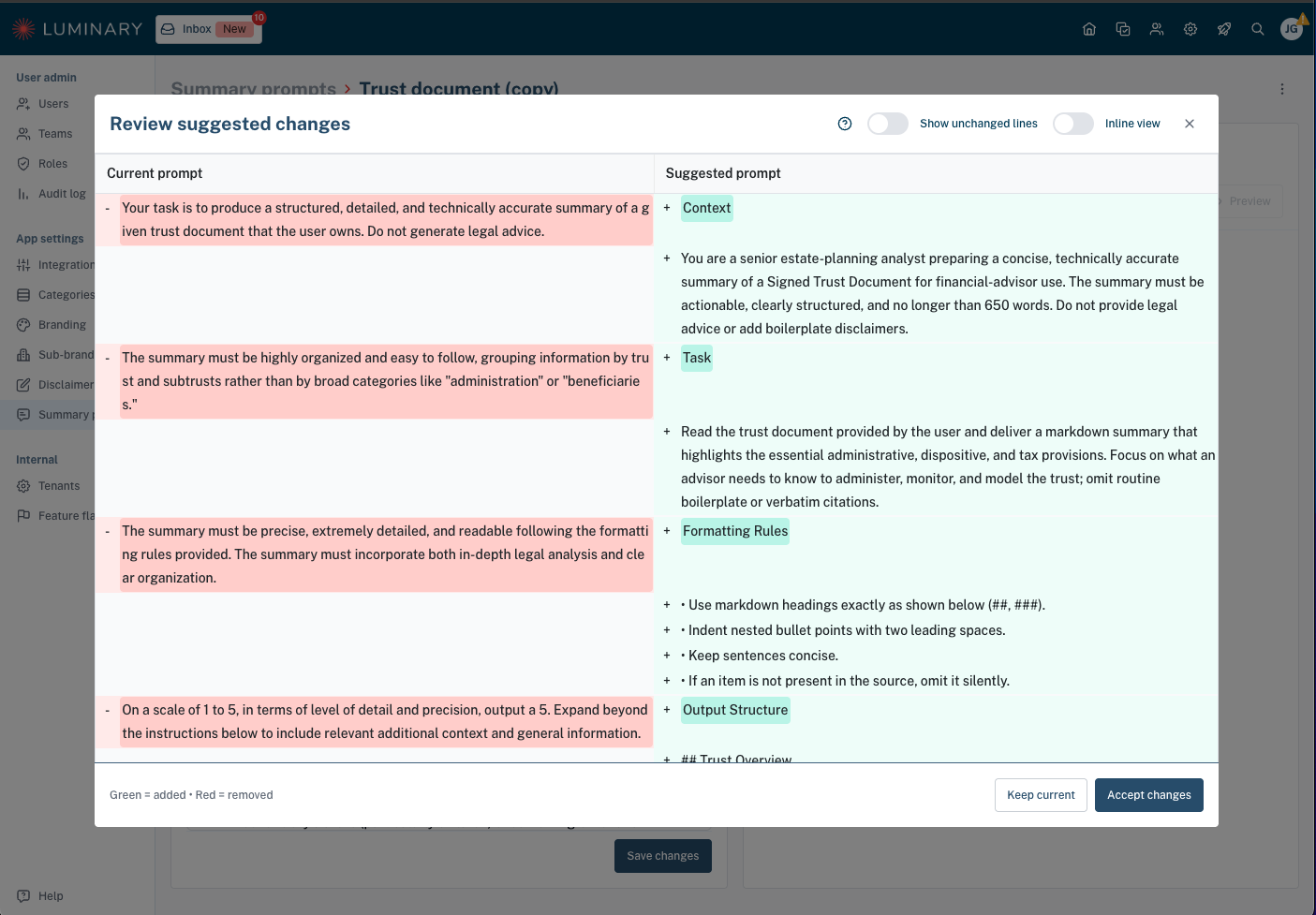
Review suggested changes with "Improve prompt"
Whenever you use Luminary AI to improve the prompt, we'll require you to review the suggested changes before accepting. In this modal, you can compare the original prompt and suggested changes side by side, with red showing removals and green showing additions.
TIP: Do you want to improve a portion of the prompt, but keep everything else the same? When entering additional information into the "Describe additional changes", prompt the AI to keep everything else the same. For example:
"Keep the entire summary prompt the same, but include which articles each summarized bullet point comes from as a citation at the end of each bullet point."