AI document summaries
Last updated: November 20, 2025
Tip: View video tutorials in 1.5x speed!
Overview
AI document summaries provide a clear, comprehensive outline of your clients’ key trust and estate documents—delivered in a fraction of the time it would take to review manually. With support for over 30 document types, Luminary helps you serve clients efficiently while ensuring no critical detail is overlooked, allowing you to scale your practice without compromising quality.
Key Benefits
Saves time: Quickly extract key details without manual review.
Editable: Add notes, restructure provisions, and format the summary to fit your needs.
Auditable: Easily track when edits were made and by whom.
Scalable: Serve more clients in less time without sacrificing quality.
Versatile: Supports a wide range of document types—trusts, operating agreements, and insurance policies—in formats like PDFs, Excel, and image files.
How to generate and use summaries
Running a summary for a trust, will, or business agreement with amendments? See guide on creating combined document summaries.
Step-by-step guide
There are three ways to kick off the process of generating a new document summary:
When creating a new client, after completing inputting the basic client details, select "Create document summaries" as your deliverable
For an existing client,
From the Overview page, select "Create document summaries" under the "Get started with your next deliverable" section, or
From the Documents page, select "Upload documents" in the upper right hand corner
From here, you can can drag and drop files into the pop up window or click within the square that says "Drop files or click to upload a new file" which will open your native file browser and allow you to search for the relevant documents
Once uploaded, review the identified document type on the right hand side. If this is incorrect, select the correct document type from the dropdown menu. Once this is correct, select "Summarize documents" or "Save documents."
If you uploaded documents using the “Select your deliverable” workflow, a pop-up window will stay visible to show progress as the documents are summarized. You’re free to close this window at any time—the summarization will continue in the background. To check the status or view your completed summaries later, navigate to the Documents page.
Depending on the length and number of documents uploaded, the summaries can take a few minutes to process.
Note: If you uploaded documents via the "Build client profile" or "Create entity overviews" workflows, the document summary process will kick off automatically.
Common pitfalls to avoid
⚠ Merged documents - Currently, Luminary does not support uploading multiple documents in a single file. For example, if a trust and its amendments are uploaded together, the summary may be inconsistent or lower quality.
⚠ Selecting the wrong document type - Each document type has a unique template designed to extract the most relevant information. If the wrong document type is selected during upload, the summary may not capture the key details effectively.
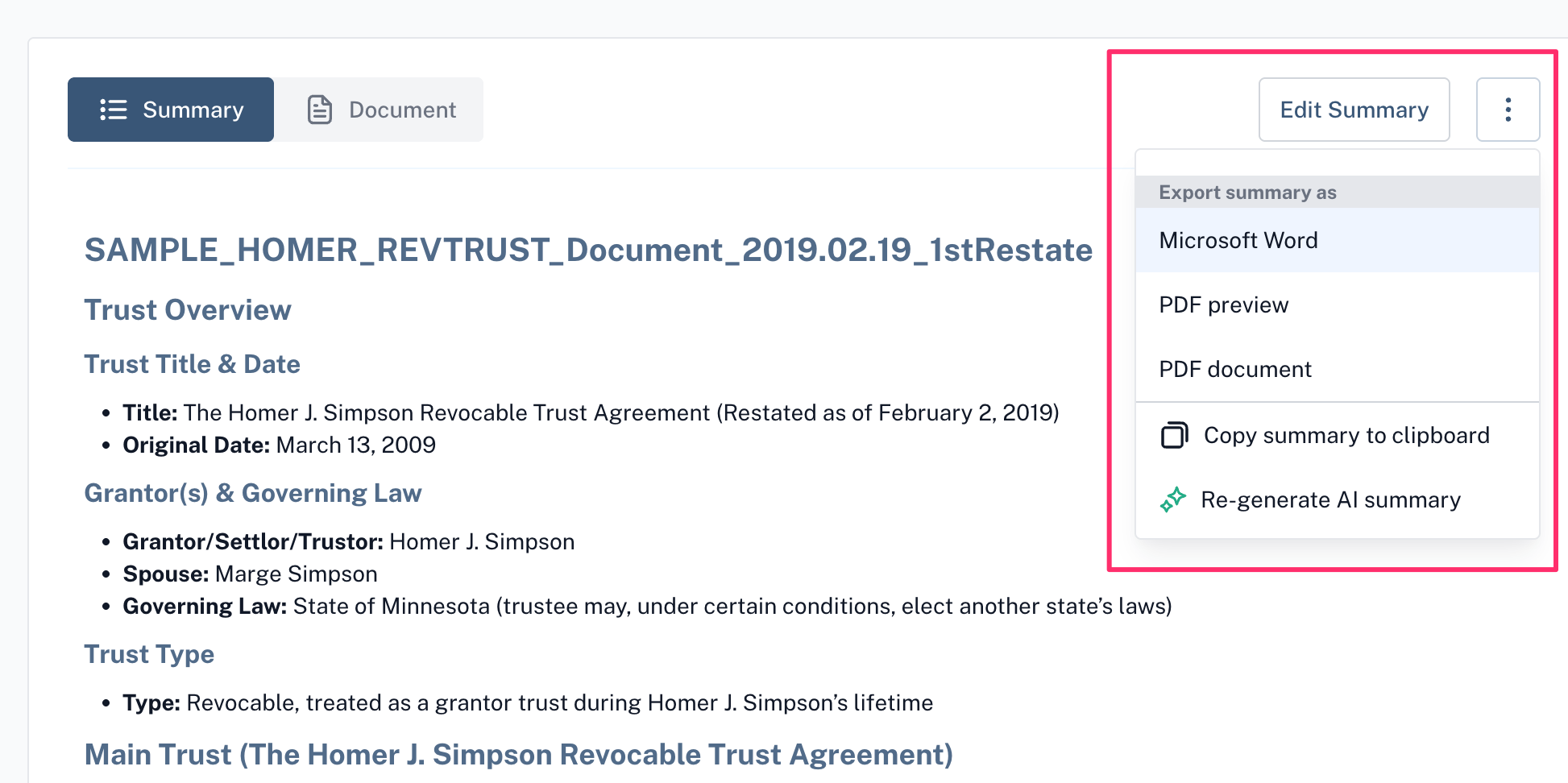
To fix this, open the summary view of the document you want to update. In the lower left corner, click the dropdown menu under “Type,” select the correct document type, and click “Save changes.” Then, click the three dots in the upper right corner and select “Re-generate AI summary” from the menu.
Provide feedback
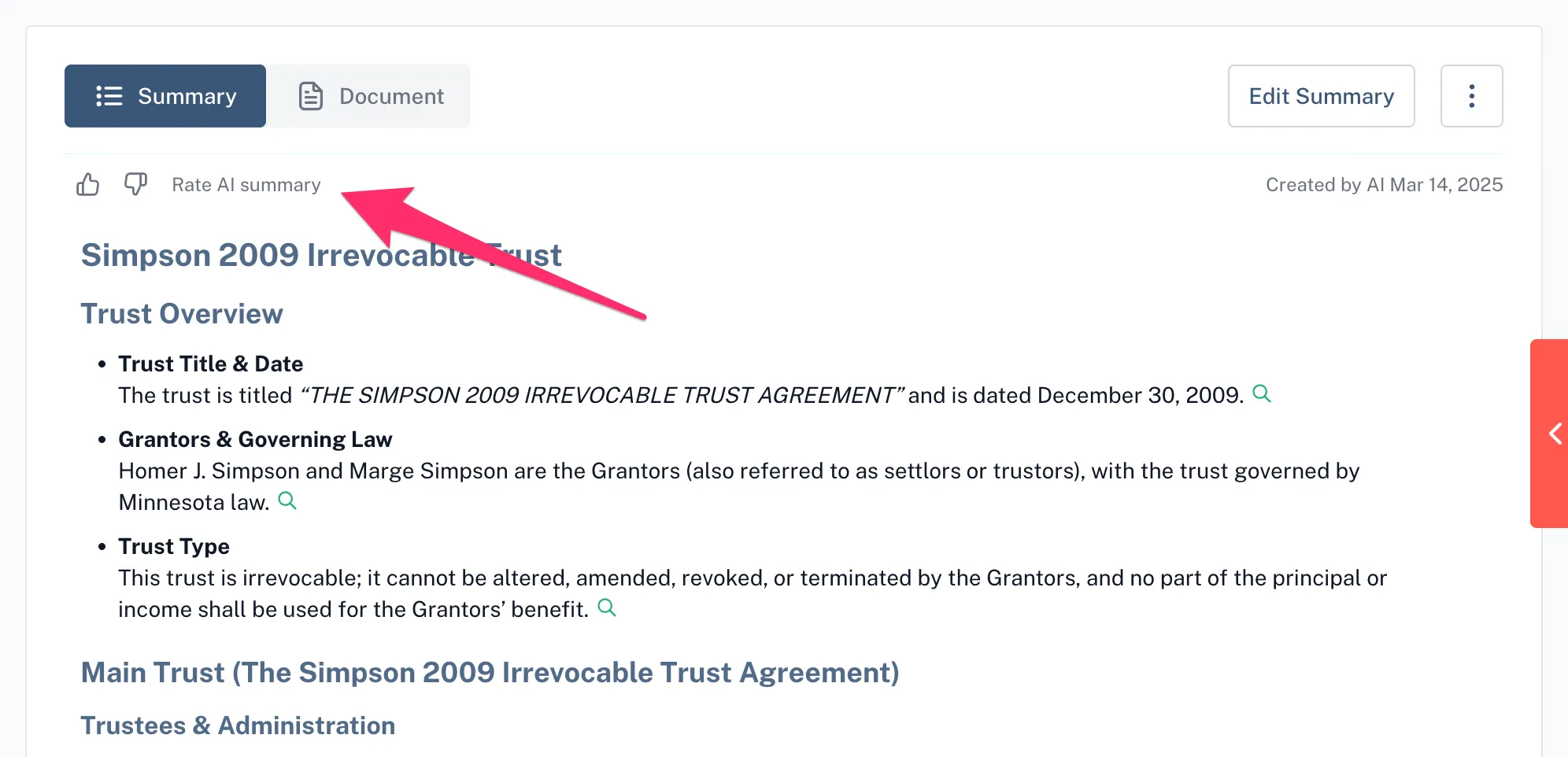
We’d love to hear your feedback! On the summary, you’ll see thumbs up and thumbs down icons that let you rate the summary. If you select thumbs down, a window will appear where you can share details about what could be improved. Your feedback helps us generate more accurate and relevant summaries for you.
Additional Features
New! Conversational Document Chat
Now Luminary's AI document search has conversational chat! Search documents & ask follow up questions directly from the document summary edit view
Editing and split view
To edit a summary, click Edit summary. On the next screen, you’ll see a split screen view of the source document on the left and the summary on the right.
In the edit screen, you can interact with the document using our chat function. Ask questions or search for specific provisions, and we'll highlight all relevant mentions in the document. You'll also receive a plain-English summary of the answer, which you can easily copy using the copy-to-clipboard icon.
The edit window allows you to add, delete, and rearrange text as needed. You can also apply various formatting options, such as bolding text or using different headings.
After saving your changes, you’ll be redirected to the document details page. In the upper right corner, you can see who made the last edit and when, giving you a clear audit trail of recent changes.
Trust and sub trust coverage
Trust summaries include sections highlighting specific details regarding sub trusts that are created from the main trust
Export and Regeneration Options
Export Options
When you're ready to export the summary, you have a few options. You can export it as a Word document or a PDF, or copy the summary text to your clipboard and paste it into an external document or deck.
Luminary Tip
If your summary isn’t quite right, you can easily re-generate it. Just click the three dots in the upper right corner and select “Re-generate AI summary” from the menu. Luminary will reprocess the document to refine the summary. Be sure to select the correct document type to get the most accurate results.
FAQs
How do I know Luminary AI is accurate?
Luminary AI is meant to be a starting point for customers. While we are constantly improving our model’s accuracy through a variety of methods, our intention is to help users more quickly review information in the document. You should verify all summarized and extracted information. We appreciate all feedback on Luminary AI summaries, as we’re constantly updating our AI model.
Can I upload a pdf that contains several T&E documents?
To get the best results from Luminary AI, separate each document you’d like summarized into their own pdf file.
How does Luminary AI work with amendments?
Luminary supports managing amendments or codicils to create combined summaries. Learn more about this feature.