Show/Hide entities from waterfall view
Last updated: April 17, 2025
Luminary allows you to show all entities in a single diagram, or created filtered views that illustrate selected entities only.
New Waterfalls
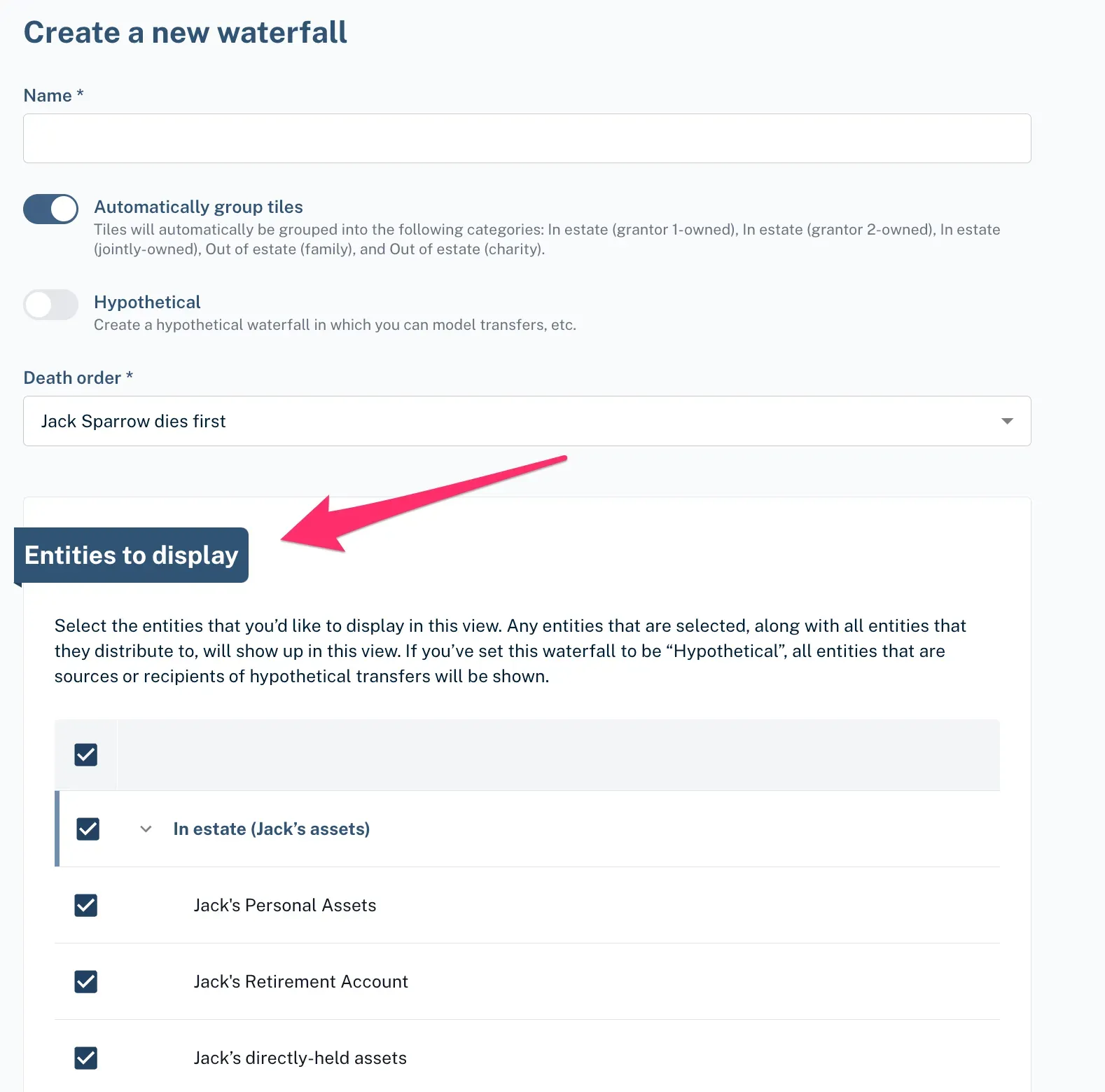
When setting up a new waterfall, you’ll see a list of entities to display:
To exclude any entities from your waterfall view, simply uncheck them.
Note: You can deselect an entire group (e.g., all out of estate family assets) by unchecking the box next to the group title.
Once your selections are made, your waterfall will display only the chosen entities.
Existing Waterfalls
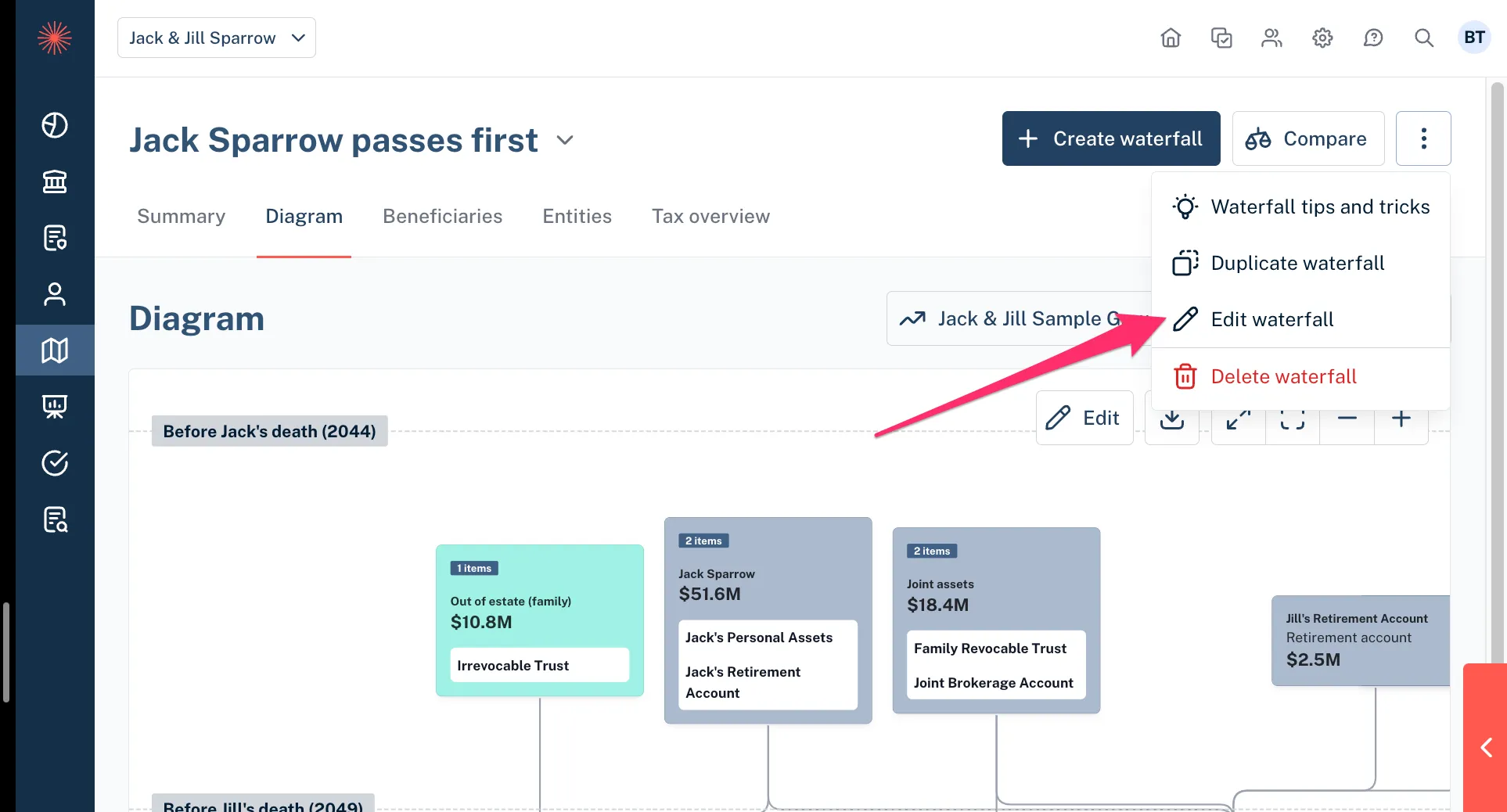
To modify the entities displayed in an existing waterfall, click the three dots in the upper-right corner of your screen and select “Edit Waterfall.”
On the next screen, you can select or deselect entities to adjust your view. Be sure to click “Save Changes” in the bottom-right corner to apply your updates.
❓Troubleshooting: Can't find an entity in view?
The legend in the lower-left corner of your waterfall screen shows the number of entities currently displayed out of the total entities associated with your client. Only entities and subtrusts with dollar values will display on the waterfall views.

Note on Estate Taxes Regardless of entities hidden from view, estate taxes displayed on all waterfalls will show any applicable tax on the entire estate.
However, if you would like to exclude the estate tax tile from a filtered view, you can do so from the diagram’s settings.